![cc5404e7b75e6d484a23b7d9f19a2774.png]](https://support.arworkflow.com/hs-fs/hubfs/cc5404e7b75e6d484a23b7d9f19a2774.png?height=50&name=cc5404e7b75e6d484a23b7d9f19a2774.png)
The Invoices Tab is your one-stop shop for all invoice-related matters within AR Workflow. In this section you have access to all the tools you need to create and manage the following items for your business:
- Invoices
- Estimates
- Credit Memo
- Invoice Settings
- General Invoice Settings
- Products & Services
- Classes
- Custom Fields
- Tax
- Location
-
Payment Methods

Invoices
Invoices created in AR Workflow or synced from QuickBooks Online will show under the Invoice tab.
Here you can:
a. Create a New Invoice
b. Configure the Invoice Settings
c. Receive Payments
d. Process the Invoice
e. Delete an Invoice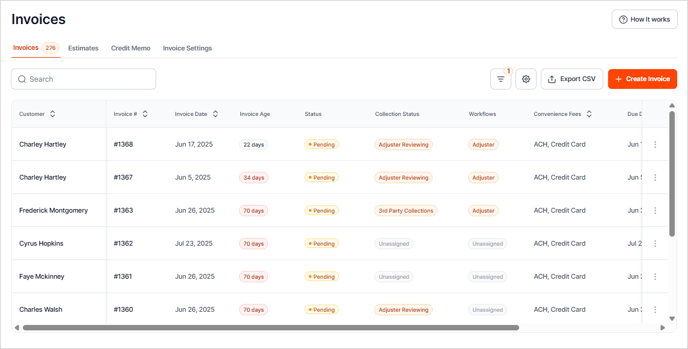
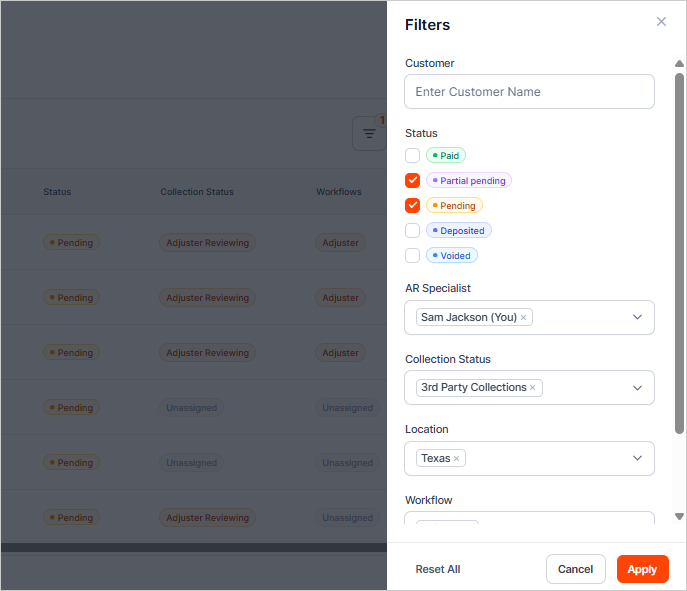
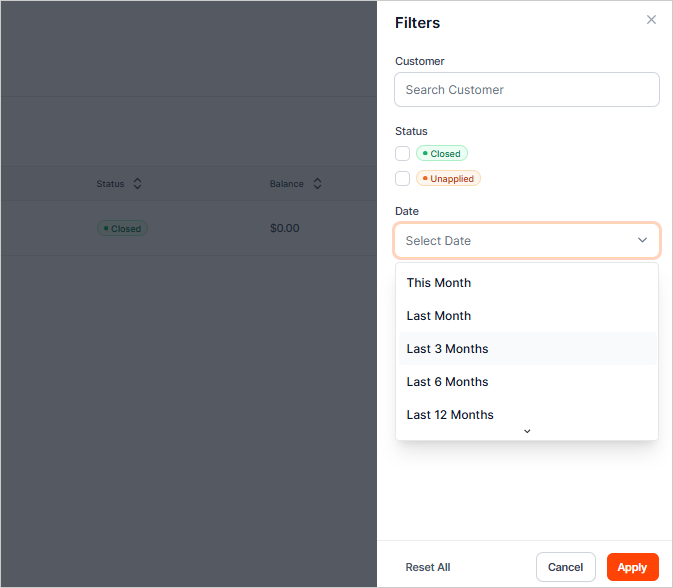
You can filter your table based on the following parameters:
- Customer Name
- Status
- AR Specialist
- Invoice Status
- Location
- Workflow
- Invoice Data
Estimates
The Estimates tab lets you create a new Estimate, create an Invoice from the Estimate, or edit an existing Estimate.

You can quickly search for an estimate from the list, or if you want to narrow down the list, you can use the filter tool to sort the table.
You can filter your table based on the following parameters:
-
Customer Name
-
Estimate Status
-
Estimate Created Timeframe

Credit Memo
The Credit Memo tab allows users to create a new Credit Memo as well as edit an existing Estimate for a customer. This functionality helps streamline the management of customer accounts by providing easy access to both credit adjustments and estimate modifications within a single interface.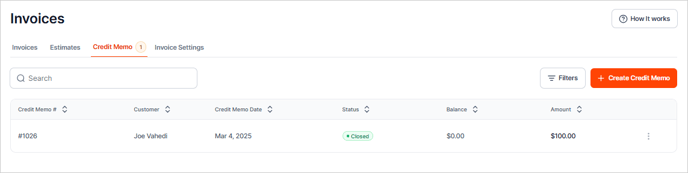
You can quickly search for a specific credit memo directly from the list. If you want to narrow down the results further, you can use the filter tool to sort and refine the table according to your needs.
The table can be filtered based on the following parameters:
-
Customer Name
-
Credit Memo Status
-
Credit Memo Created Timeframe
Invoice Settings
The Invoice Settings tab contains all the configuration options you need to fully customize the invoices you send to your customers. From this tab, you can access and adjust the following Invoice Settings:
- General Invoice Settings
- Products & Services
- Classes
- Custom Fields
- Tax
- Location
- Payment Methods
General Invoice Settings
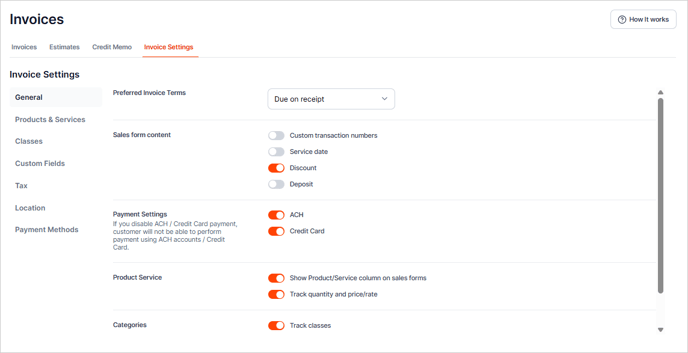
This tab contains the general settings that you can apply to your invoices. From here, you can easily locate and configure a variety of invoice settings. Customize your invoicing process to better suit your business needs using the following invoice settings:
- Preferred Invoice Terms
- Sales Form Content
- Payment Settings
- Product Service
- Invoice Categories
Products and Services
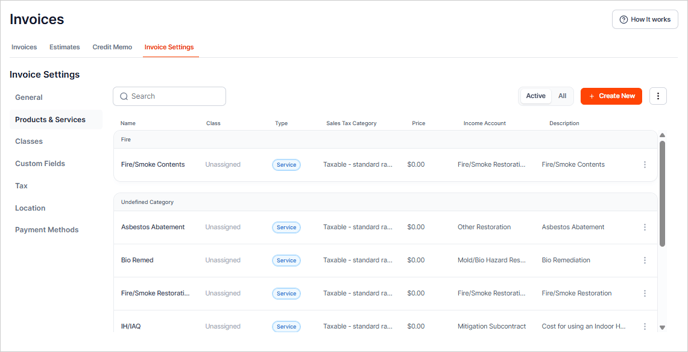
This section contains all the Products or Services you've created that are added to invoices. From this section you have the option to perform the following actions:
- Create a New Product or Service
- Manage the Category
- Manage Income Account
- Update a Product or Service
- Deactivate a Product or Service
Classes
From this section you can perform the following actions:
- Create a New Class
- Update a Class
- Deactivate a Class
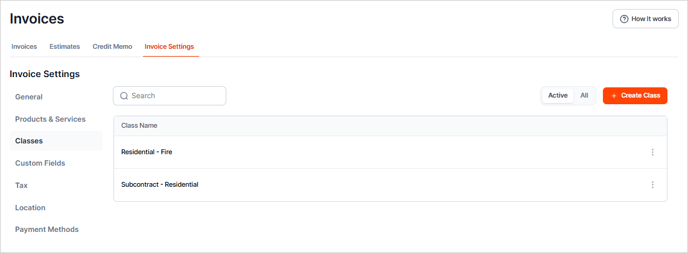
Search a class by using the Search bar we provided or display inactive classes in the table using the All toggle.

Custom Fields
Include more details on your invoice by adding custom fields to your Invoices.

From here, you can name the custom field and choose the data type of your choice.
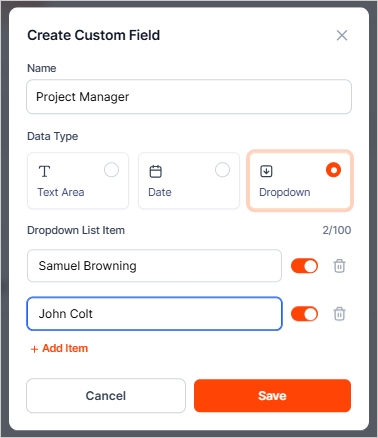
Custom Fields will show on your invoices above the service line items.

Tax
Create Single Tax Rates or Combined Tax Rates from the Tax tab.
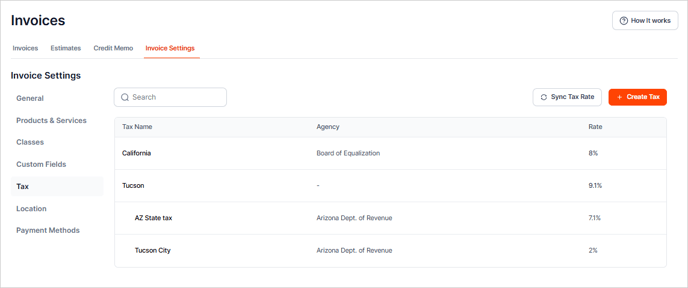

Click the Sync Tax Rate button to sync the Tax Rates between QuickBooks and AR Workflow.

Location
Add the invoice's location from this section. From here you can do a variety of actions:
- Add a new location
- Update a location
- Deactivate a location

Payment Methods
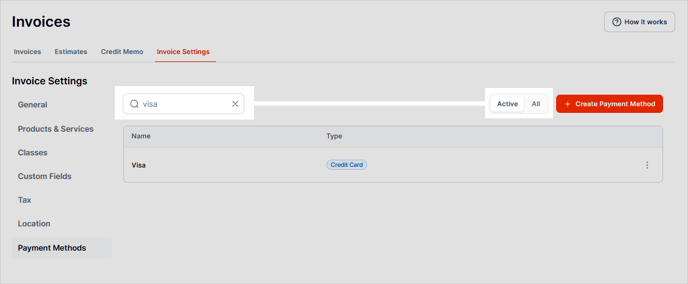
Easily add a new Payment Method to AR Workflow and notate if it is a credit card payment type.

You can add your Payment Method by clicking the + Create Payment Method button. If you need to edit or deactivate a Payment Method, click the three-dots icon and choose the appropriate action.

You can also use the search bar to quickly find the name of the Payment Method. If you need to view all deactivated Payment Methods, toggle All.