![cc5404e7b75e6d484a23b7d9f19a2774.png]](https://support.arworkflow.com/hs-fs/hubfs/cc5404e7b75e6d484a23b7d9f19a2774.png?height=50&name=cc5404e7b75e6d484a23b7d9f19a2774.png)
Any edits made to the Location in AR Workflow will also sync to QuickBooks Online and vise versa.
Navigate to Invoice Locations
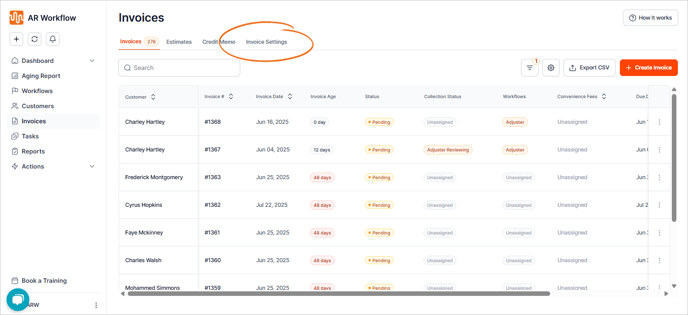
- Using the left navigate bar, select Invoices.
- From here, navigate to Invoice Settings.
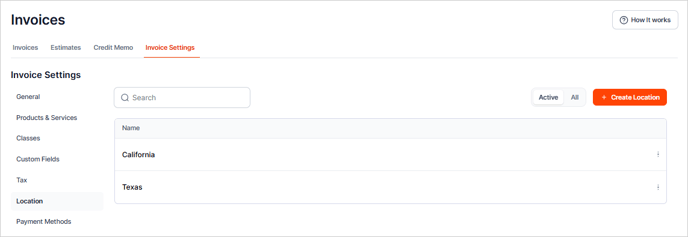
Use the Location tab to view, edit, deactivate, or add invoice locations.
Add a New Location
From the Location tab, select the + Create Location button.

Type the Name of the Location and click Save.
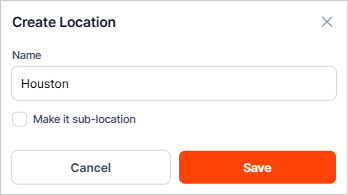
If the Location you are adding belongs to a parent-location, click the Is-sub-location checkbox.

Select a Parent Location from the list.

Once done, select Save.
Edit or Deactivate a Location
To EDIT a location, navigate to the Location tab from the Invoices screen. Click the three-dots icon and choose Edit from the list.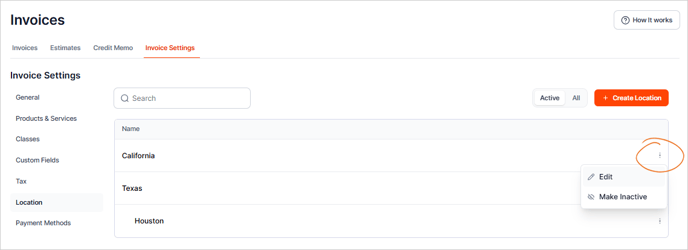
To ACTIVATE or DEACTIVATE a location and select the 3 dots. From here you can choose Make Inactive or Make Active.
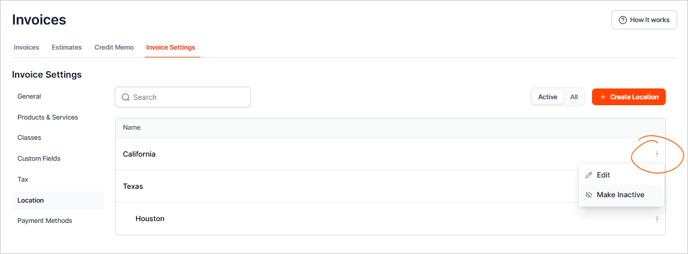
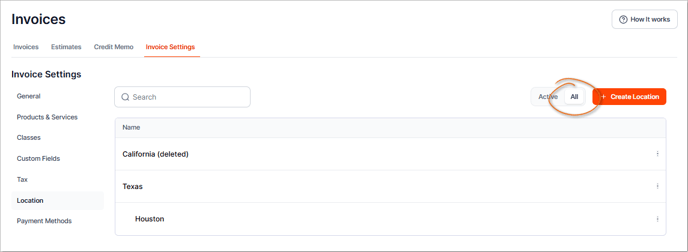
To find a deactivated location, toggle to All.