![cc5404e7b75e6d484a23b7d9f19a2774.png]](https://support.arworkflow.com/hs-fs/hubfs/cc5404e7b75e6d484a23b7d9f19a2774.png?height=50&name=cc5404e7b75e6d484a23b7d9f19a2774.png)
1. Navigate to the Invoices tab.
2. Go to Invoice Settings.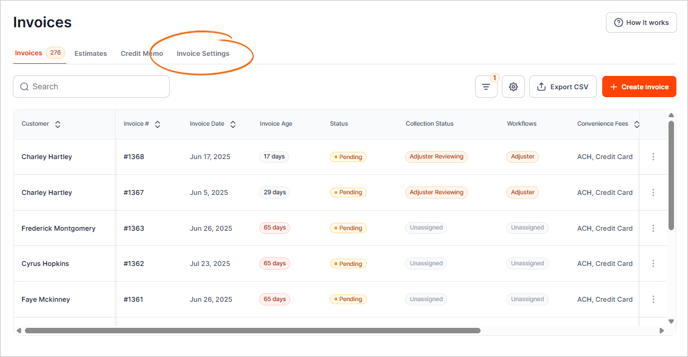
3. Click the Tax tab.

4. Hit + Create Tax.

5. Choose between a Single or Combined Tax Rate.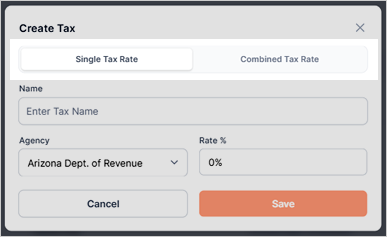
Creating a Single Tax Rate
1. Select the Single Tax Rate option.
2. Type the Tax Name.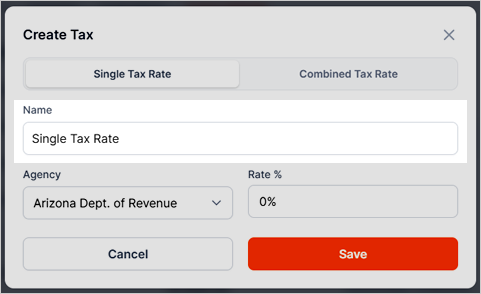
3. Select an Agency Name from the list.

4. Enter a Tax Rate (%).
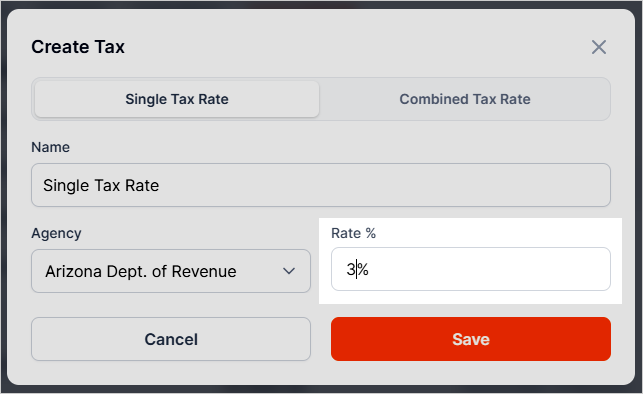
5. Review the details of your Single Tax Rate.
6. Once done, click Save.
Creating a Combined Tax Rate
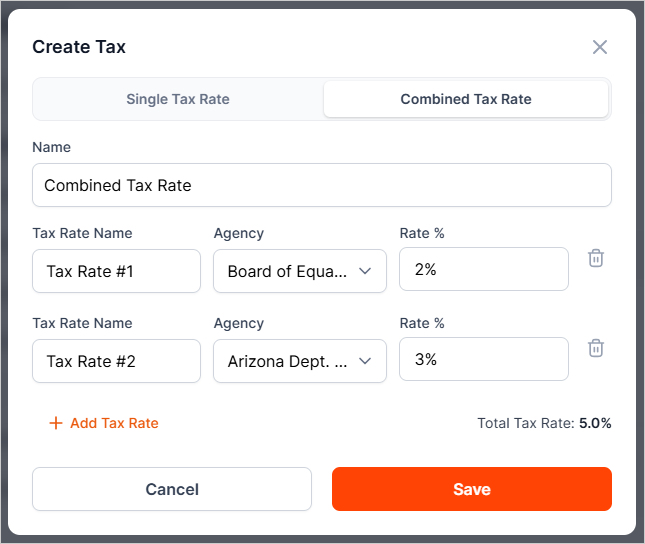
1. Select the Combined Tax Rate option.
2. Enter a Tax Name.
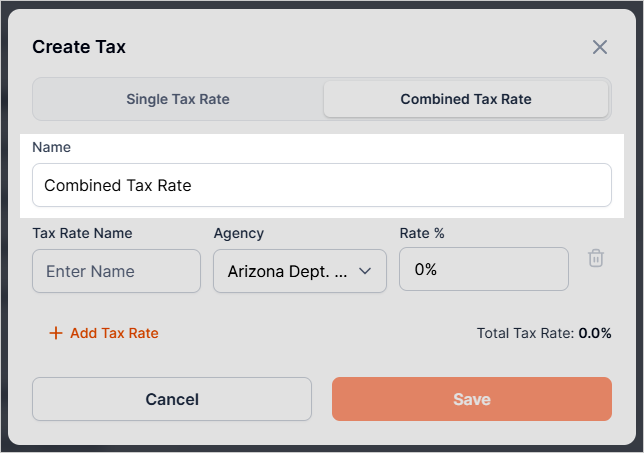
3. Enter a name for the Tax Rate that will be added as the first Combined Tax Rate.

4. Select an Agency Name from the list.

5. Enter a Tax Rate (%).

6. Next, click + Add Tax Rate and enter a name for the Tax Rate that will be added as the second Combined Tax Rate.
7. Repeat step number 2.
8. If you need to add another line, click the + Add Tax Rate button again.
9. Review the details and press Save.