![cc5404e7b75e6d484a23b7d9f19a2774.png]](https://support.arworkflow.com/hs-fs/hubfs/cc5404e7b75e6d484a23b7d9f19a2774.png?height=50&name=cc5404e7b75e6d484a23b7d9f19a2774.png)
Custom fields do not transfer over from QuickBooks Online. To use custom fields in AR Workflow, they will need to be added in the Invoice tab.
Custom Fields allow you to sort, track, and report on information that matters to you. Add Custom Fields to your Invoices and Estimates so you can capture business-related information.
To Create Custom fields, follow these steps:
1. Navigate to the Invoices tab.
2. Go go to Invoice Settings.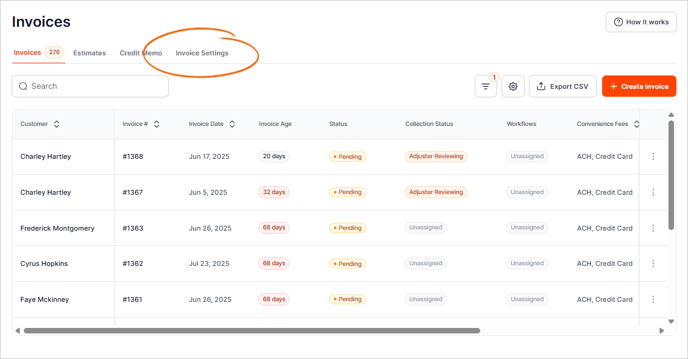
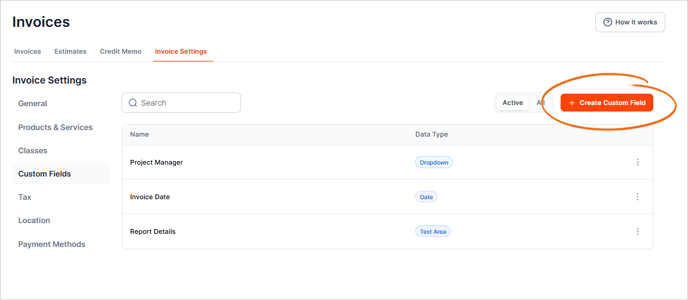
3. Choose the Custom Fields tab.

4. Click the + Create Custom Field button.
5. Type the name of the Custom Field.

6. Select the Data Type that you want to use.
Your custom field can be:
-
Text/Number (free write).
-
Date (calendar pop-up).
-
Dropdown (create a list).

For the drop-down option, add a list of items that will be added to the drop-down.

7. Once done, click Save.
8. Add Custom Fields to your Estimates or Invoices from this field.

Use the Job Average Summary Report to pull a list of drop-down custom fields and sort by
-
Custom drop-down field
-
Report duration
-
Accounting Method