![cc5404e7b75e6d484a23b7d9f19a2774.png]](https://support.arworkflow.com/hs-fs/hubfs/cc5404e7b75e6d484a23b7d9f19a2774.png?height=50&name=cc5404e7b75e6d484a23b7d9f19a2774.png)
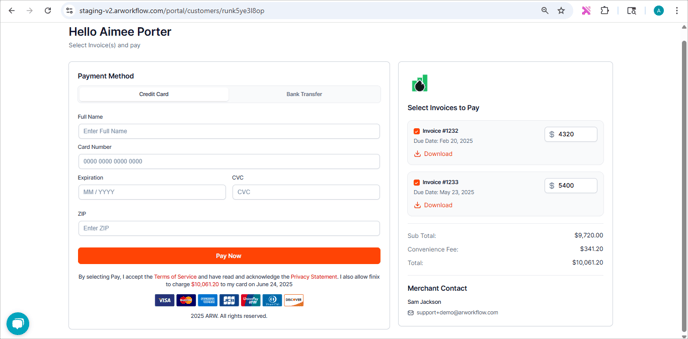
The Customer Payment Portal can be accessed by a customer when they click on the payment link sent via email or SMS.

💡💡 Pro Tip: To view what the payment portal looks like for a customer, copy the payment link from the Customer profile page, open an Incognito window, and paste the link. This will allow you to view the Payment Portal just as a customer would.
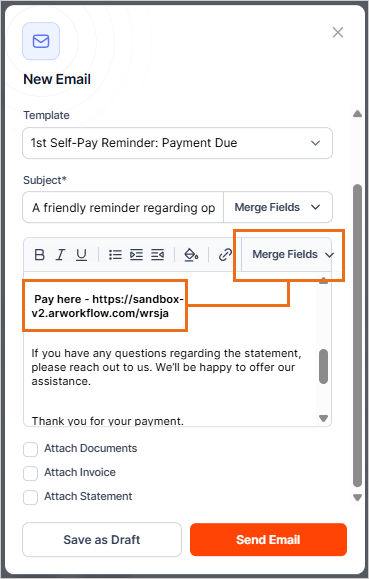
Send the Payment Portal link via Email or SMS
💡Did you know? This link is already included in most pre-populated AR Workflow email and SMS templates! If you'd like to add the payment portal link to a customized email template or manually composed email, simply use our {Customer_Payment_Link} merge field!
Customer Experience
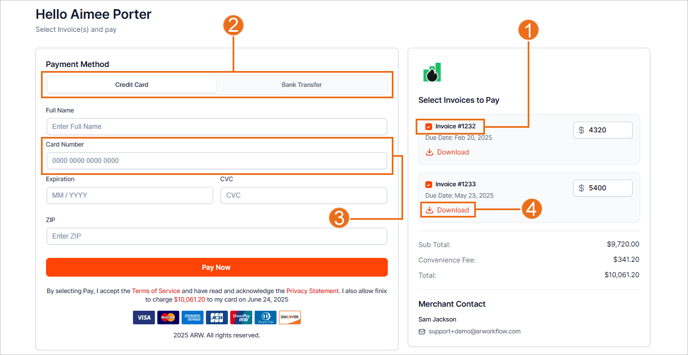
- Once the customer clicks on the Payment Portal link, the customer will choose the invoice(s) they wish to pay during this transaction. If there is more than 1 invoice listed, they can pay for both, or opt to pay for an individual invoice.
- Choose Credit Card or Bank Transfer in the top navigation bar.
- View this article for information on pushing merchant fees to the customer as a convenience fee.
- Enter the appropriate information to complete the payment.
- The customer can also download a PDF copy of their invoice.
Note: Under ACH, the "Bank Code" is the Routing Number for the bank account. The term "Routing Number" is specific only to banks in the USA, whereas "Bank Code" is a universal term, however, both refer to the same number.