![cc5404e7b75e6d484a23b7d9f19a2774.png]](https://support.arworkflow.com/hs-fs/hubfs/cc5404e7b75e6d484a23b7d9f19a2774.png?height=50&name=cc5404e7b75e6d484a23b7d9f19a2774.png)
Update email and SMS templates from the Workflow tab.
Editing is limited to the Owner, Admin and AR Manager roles.

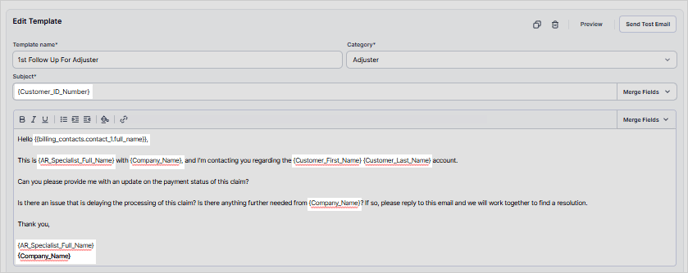
After syncing QuickBooks, the first step to ensure success with AR Workflow is to make sure each customer has a:
-
Email
-
Phone/Mobile Number
-
Billing Address
-
Clam Number (Customer ID) - If needed
-
Billing Contact - If needed
Steps
In the Customers tab, click the cog wheel icon.
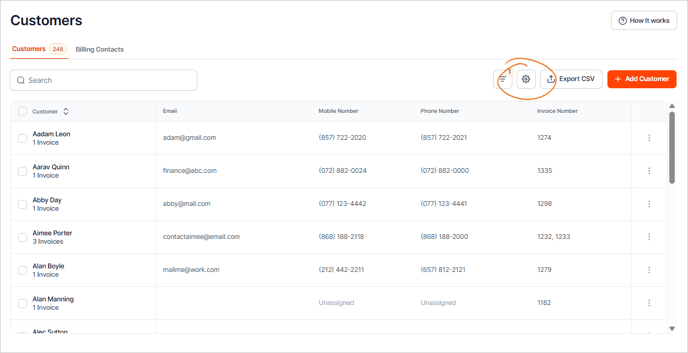
Remove any columns that don't pertain to this project. The only columns left should be Invoice Number, Customer Email, Mobile Number, and Phone Number.

Click the three-dots icon and choose Edit Customer to see the details of the customer.

Ensure there is a:
-
First and Last Name (merge fields {Customer_First_Name} {Customer_Last_Name})
-
Email
-
Mobile (for SMS)
-
Claim Number (If needed) (merge field {Customer_ID_Number})
-
Billing Address (merge field {Billing_Address})
-
Billing Contact (if needed) (merge field {Billing_Contact_#1_Full Name})

Press Save Changes and you're good to go!
All edits here, with the exception of the claim number and billing contact, will sync over to QuickBooks.