![cc5404e7b75e6d484a23b7d9f19a2774.png]](https://support.arworkflow.com/hs-fs/hubfs/cc5404e7b75e6d484a23b7d9f19a2774.png?height=50&name=cc5404e7b75e6d484a23b7d9f19a2774.png)
The Customer Details screen is your customer "control room." Here you have all the information and tools you need to manage your customer and invoice. You can send customer communication, view associated activities, post payments and more!
1. Navigate to the Customers tab.
2. Select a customer from the list.

Customer Details
View a customer's basic details, including their email and phone number. To update this information, click the three dots icon and select Edit Customer.

To view the customer's full details, click their name in the list.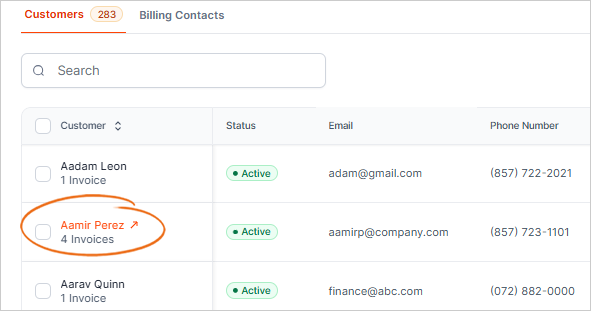
Customer Payment Actions
-
Payment Settings - Update the customer's payment options.
-
Customer Payment Link - This button copies the Customer Payment Link to your clipboard.
-
Customer Statement - Download the Invoice Statement in a PDF format.

Customer Billing Details
View the customer billing and shipping address.

+ Create Invoice
Add an invoice to the customer profile using the + Create Invoice button.

This table displays the list of all invoices for this customer.

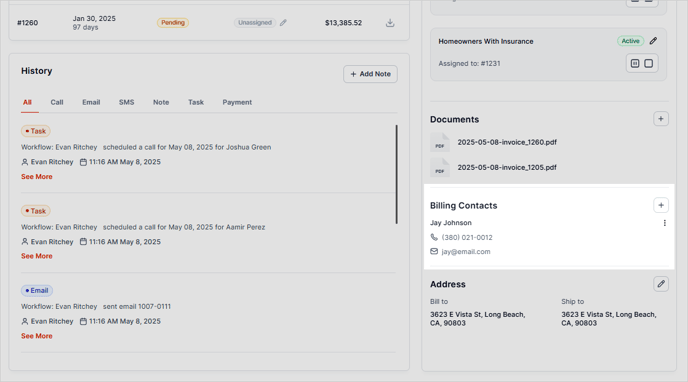
You can also change the invoice status of collection (a) and download a PDF version of the invoice (b).

History
View all activities performed for this customer. Activities are:
inbound/outbound calls, inbound/outbound emails, inbound/outbound text messages (SMS), notes, task, and all payment activities.

Need to add a note? Click the + Add Note button.

AR Specialist Actions
Perform the following actions directly from the Customer Details page:
-
Assign a task
-
Call the customer or billing contact
-
Send an email or SMS message
-
Add a note
-
Notate a Promise to Pay
-
Take a customer payment and apply it to an open invoice

Assign an AR Specialist
Every customer has an AR Specialist who is responsible for client communication, follow-up, and payment collection. Use this section to assign an AR Specialist.

Assign a Workflow
Assign a Workflow to each of the Billing Contacts and invoices from the Assigned Workflow section of the Customer Portal.

Documents
Upload documents to the Document section. Email templates that have "Attach Documents" selected will pull from this section.

Billing Contacts
This section displays Billing Contacts assigned to this customer. Add a Billing Contact by selecting "Add Billing Contact".