![cc5404e7b75e6d484a23b7d9f19a2774.png]](https://support.arworkflow.com/hs-fs/hubfs/cc5404e7b75e6d484a23b7d9f19a2774.png?height=50&name=cc5404e7b75e6d484a23b7d9f19a2774.png)
AR Workflow offers the following payment settings:
-
Offering ACH and/or Credit Card payment options.
-
Enabling/disabling Customer Convenience Fees for ACH and/or Credit Card.
To adjust these settings on a global basis for all customers,
Global settings can only be changed by and Owner or Admin user profile.
1. Navigate to the Business Settings. 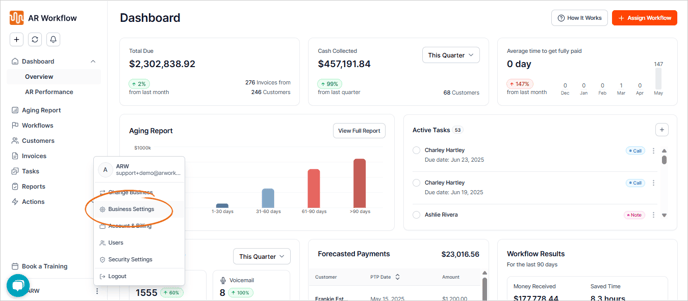
2. Open the tab for Payment Settings.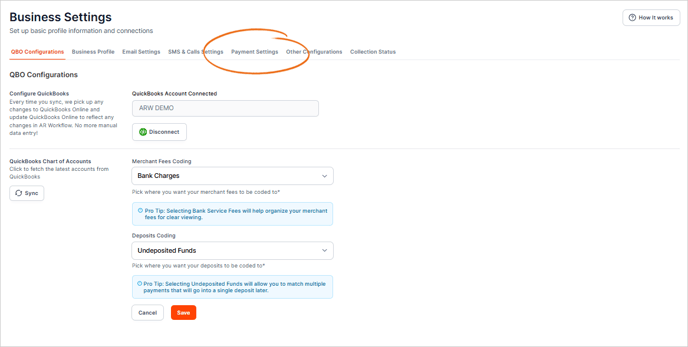
3. Toggle to ON/OFF the payment settings that you need.

4. Click Save to apply the payment settings.
To adjust payment settings on an customer by customer basis,
1. Navigate to the customer's profile and select the Payment Settings from the list.

Here you can make individual changes to the customer's payment settings on a case by case basis.
-
Choose to allow the customer to pay by ACH and/or Credit Card.
-
Enable/disable the Convenience fee on a customer by customer basis from this section.
-
To update these settings on a universal basis, navigate to Business Settings >> Other Configurations. Once done, click Save.
-

What is the convenience fee?
The business has the option to "eat the cost" of the merchant fee, meaning you will pay it out of pocket, or, you can request that the customer pay it as a convenience fee for paying online via Credit Card or ACH.
The fee is based on standard merchant fees and are:
-
3.5% +.50 cents of the total payment for Credit Card (no maximum).
-
1.5% of the total payment for ACH (up to a $35 fee maximum per invoice).
How will this show on the payment link?
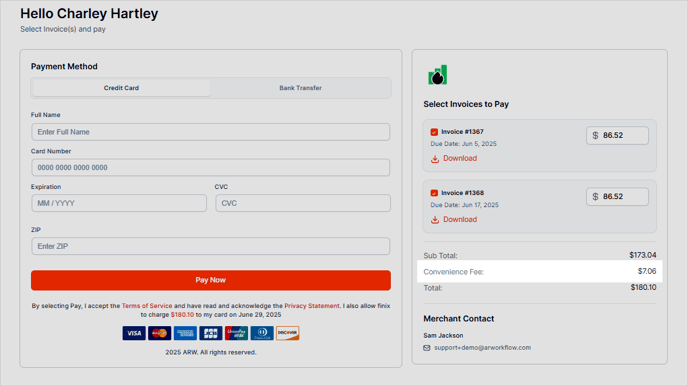
The customer will see something like this on the bottom of the payment page:
If the customer hovers their mouse over the convenience fee in the summary section, they will see the following description of the convenience fee: