![cc5404e7b75e6d484a23b7d9f19a2774.png]](https://support.arworkflow.com/hs-fs/hubfs/cc5404e7b75e6d484a23b7d9f19a2774.png?height=50&name=cc5404e7b75e6d484a23b7d9f19a2774.png)
The Tasks Tab allows you to review all existing tasks and create new tasks for your team. It is divided into four sections:
-
My Tasks
-
Completed Tasks
-
All Tasks
-
Scheduled Tasks
My Tasks
The My Tasks tab displays all open tasks that are assigned to you.
a. Customer Name.
b. Contact the Task is associated with.
c. Task Type.
d. Task Note.
e. Task Date.
f. The user that created the task.
g. Three-dots icon (actions).

There are also three actions that can be performed:
- Mark the task done
- Edit the task
- Delete the task

To delete tasks in bulk, select them and press the Delete button that will appear at the top of the screen.

To create a new task, click the + Add Task button and follow all the steps in this article.

Sort the Task view by date range by navigating through each tab.

Completed Tasks
The Completed Task tab contains all tasks that have been marked as complete.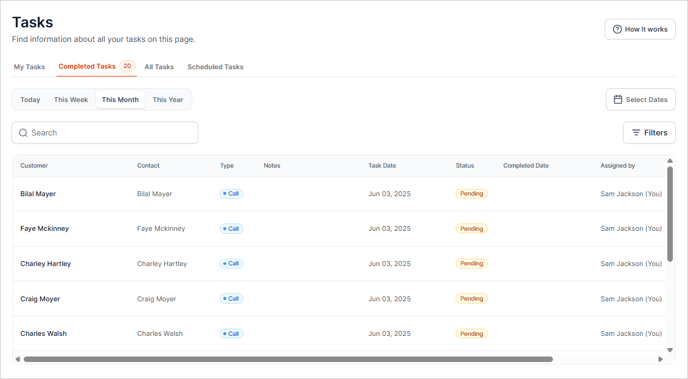
All Tasks
The All Tasks tab displays all open tasks in AR Workflow, regardless of who they are assigned to.
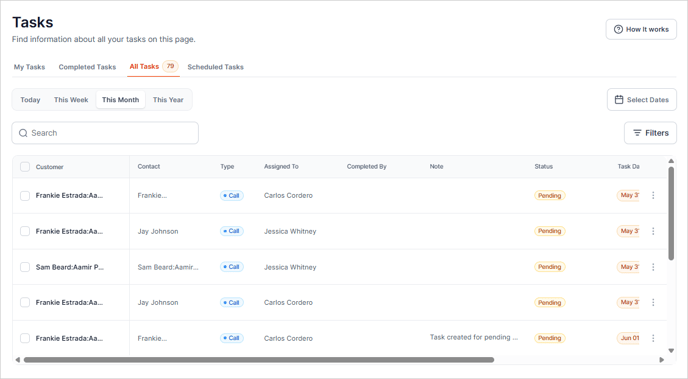
Click the three-dots icon to Edit, Delete or mark a task "Done".

Scheduled Task
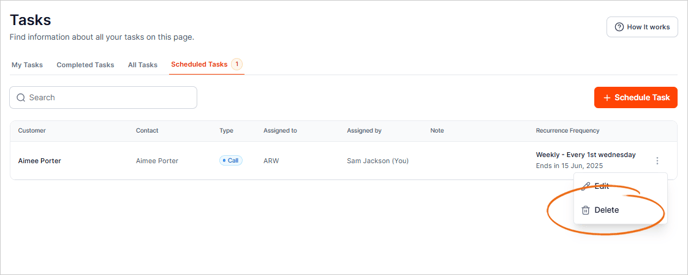
Any tasks that have been scheduled will show under this tab.

To update a Scheduled task, click the three dots icon and choose Edit.

Perform the necessary edits. Once done, click the Save button.

To delete a task, click the three-dots icon and choose Delete. Click Delete to confirm your action.