![cc5404e7b75e6d484a23b7d9f19a2774.png]](https://support.arworkflow.com/hs-fs/hubfs/cc5404e7b75e6d484a23b7d9f19a2774.png?height=50&name=cc5404e7b75e6d484a23b7d9f19a2774.png)
Never forget to call a customer again! Or better yet, schedule an email or text message to go out on the date of your choosing (or on a recurring schedule) so you never miss an outbound communication!
Your customers may say a lot, but they sure can't say they were ignored!
And it gets better! You can add a task to AR Workflow from the:
-
+ Quick Actions Drop-Down
-
Tasks Tab
-
Customer Details Page
In this article, we will cover adding a task from the Tasks Tab, however, feel free to play around with the software and practice adding tasks from the locations mentioned above!
Create a Task from the Task Tab
1. Go to the Tasks tab.
2. Click the + Add Task button.

3. Search the customer the task will be associated with.

4. If the task pertains to a billing contact, use the drop-down to find their name.

5. Choose the Task Type (Call, Message, Email, Internal Note).

6. Set the task Due Date.

7. For Email and SMS tasks, a template is required.

8. To set the task on a recurring schedule, select Set Recurrence Schedule.

9. Set the recurrence schedule.

10. The Task End Date will be when the recurring task will end.

11. Next, add a note.

12. If this task is to be assigned to another user, select their name from the drop-down.
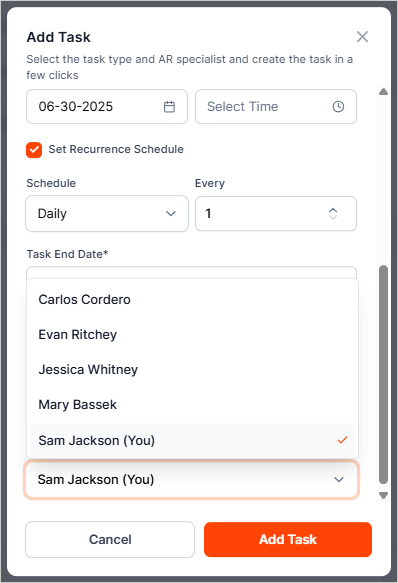
13. Click Add Task.