![cc5404e7b75e6d484a23b7d9f19a2774.png]](https://support.arworkflow.com/hs-fs/hubfs/cc5404e7b75e6d484a23b7d9f19a2774.png?height=50&name=cc5404e7b75e6d484a23b7d9f19a2774.png)
AR Workflow's Email system allows you to quickly and easily.
-
Select an email template to send.
-
Compose an email from scratch.
-
Use merge fields to auto-populate customer data.
-
Automatically upload and send the Customer Invoice, Statement, and Documents.

Send an Email from the Customer Details Page
-
Once you are in the Customer Details page, navigate to the Mail button.
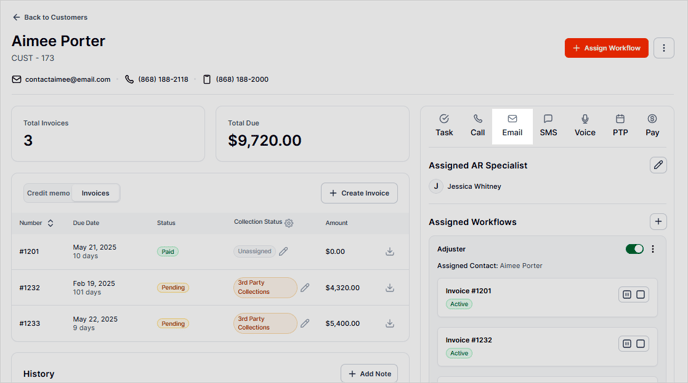
-
Select the contact you wish to send the email to (Primary Contact or Billing Contact) and
-
Choose an email template or
-
Select "Compose Email" to manually type out an email for the customer.
-
Pro Tip: To see what text is in an email template, select the template and it will populate in the body of the email. From here you can make edits before sending it out or delete it and write your own email.
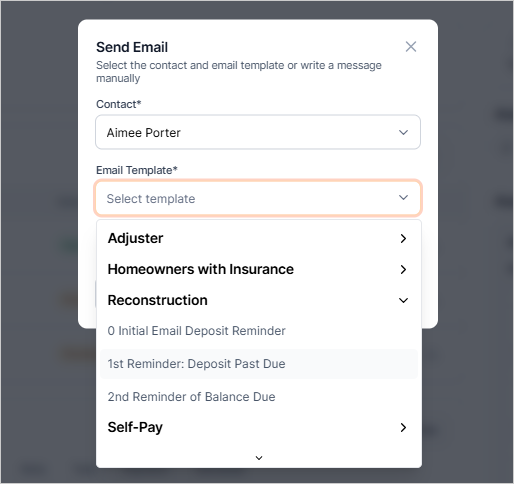
3. Select Compose Email and either choose a template to view and edit or compose your own email from scratch. Use our merge fields to auto-populate things like first and last names, the customer's payment link, statement details, and more.

To add an email to the CC field, be sure to use the TAB or ENTER to secure the email in place. The email should be enclosed in a gray box after pressing the TAB or ENTER key otherwise the CC'd email will not be attached.

Send a templated Email from the + Quick Action Drop-Down
This option includes only the templated emails. To write an email freehand, please use the email option on the Customer Details page or the Email page in the left navigation bar.
1. The + Quick Action drop-down will remain at the top of the screen no matter where you navigate in the software. Select the drop-down and choose the option for Send Email.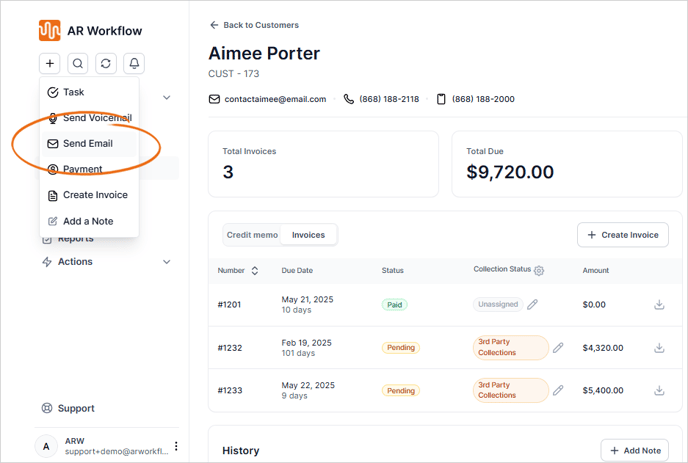
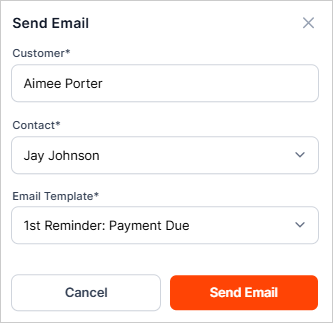
2. Select the Contact (Primary Contact or Billing Contact) and choose an Email template from the drop-down.
This section can only be used with Email templates. If you would like to compose a free-form email, please use one of the options outlined above