![cc5404e7b75e6d484a23b7d9f19a2774.png]](https://support.arworkflow.com/hs-fs/hubfs/cc5404e7b75e6d484a23b7d9f19a2774.png?height=50&name=cc5404e7b75e6d484a23b7d9f19a2774.png)
Close out those pesky open invoices by posting customer payments directly in the AR Workflow software.
There are 5 ways to post payments in AR Workflow:
-
Post from the Invoices Tab
-
Post from +Quick Action Drop-Down
-
Post from the Customer Details Tab
-
Post from the Payment Tab
-
Create a Payment Schedule.

Invoices Tab
1. Navigate to the Invoices tab.
2. Select Receive Payments under the Action column for the selected invoice.

3. Verify the Invoice Number and notate the amount being collected.
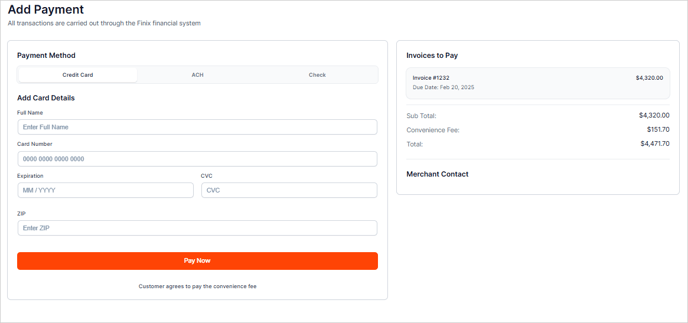
4. Click Pay Now to move to the next step.

5. Choose the Payment Method, and process payment!
Posting a Check is for record-keeping purposes only as the physical check will still need to be deposited in the bank account.

+Quick Action Drop Down
1. Click the +Quick Action drop-down at the top of AR Workflow and choose Payment.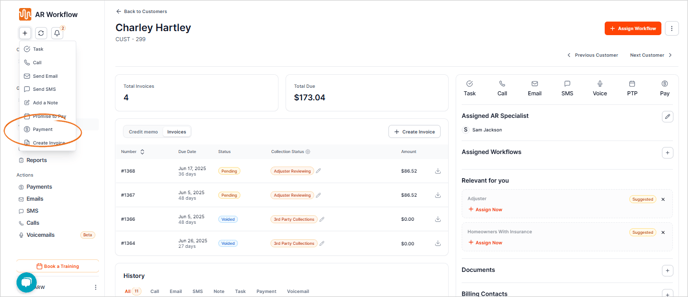
2. Search for your customer.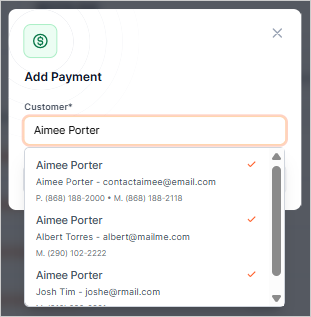
3. Enter the payment details.
4. Post payment!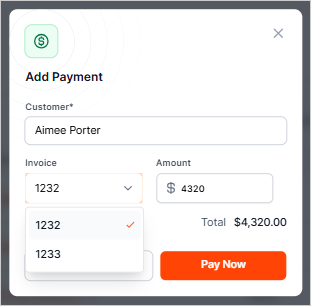
Customer Details Screen
1. Navigate to the Customer Profile by clicking on the name of the customer.
2. Choose the option for PAY in the Action Bar.

3. Ensure the correct invoice is selected and enter the payment amount.
4. Click Save to proceed to the next step.
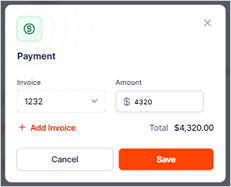
5. Choose the Payment Method, enter the details, and process payment!
Payment Tab
1. Navigate to the Payments tab.
2. Select the + Add Payment button.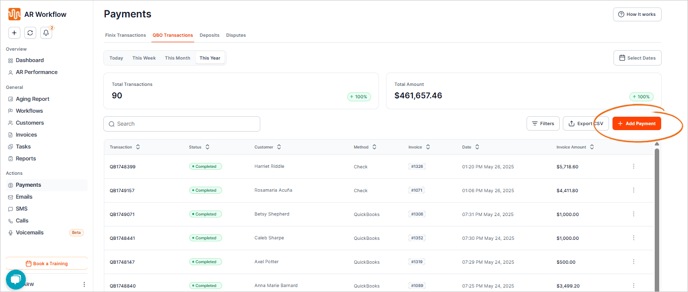
3. Search for the customer you wish to post the payment to.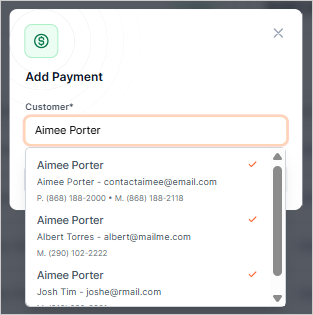
3. Ensure the correct invoice is selected and enter the payment amount.
4. Post!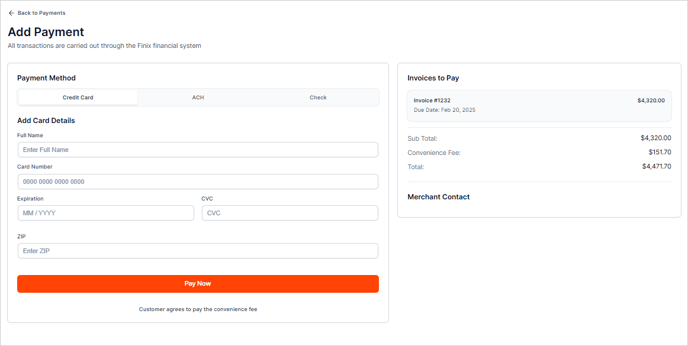
Create a Payment Schedule
Sometimes a customer cannot pay the whole invoice up front, however, they can afford to make a few smaller payments at a scheduled interval. To account for these situations, we've included a "Schedule Payment" option in all Payment boxes.
1. Navigate to the Pay option using one of the methods above, or from the + Quick Action drop-down at the top of the AR Workflow software.
2. Rather than selecting Pay Now, choose the link for "Schedule Payment"

3. Choose the Payment Method and enter the details.

4. Once this step is done, select NEXT and move to the schedule screen.
-
Select an installment amount
-
Set up an interval to collect this payment

5. Create the Payment Schedule and that's it! The system will automatically pull the money out on the designated schedule.
👉🏼 Navigate to the Payment tab to view, edit and modify payment plans.
👉🏼 To learn more about your Customer Payment Settings, jump to this article.