![cc5404e7b75e6d484a23b7d9f19a2774.png]](https://support.arworkflow.com/hs-fs/hubfs/cc5404e7b75e6d484a23b7d9f19a2774.png?height=50&name=cc5404e7b75e6d484a23b7d9f19a2774.png)
Delete Email Templates that you aren't using to reduce the amount of clutter when assigning an email template to a customer.
NOTE: Access to the Workflow tab is limited to Owner, Admin and AR Manager user profiles.
IMPORTANT! Once you delete a template, it cannot be undone.
1. Navigate to Actions and choose Emails.
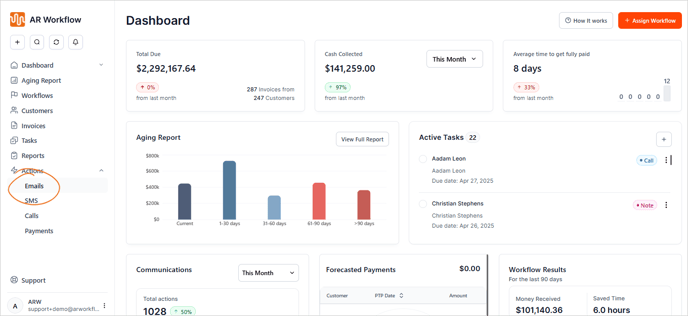
2. Go to Templates.

3. Select the template that you want to delete.

4. Click the three dots icon and choose Delete.

5. Alternatively, you can also click the bin icon from this area.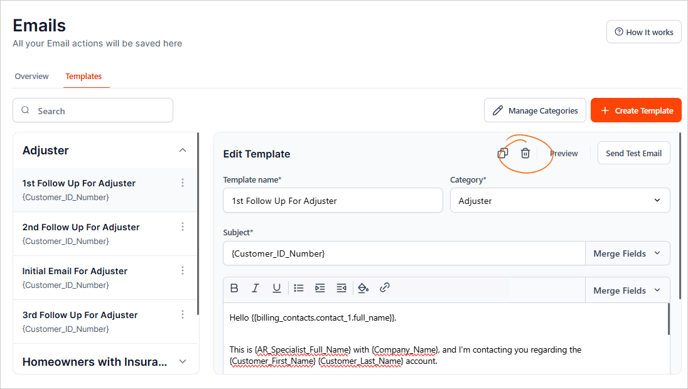
6. Click Delete to confirm your action.

Note: An email template can only be deleted if it is not currently linked to any Workflow or task. Make sure to remove any associations before attempting to delete the template.
Check out our articles on: