![cc5404e7b75e6d484a23b7d9f19a2774.png]](https://support.arworkflow.com/hs-fs/hubfs/cc5404e7b75e6d484a23b7d9f19a2774.png?height=50&name=cc5404e7b75e6d484a23b7d9f19a2774.png)
Wouldn't it be nice if every time a new invoice was added to AR Workflow, the invoice status and Workflow were automatically added for you? Well, that's totally possible!
Business settings can only be configured by Owner or Admin user profiles.
Follow these steps to assign or update your default invoice settings:
1. Click the three-dots icon and choose Business Settings.

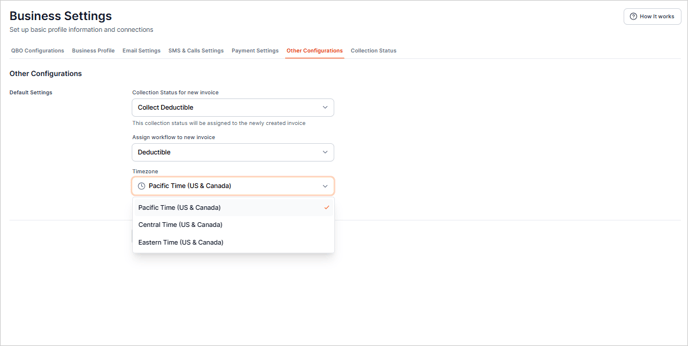
2. Navigate to the Other Configurations tab.

3. Select the applicable Collections Status for your new invoices.

Don't see the status you want to assign to all new invoices? Use the + Add New option to add a new status to your available list. This newly added status will be available for use on all invoices going forward.

4. Next, assign a default Workflow.

If you aren't sure which Workflow to add or want to create a new Workflow for new invoices, check out this article
In addition to Default Settings, you can also update your time zone.
The system will use this time zone when sending emails and SMS text messages to your customers.