![cc5404e7b75e6d484a23b7d9f19a2774.png]](https://support.arworkflow.com/hs-fs/hubfs/cc5404e7b75e6d484a23b7d9f19a2774.png?height=50&name=cc5404e7b75e6d484a23b7d9f19a2774.png)
Set it and forget it! Create an automated Workflow to improve your Time to Payment, Client Communication, and Priority Actions! The following actions can be automated and assigned to any customer and/or billing contact:
-
Send a template email
-
Send a template SMS
-
Update an invoice collection status
-
Assign (or change) an AR Specialist to the customer
-
Create a task for the assigned AR Specialist to call the customer
-
Add an action note

How cool is that? Once a Workflow is assigned to a customer you can just sit back and watch the money start coming in!
Access to edit Workflows and templates is limited to Owner, Admin, and AR Manager roles.
Creating a Workflow
Step 1:
Navigate to the Workflow tab in the left navigation bar
Step 2:
Select the + Create Workflow button.

Step 3:
Choose a name and description that will clearly identify and describe the type of customer/invoice that should be assigned to this Workflow.

Step 4:
Here's where the magic happens! It's time to start choosing actions that will automatically take place once the Workflow is assigned to a customer.

- Action Note: Remind the assigned AR Specialist to perform an action, such as "Send Xactimate estimate through XactAnalysis" or "Add late fee". These action notes will be sent to the assigned AR Specialist via email.
- Call: Add a Call Task Reminder to the AR Dashboard and Task page for the Assigned AR Specialist.
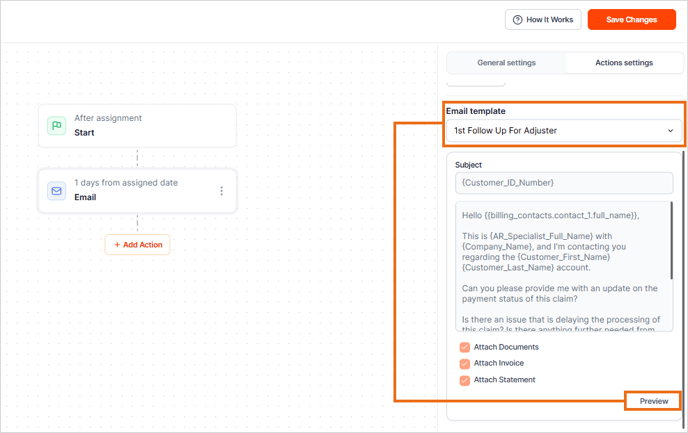
- Email: Send a templated email to the contact assigned to the Workflow.
- SMS: Send a templated SMS to the contact assigned to the Workflow.
- Collection Status: Update the Invoice Status on the Customer Details page.
- Notification: Send a notification to the AR Specialist to alert them about this action or update.
- AR Specialist: Assign a specific AR Specialist.
To view a sample of the email or SMS template without leaving the Workflow screen, click Preview. If the wrong template has been selected, simply update it from the drop-down.
Step 5:
Continue to add action items until the flow meets your needs.

If you'd like to continue with a second Workflow, tick the Continue with another workflow and use the drop-down to attach another Workflow. A new Workflow will begin the following day.
This is a great option if you have a Workflow for something like Promise-to-Pay or Self-Pay, and the customer hasn't paid by the end of the Workflow duration. Then you can attach a "Overdue - Late Fees Added" Workflow, (or something similar). This way the customer starts to receive emails that are increasingly urgent regarding payment, and in some cases, the emails will let the customer know that late fees may be added if the payment remains outstanding.

Once you are done, click Save Changes.

Assign the Workflow to Contacts
From the Workflow main page, choose Assign Customers.

From this screen, you will type in the name of the contact you wish to assign the Workflow.
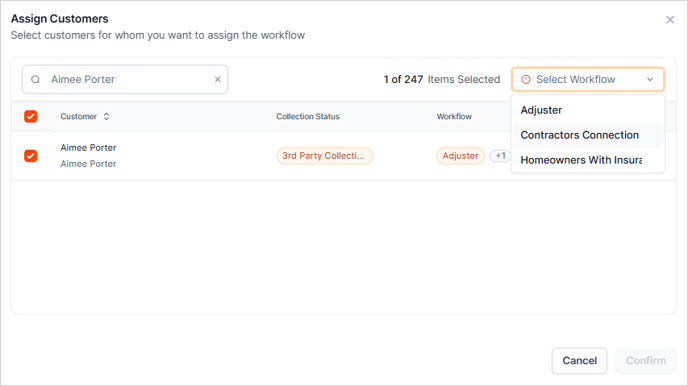
For steps on how to assign a Workflow individually from the Customer Details screen, click here.
Workflow General Settings
Notifications
Enable alerts once a Workflow is finished or paused.
Workflow Finish
Choose what action to take when a Workflow reaches its end. You can either pause the Workflow if a PTP (Promise to Pay) is assigned or continue to another Workflow of your choice.
Additional Actions
Each Workflow has the option to count weekends or exclude weekends. If you exclude weekends, the workflow will not count Saturday and Sunday and will not send text messages or emails on these days.
Additionally, if a status is selected within the Workflow, you can assign a corresponding Collection Status. This allows you to better categorize and monitor the account’s progress through the collections process, ensuring more accurate tracking and follow-up actions.
Actions
You have the option to edit, clone, or delete the Workflow. Cloning a Workflow will create a carbon copy of the Workflow and add the word "copy" after the title. Simply edit the title and the new Workflow as you see fit.
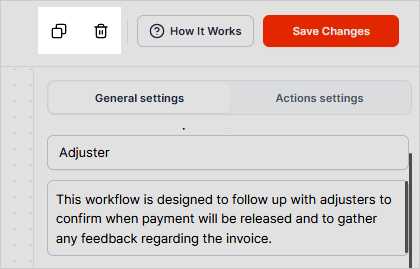
You can only delete a Workflow if no contacts are assigned. To remove existing contacts, select the Assign button and unassign the contacts in bulk.