![cc5404e7b75e6d484a23b7d9f19a2774.png]](https://support.arworkflow.com/hs-fs/hubfs/cc5404e7b75e6d484a23b7d9f19a2774.png?height=50&name=cc5404e7b75e6d484a23b7d9f19a2774.png)
Access to the Workflow tab is limited to Owner, Admin and AR Manager user profiles.
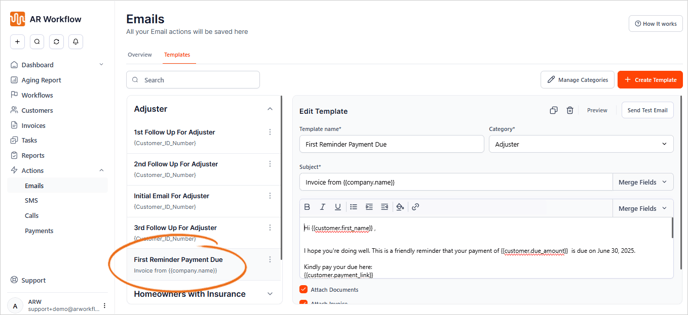
- Compose custom email templates that can be used throughout the software. Customize the content depending on the type of contact who will be receiving the communication; insurance, adjuster, self-pay customer, etc.
-
Take advantage of the Merge Fields to auto-populate customer, billing contact, payment, and invoice information directly into the email.
-
Automatically attach documents, invoices, and statements to the email template.
1. Navigate to Actions and choose Emails.

2. Go to Templates.

3. Select + Create Template.
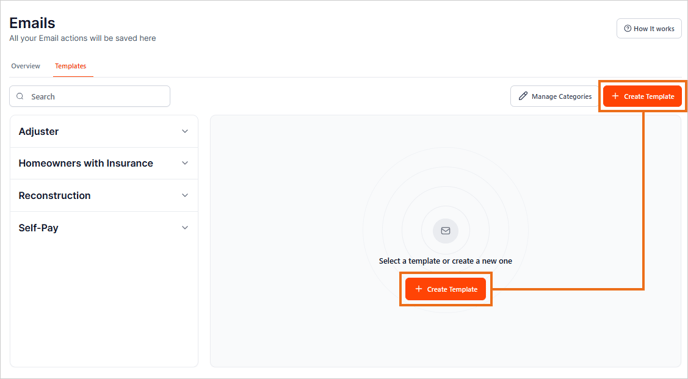
Pro Tip: Clone an existing email template so you don't have to start from scratch
4. Type the Template Name and Category.
- To assign the email to an existing category, start typing a category name and select it.
- To create a new category, click + Add New and enter the name of the category you want to add.

5. Enter the email subject and select an option from the Merge Fields list to create a customized Email Subject.
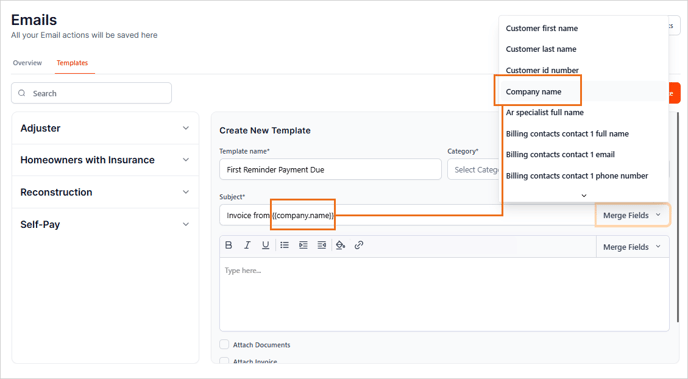
6. Compose the body of the email.
-
Use the different options found in the Merge Fields list to personalize your message.

7. Select any attachments you want to automatically attach when the message is sent.
-
Documents pull from the Customer Details page.
8. Once you are done, click Save.
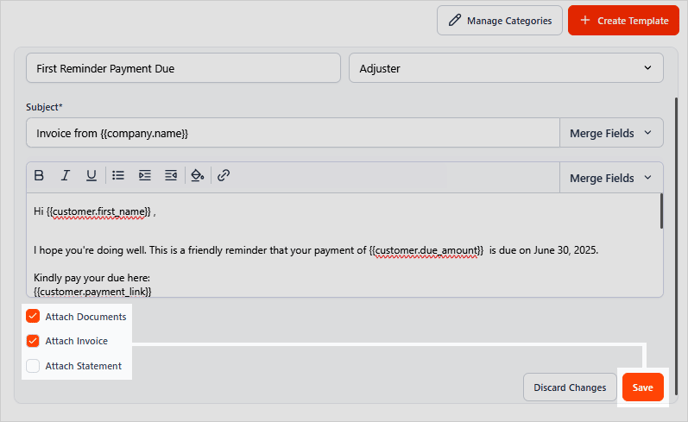
9. You will now see the new email template under the category you've selected or created.