![cc5404e7b75e6d484a23b7d9f19a2774.png]](https://support.arworkflow.com/hs-fs/hubfs/cc5404e7b75e6d484a23b7d9f19a2774.png?height=50&name=cc5404e7b75e6d484a23b7d9f19a2774.png)
AR Workflow automatically syncs with QuickBooks Online. Customers added in QBO or AR Workflow will automatically sync and be added to the other software.
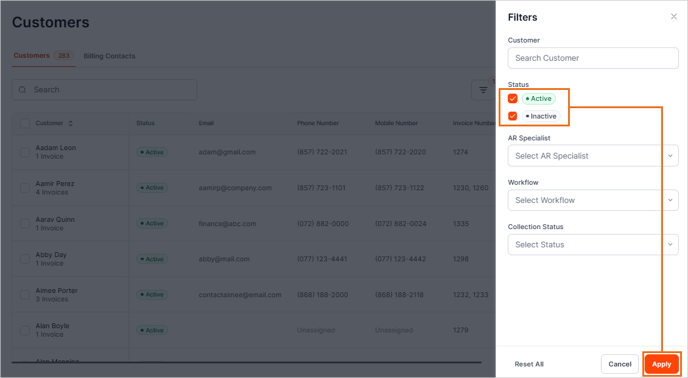
Customers without an invoice, or with a $0 balance can be found by navigating to the Customer tab in the left navigation bar and toggling from Active to Inactive. When you add a new customer, it will display under "Inactive" until an invoice is added to their account. Ensure also to click the Apply button to activate the filter.
1. Navigate to the Customers tab.
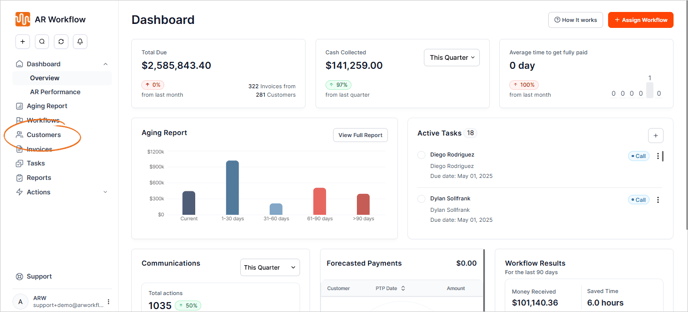
2. Click the + Add Customer button.

3. Type the customer's complete name and company.

4. Type the customer's contact details such as their Email Address, Phone Number, Mobile Number, and Website.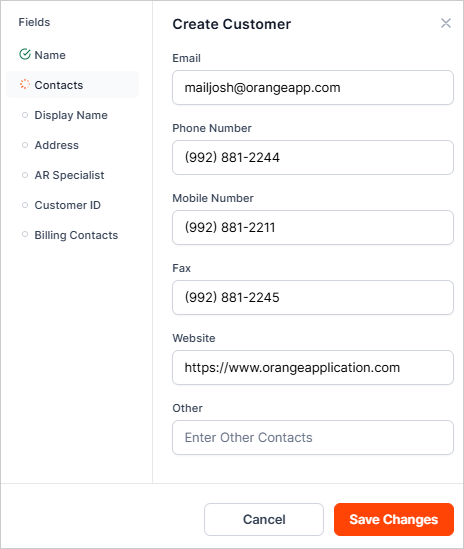
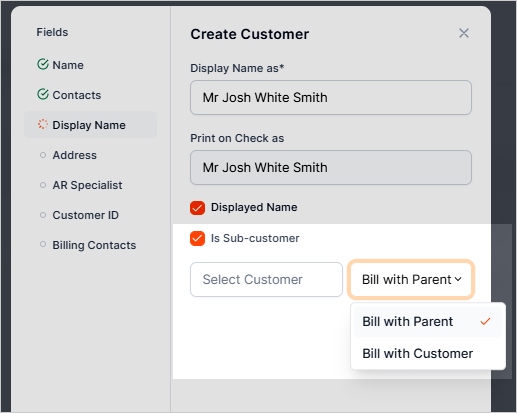
5. Choose a display format for the customer's name.

You also have the option to set the name that will be printed on your checks. To do so, click the Displayed Name checkbox.
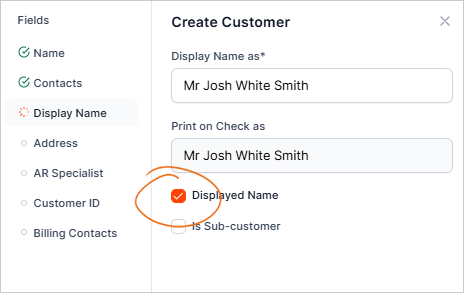
6. If this customer is a sub-customer to another contact, check the box Is sub-customer and search for the main customer in the drop-down.
Sub-customers are generally used for 2 separate reasons:
- A different property location than the main customer.
- Different services/projects under a main customer (Water, Fire, Mold, etc).
Decide how you would like to bill invoices for this customer:
-
Bill with Parent Customer.
-
Bill with Sub-Customer.
7. Next, add the Billing Address.
Add a shipping address, or indicate that the shipping address is the same as the billing address.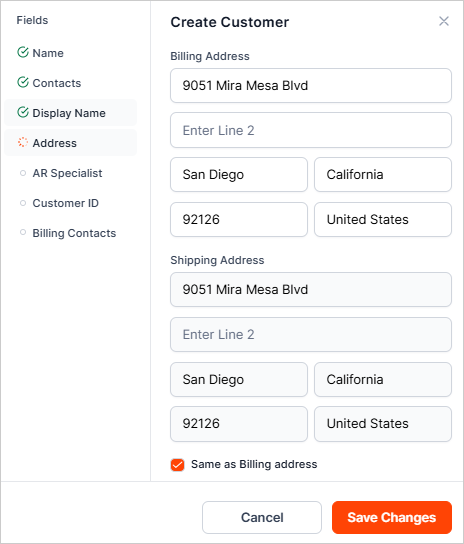
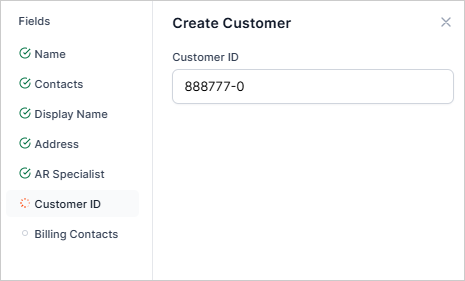
Optional: Set the Customer ID Number and assign an AR Specialist.
Pro Tip: Use the Customer ID Number field to add the customer claim number. Then add the merge field to templates and pull this information into the subject or body of an email or SMS text template.
8. Optional: If you have billing contacts to add to this customer, click the + Add Billing Contact button first, then input the billing contact details.
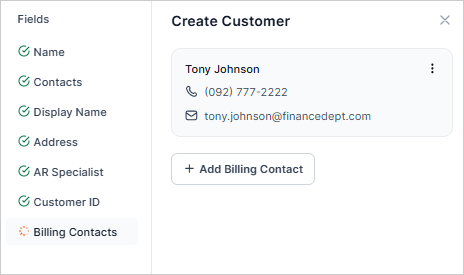
9. Review the details and click Save Changes.