![cc5404e7b75e6d484a23b7d9f19a2774.png]](https://support.arworkflow.com/hs-fs/hubfs/cc5404e7b75e6d484a23b7d9f19a2774.png?height=50&name=cc5404e7b75e6d484a23b7d9f19a2774.png)
Access to the Workflow tab is limited to Owner, Admin and AR Manager user profiles.
Set it and Forget it!
The Workflow Dashboard contains all the tools you need to automate and improve your business process through the use of a Workflow. By creating an automated sequence of tasks, you can save time and focus more on your business.

Within a Workflow, you can automate the following actions based on the date the Workflow was assigned or the due date of the invoice.
- Send an Action Note to the assigned AR Specialist.
- Send templated Emails and SMS messages.
- Assign or change the AR Specialist assigned to the customer.
- Notify an AR Specialist once an action is triggered.
- Update an invoice status.
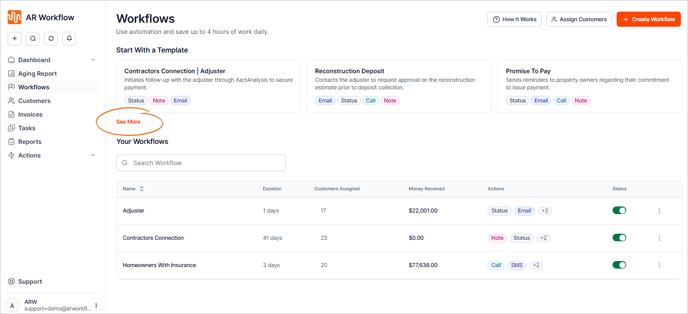
To access the Workflows Dashboard, click the Workflows tab in the AR Workflow Main Menu.

Once you've accessed the Workflows Dashboard, you will find the following sections:
- Workflow Templates.
- Collection Workflow.
Workflow Templates
This section includes all pre-built Workflow templates that you can use for your customers. You can use a template as-is or customize it to fit your needs.
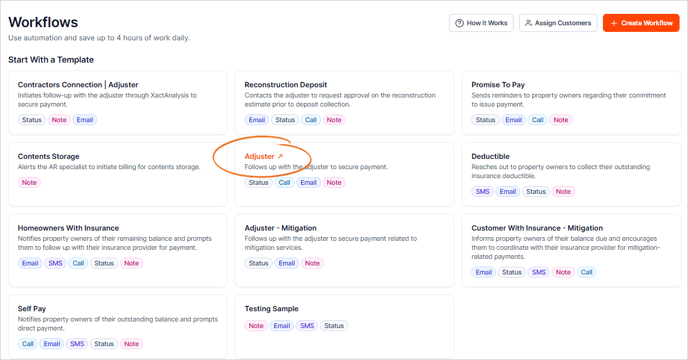
Click See More to view all available ready-made Workflows you can use.
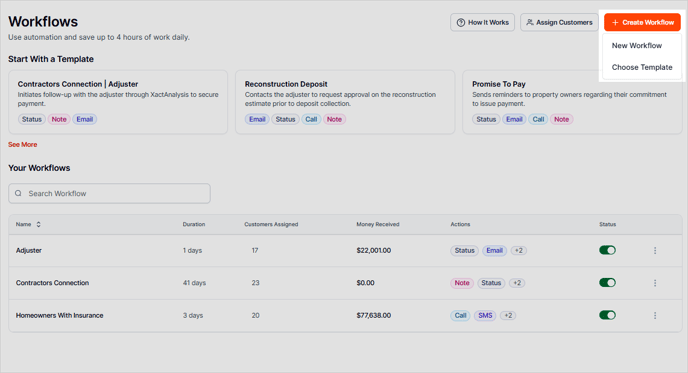
Click the + Create Workflow button and choose New Workflow to build a new Workflow from scratch, or select Choose Template to use a ready-made Workflow template.
Alternatively, you can click directly on the Workflow name to open it and start making your changes.
Collection Workflow
The Collection Workflow tab contains all the active and inactive Workflows. For each listed Workflow you will see:
-
a toggle button to activate or inactive a Workflow.
-
the number of customers assigned to each Workflow.
-
the total number of days this Workflow is set to run from start to end.
-
three dots icon to manage the Workflow (assign and view assigned customer, duplicate, edit, and delete).
