![cc5404e7b75e6d484a23b7d9f19a2774.png]](https://support.arworkflow.com/hs-fs/hubfs/cc5404e7b75e6d484a23b7d9f19a2774.png?height=50&name=cc5404e7b75e6d484a23b7d9f19a2774.png)
The Estimates page in AR Workflow gives your team full visibility into your estimate pipeline. From key performance metrics to expiration tracking and bulk actions, everything your team needs to manage estimates effectively is available directly on this page.
Role-Based Permissions
Access to the Estimates page is enforced based on user roles:
-
Owners, Admins, and AR Managers have full access to all features on the Estimates page.
-
AR Specialists have permission-based access, depending on their configured role settings.
-
AR Viewers have view-only access and cannot make changes to estimates.
Estimate Summary Cards
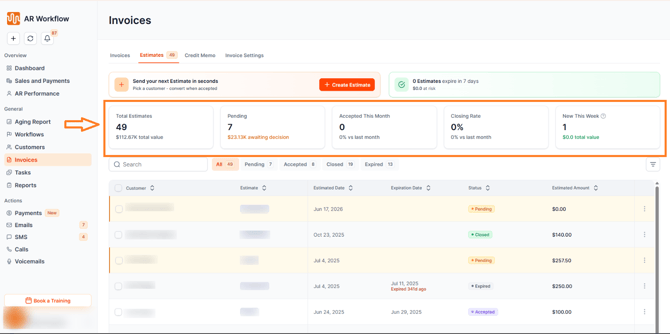
At the top of the Estimates page, summary cards provide a real-time snapshot of your estimate pipeline. The following metrics are displayed:
-
Total Estimates — The total number of estimates in your account.
-
Pending — The number of estimates currently awaiting a response.
-
Accepted This Month — The number of estimates accepted during the current calendar month.
-
Closing Rate — The percentage of estimates that have been accepted out of the total sent.
-
New This Week — The number of new estimates created during the current week.
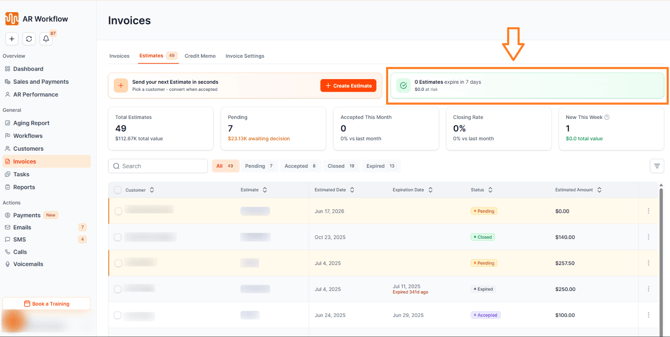
Expiring Estimates Summary
The Expiring Estimates Summary highlights estimates that are expiring within the next 7 days. It displays both the count of expiring estimates and the total dollar amount at risk, giving your team a clear sense of urgency.
Create Estimate Widget
A Create Estimate widget is available directly on the page, allowing your team to send a new estimate in seconds without needing to navigate elsewhere.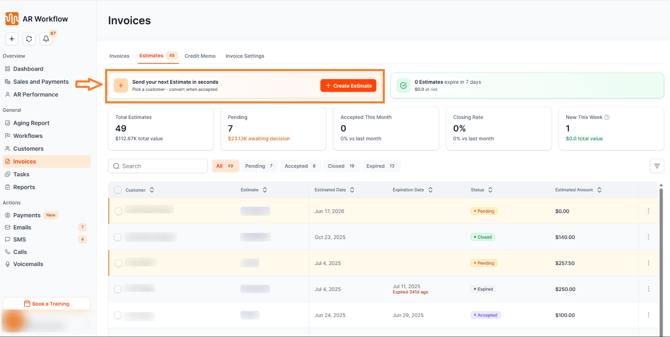
Filters
The Estimates page includes an Expiration Date filter, allowing your team to quickly identify and manage estimates based on their expiration timeline. A Next 7 Days option is available within this filter to instantly surface estimates nearing expiration.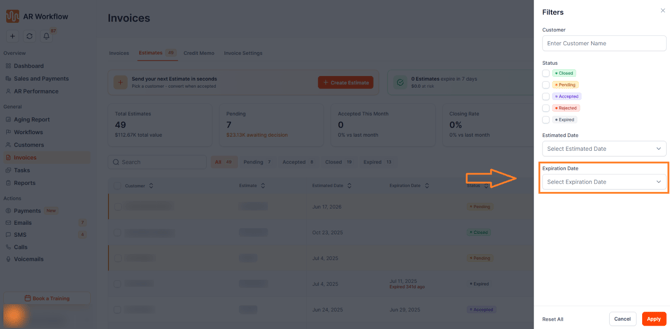
Quick Filter Tabs
A set of quick filter tabs is available at the top of the estimate list, each displaying a dynamic live count.
To access the quick filter tabs, click the Filters button at the top of the estimate list.
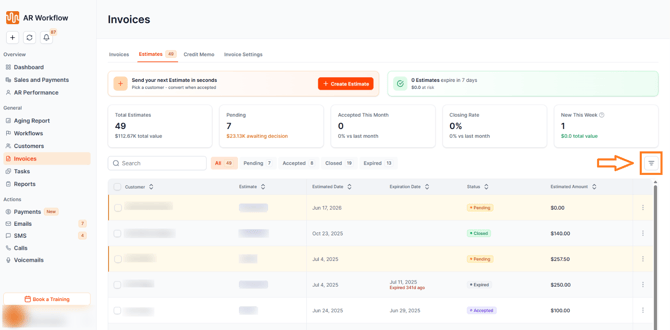
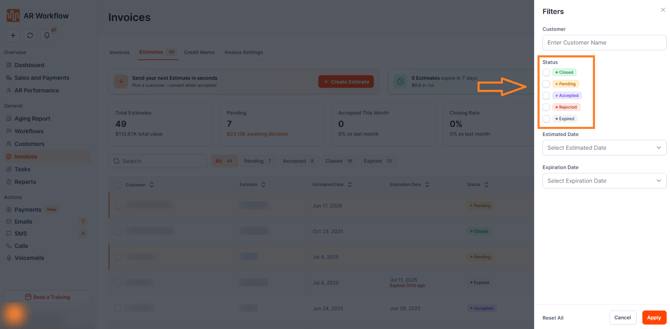
Once clicked, the following filter tabs will appear:
-
Rejected — Shows estimates that have been rejected.
-
Pending — Shows estimates currently awaiting a response.
-
Accepted — Displays estimates that have been accepted.
-
Closed — Shows estimates that have been closed.
-
Expired — Displays estimates that have passed their expiration date without action.
Status Sorting
The Status column supports sorting, allowing your team to organize estimates by their current status for easier review.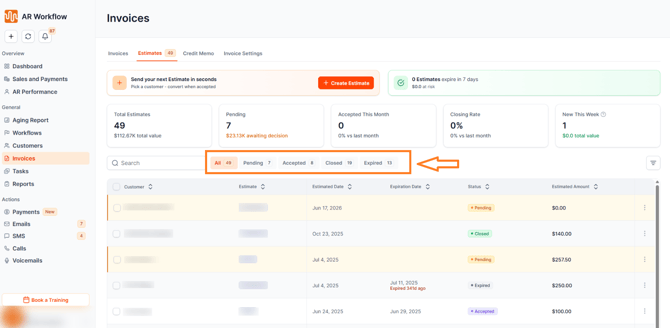
Expiration Indicators
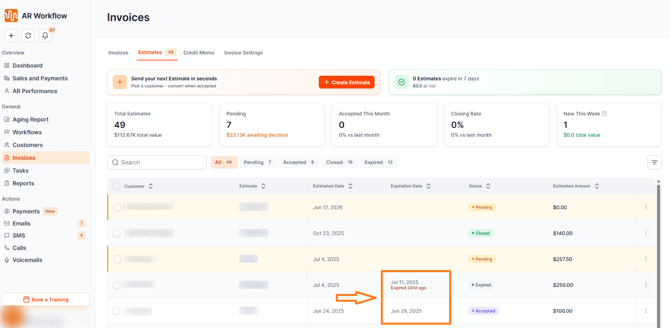
Each estimate displays an expiration indicator below its expiration date, such as "Expires today," "Expired yesterday," or the number of days remaining. This allows your team to prioritize follow-up at a glance without needing to calculate dates manually.
Pending Row Highlight
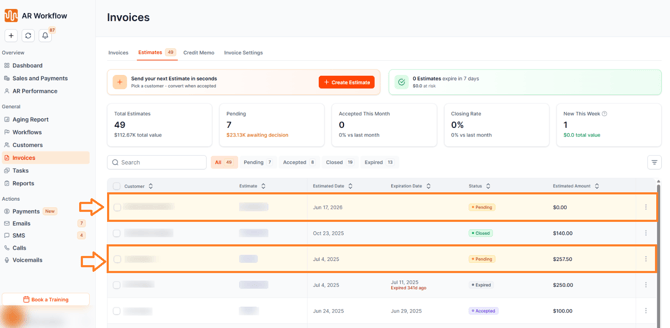
Estimates with a Pending status are highlighted with a yellow background throughout the estimate list, making them easy to identify visually as you scan through your pipeline.
Bulk Actions
The Estimates page supports a bulk Delete action, allowing your team to select multiple estimates and delete them simultaneously.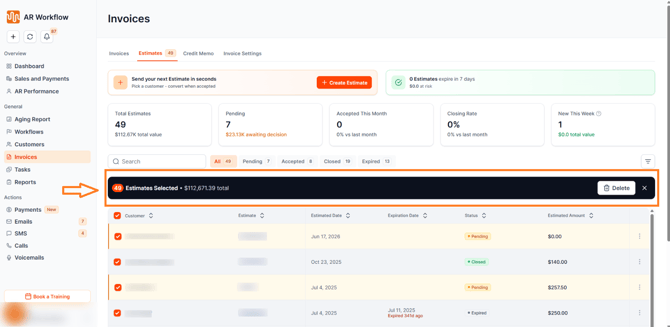
Need Help?
If you have questions about the Estimates page or any of its features, reach out to AR Workflow Support at support@arworkflow.com.