![cc5404e7b75e6d484a23b7d9f19a2774.png]](https://support.arworkflow.com/hs-fs/hubfs/cc5404e7b75e6d484a23b7d9f19a2774.png?height=50&name=cc5404e7b75e6d484a23b7d9f19a2774.png)
Business Settings can only be edited by an Owner or Admin user profile.
Upload a custom voicemail that your customers will hear when they call your AR Workflow phone number and no one is available to take the call.
1. Click the three-dots icon and choose Business Settings.

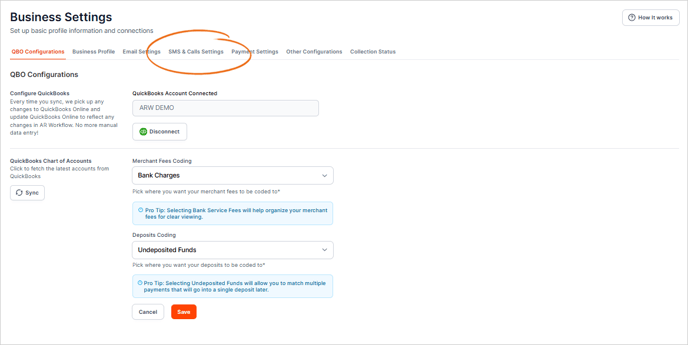
2. Navigate to the SMS & Calls Settings tab.
3. On the Voicemail Audio section, hit Click to Upload to add a new Voicemail audio clip.
👉🏼 Most laptops come with a built-in microphone. Desktops may require a microphone of some sort, such as a Bluetooth headset or auxiliary plug-in.
👉🏼 You may need to research how to save an audio file on your specific computer as different models (Apple, PC, etc) have different settings.
Make sure that you are uploading a WAV or MP3 file.

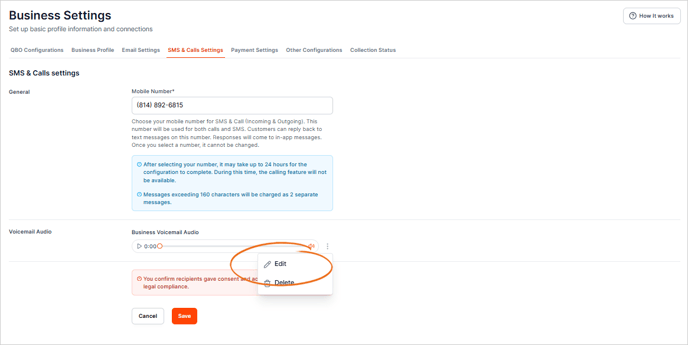
4. Click the three-dots icon and choose Edit to replace a current voicemail.
Optional Recording Steps:
Note: These steps may not work for you depending on your computer version or application settings. This is just a suggestion:
-
Navigate to your Applications folder
-
Open QuickTime Player (Mac) or other recording software, such as Sound Recorder (PC)
-
Follow the steps to create a recording
-
Save your file as a WAV or MP3
5. Once you are done, click Save.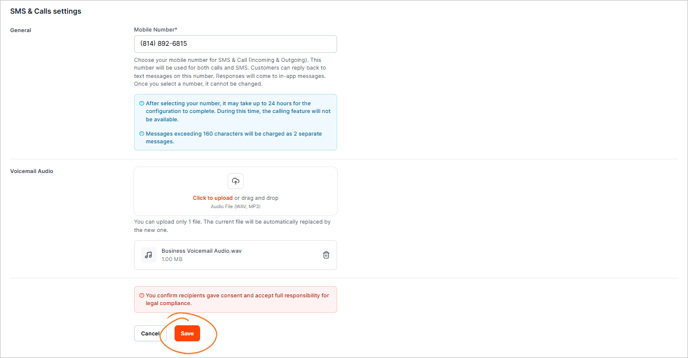
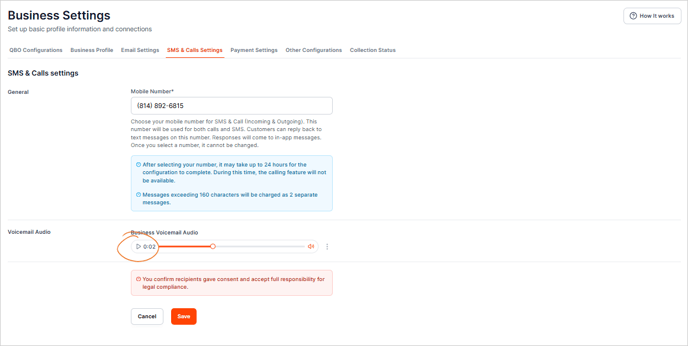
6. Test your new voicemail by clicking the Play icon.