![cc5404e7b75e6d484a23b7d9f19a2774.png]](https://support.arworkflow.com/hs-fs/hubfs/cc5404e7b75e6d484a23b7d9f19a2774.png?height=50&name=cc5404e7b75e6d484a23b7d9f19a2774.png)
When a customer responds, their message is added to the Reply Queue and AI evaluates the message to determine whether a response can be generated.
Depending on the outcome, collectors can:
- Approve & Send an AI-generated response.
- Edit & Send the AI response.
- Draft Manually and write their own response.
- Confirm when no response should be sent.
This helps collectors manage customer replies more efficiently while keeping them in control of every response that is sent.
How to Access Reply Queue
- Log in to AR Workflow.
- Open AI Assistant.
- Select Reply Queue.
The Reply Queue displays inbound customer replies that require attention.
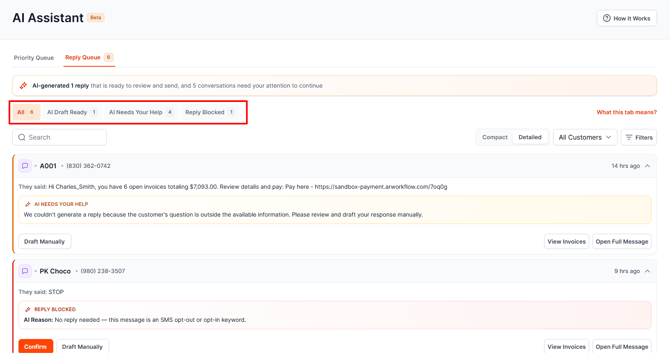
How Reply Queue Works
When a customer sends a reply through Email or SMS:
- The message is added to Reply Queue.
- AI analyzes the message and available context.
- The reply receives an AI status.
- The collector reviews the message and AI response.
- The collector takes the appropriate action.
AI Statuses - Default Filters
AI Draft Ready
AI generated a response that is ready for review.
Available actions:
- Approve & Send
- Edit & Send
- Draft Manually
AI Needs Your Help
The customer's message is outside what AI can understand, so AI needs your help to ensure the response is clear and correct.
Available actions:
- Draft Manually
AI Reply Blocked
AI determined that a response should not be sent, such as for an automated or out-of-office message.
Available actions:
- Confirm to indicate that no response should be sent.
- Draft Manually if you would like to send an SMS response.
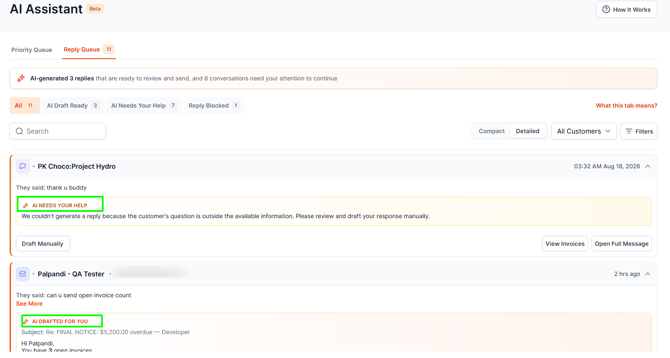
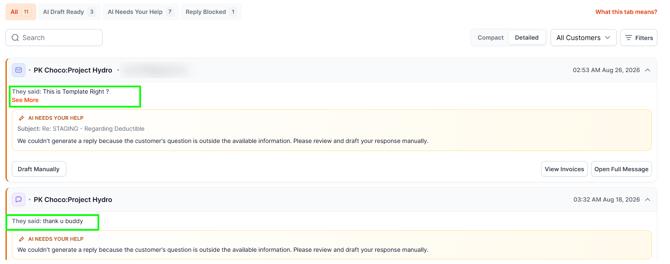
They Said (Customer Message).
The They Said section displays the customer’s latest inbound message, giving the collector the context they need before reviewing or responding to the AI-generated draft.
If the customer sends multiple messages before the collector responds, Reply Queue uses the latest customer message to generate the AI response and when sending the reply.
This helps collectors quickly understand what the customer is asking and ensures the AI response is based on the most recent information.
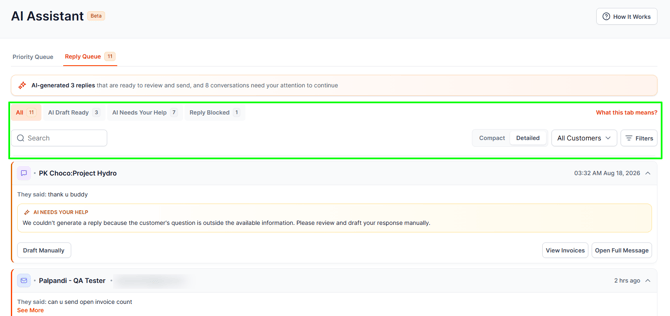
Default Filters and Extra Filters
Reply Queue provides default filters to help you quickly organize the replies that need attention.
Default Filters
- Draft Ready
- AI Needs Your Help
- AI Reply Blocked
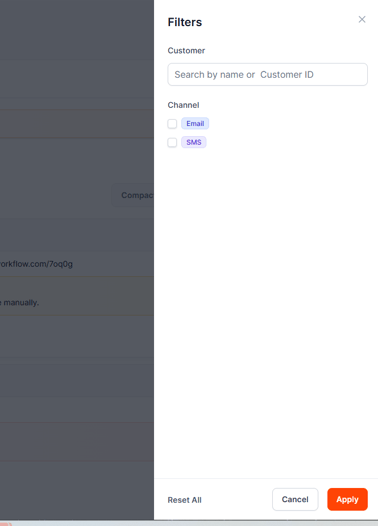
Extra Filters
You can further narrow down the queue using:
- Customer Name or Customer ID
- Channel – Email, SMS, or both
The Customer Name or Customer ID filter can be combined with the Channel filter to help you find specific customer replies.
You can also switch between:
- Compact View – Quickly scan multiple replies.
- Detailed View – Review the full message, AI response, contact information, and available actions.
Additional Customer Context
Reply Queue provides quick access to information that may help you respond appropriately.
View Invoices
Select View Invoices to review the customer's invoices and obtain additional context about their account.
Open Full Message
Select Open Full Message to review the complete conversation and previous communication.
Multiple Customer Replies
If a customer sends multiple messages before you respond, Reply Queue uses the latest customer message when generating the AI response.
Who Can See Replies in Reply Queue?
AR Specialists will only see replies from their own assigned customers in Reply Queue. This helps ensure that each specialist is only working with the customer conversations assigned to them.
Responding Outside Reply Queue
You can respond to the customer directly from the standard Email or SMS inbox instead of Reply Queue.
If you respond to the same conversation there, AR Workflow automatically detects the response and clears the corresponding Reply Queue item.
This helps prevent duplicate responses and keeps the queue up to date.
Frequently Asked Questions
Does AI automatically send responses?
No. AI-generated responses are provided as drafts. The collector reviews the response and decides whether to send, edit, or manually create a response.
Can I edit an AI-generated response?
Yes. Select Edit & Send to make changes before sending.
What if AI cannot generate a response?
The item will show AI Needs Your Help. You can draft a response manually to ensure the customer's message receives a clear and appropriate response.
What if AI blocks a response?
The item will show AI Reply Blocked. You can Confirm if no response should be sent, or select Draft Manually if you would like to send an SMS response.
What happens if I respond from my normal inbox?
The matching Reply Queue item is automatically cleared once AR Workflow detects that the conversation has been answered.