![cc5404e7b75e6d484a23b7d9f19a2774.png]](https://support.arworkflow.com/hs-fs/hubfs/cc5404e7b75e6d484a23b7d9f19a2774.png?height=50&name=cc5404e7b75e6d484a23b7d9f19a2774.png)
Note: Refunds can only be processed for payments taken in AR Workflow. To refund a payment taken outside AR Workflow, please refer to that merchant provider.
Convenience fees:
-
Full refunds will have associated merchant fees refunded
-
Partial refunds do not refund associated fees
To initiate a refund:
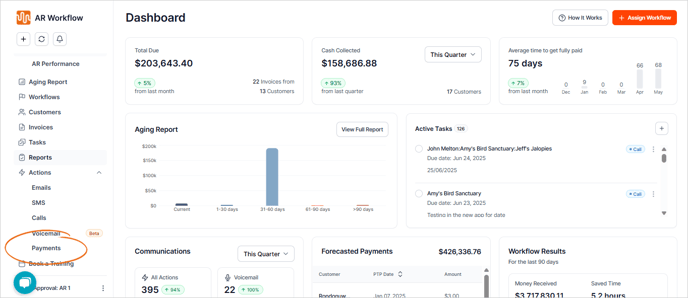
1. Go to the Payment tab.
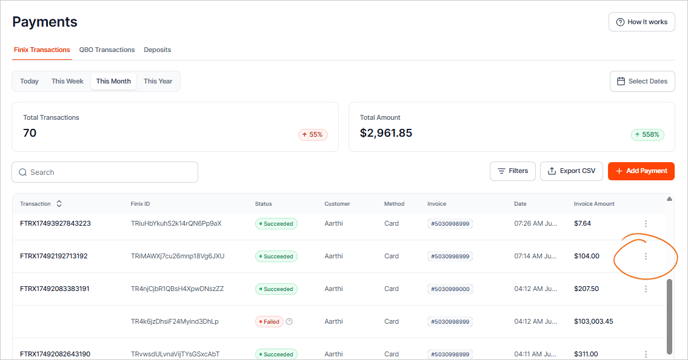
2. Hover over the payment line to view the three-dots icon in the righthand column.
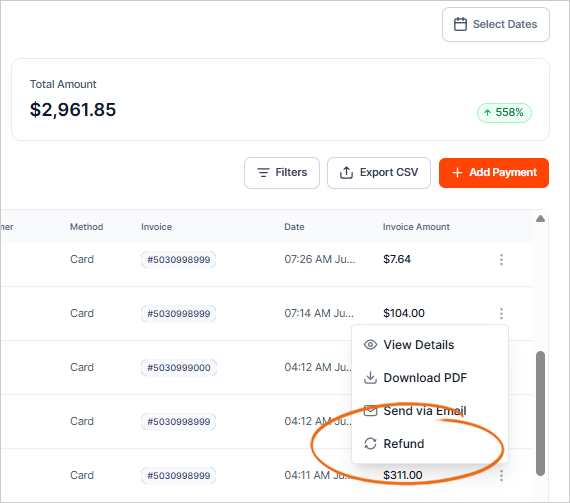
3. Select Refund from the list.
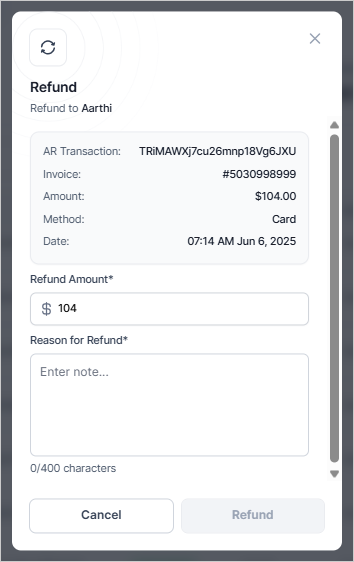
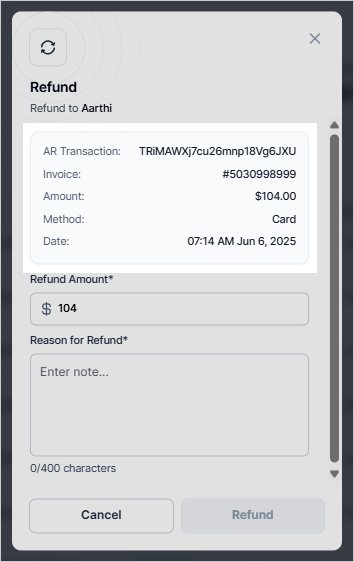
4. Carefully review the transaction details to ensure everything looks correct.
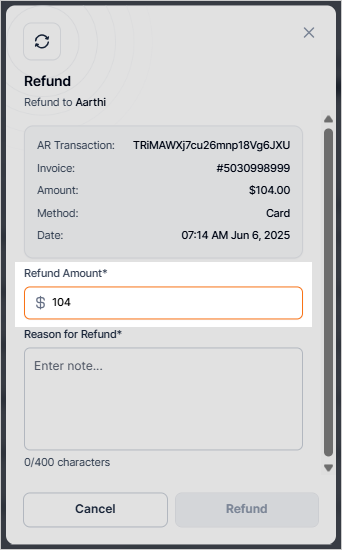
5. Enter the Amount that will be refunded to the customer.
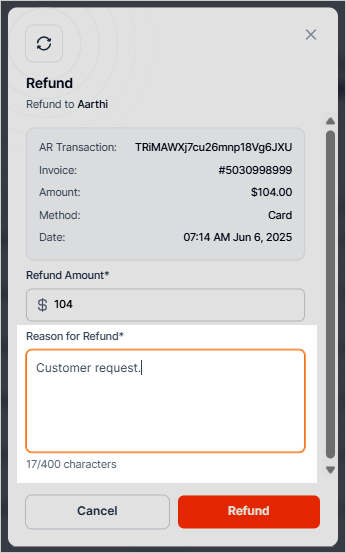
6. Type in your Reason for the refund.
7. Review the refund details and click Refund.
Refund FAQs
How fast is a refund processed?
Refunds get processed immediately and can’t be canceled. Once you press "refund" it cannot be undone.
How soon will the refund be reflected in the customer's account?
Buyers see the refund as a credit 5-10 business days later, depending on their bank.
IMPORTANT
If a payout doesn't have enough funds to cover a refund, any remaining amount will be debited from the merchant's bank account.
Can I process more than one refund for a payment?
More than one refund can be processed against a charge. However, you can’t reimburse a total greater than the original charge amount.