![cc5404e7b75e6d484a23b7d9f19a2774.png]](https://support.arworkflow.com/hs-fs/hubfs/cc5404e7b75e6d484a23b7d9f19a2774.png?height=50&name=cc5404e7b75e6d484a23b7d9f19a2774.png)
Never miss an outbound communication again! Any task can be set on a recurring schedule to be completed for a set duration of time.
Anywhere you can create a task, you can create a recurring task.
-
+Quick Action Drop-Down
-
Tasks Tab
-
Customer Details Screen
Create a Recurring Task
This article will cover creating a recurring task from the Customer Details Screen.
1. Select your customer to open their Customer Details Screen.
2. Select the Task icon.

3. Select the type of task you'd like to create.
Email and SMS tasks will automatically be completed on the date and time of your choosing. Other task types will add a reminder to the Dashboard.

4. Set a Task Date and Task Time.
If no time is selected for the Task Time, the email or SMS will be sent at 9 AM local time.

5. For Email and SMS tasks, select a template from the drop-down.

6. Select the option for Set Recurrence Schedule and set the schedule.

7. Add a note, assign an AR Specialist, and Add!
View, Edit, or Delete Recurring Tasks
1. Navigate to the Tasks Tab.
2. Select the option for Schedule Task at the top of the page.

3. Find the Recurring Task you wish to edit or delete and click the three dots icon to find the pencil or bin icon.

4. To Edit the Task, select the Pencil Icon.

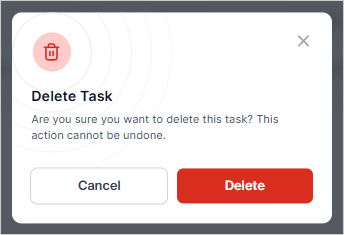
5. To delete the task, select the Bin icon and choose Delete when the pop-up appears.