![cc5404e7b75e6d484a23b7d9f19a2774.png]](https://support.arworkflow.com/hs-fs/hubfs/cc5404e7b75e6d484a23b7d9f19a2774.png?height=50&name=cc5404e7b75e6d484a23b7d9f19a2774.png)
AR Workflow syncs directly with QuickBooks Online to provide you with seamless movement between the two programs.

Technology can be finicky, and sometimes QuickBooks and AR Workflow become disconnected, which results in the data not syncing back and forth.
Although the QBO Configuration may show that it's connected in the AR Workflow Business Settings, we will notify you if our database indicates the two are not successfully syncing behind the scenes.
Follow these steps to reconnect QuickBooks and AR Workflow:
Note: Only an Admin-level user in QBO can reconnect the software. Please be sure you have admin rights in QuickBooks or have someone near you who does as they will need to log in with their credentials.
-
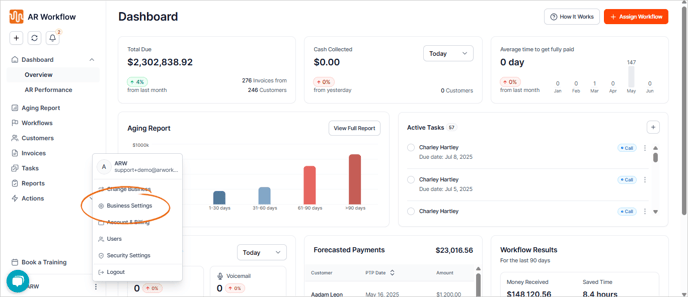
Navigate to your AR Workflow Business Settings.
-
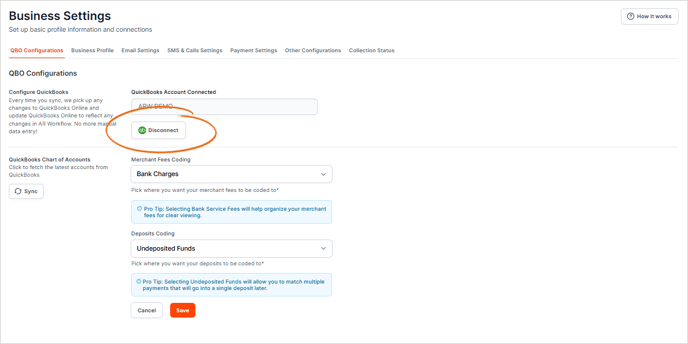
Disconnect QuickBooks.
-
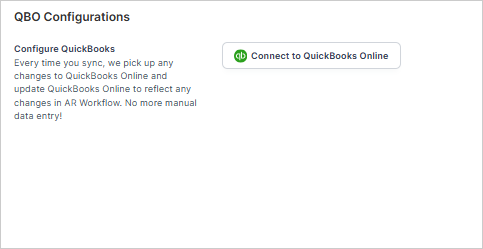
Once the two are disconnected, connect them again by selecting "Connect to QuickBooks Online"
-
Enter your QBO login credentials.
You may be prompted to verify your credentials by receiving a text or email with a verification code. Follow the steps to allow QBO access to AR Workflow.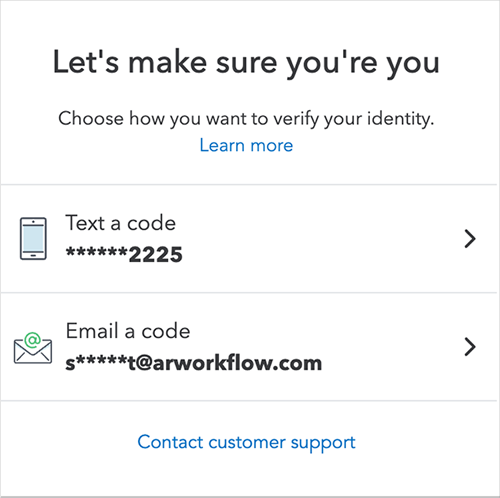
Choose the drop-down to select the business that will be linked with this instance of AR Workflow.
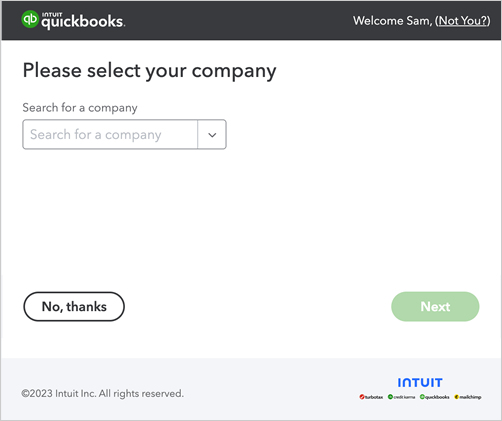
If you have multiple QBO accounts, make sure you select the correct one. If you add other business profiles to AR Workflow, you can sync the other QBO accounts accordingly.
Press NEXT and follow the steps to complete the sync!