![cc5404e7b75e6d484a23b7d9f19a2774.png]](https://support.arworkflow.com/hs-fs/hubfs/cc5404e7b75e6d484a23b7d9f19a2774.png?height=50&name=cc5404e7b75e6d484a23b7d9f19a2774.png)
You call your customer and ask for payment. They tell you that they cannot pay right now, but they PROMISE they will pay next week. Notate this as a Promise to Pay and follow up until that payment is in the bank!

1. Navigate to the Customers tab.
2. Select the Customer from the list.
3. From the Customer Details screen, select the PTP icon.

4. Select the Business Contact.

5. Choose the Invoice from the list.

6. Add the Promise to Pay Date.

7. Type the Amount the customer promised to pay.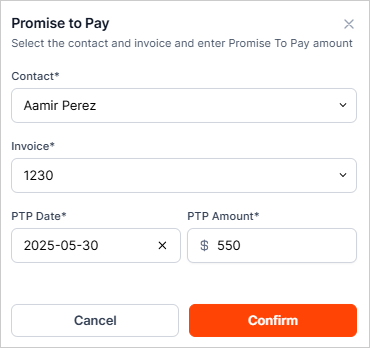
8. Once done, click Confirm. The Promise to Pay will show on the Dashboard and in the customer Activity log, as well as in the Promise to Pay report.