![cc5404e7b75e6d484a23b7d9f19a2774.png]](https://support.arworkflow.com/hs-fs/hubfs/cc5404e7b75e6d484a23b7d9f19a2774.png?height=50&name=cc5404e7b75e6d484a23b7d9f19a2774.png)
- Transactions: Payments not processed through Finix, our merchant provider, such as QuickBooks payments and manually posted checks).
- Finix Transactions: Payments processed through AR Workflow.
- Deposits: AR Workflow deposits prior to 12/31/2023.
- Finix Deposits: AR Workflow deposits from 01/01/2024 onward.
- Disputes: Payment disputes prior to 12/31/2023.
- Finix Disputes: Payment disputes from 01/01/2024 onward.
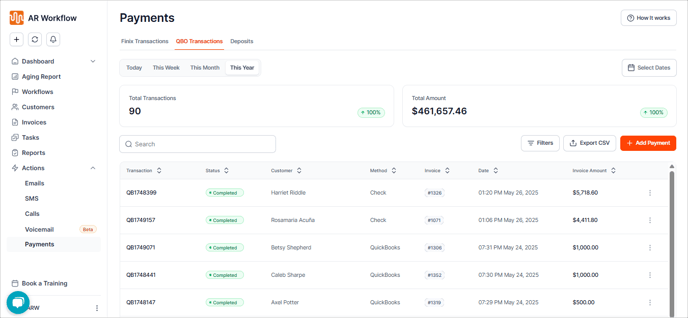
You can quickly switch the Payment Details for different time frames by toggling a date in this section.

If you want to see a detailed view, you can use the Select Dates button to pick the date range you want to view.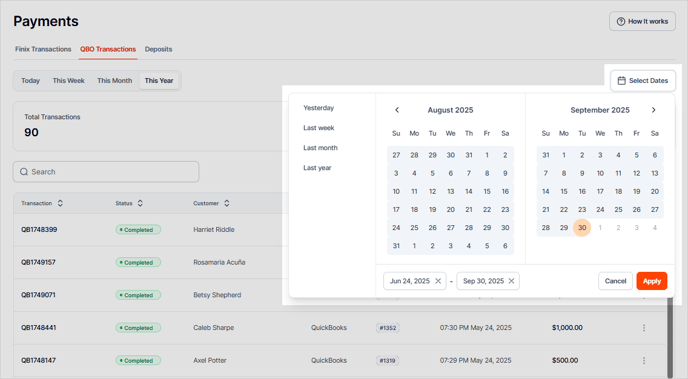
Finix Transactions
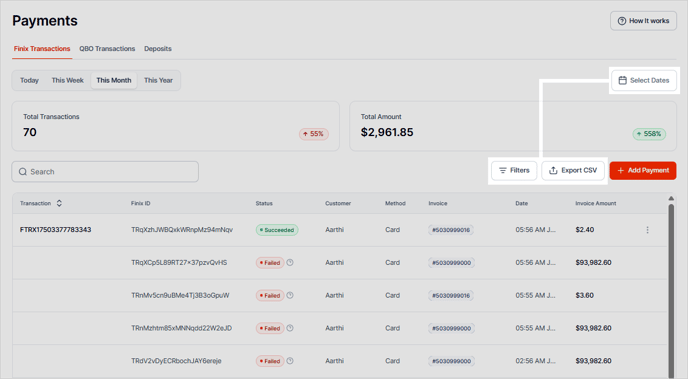
Finix Transactions houses all payments taken using AR Workflow. These payments can be made from directly within the software or by using the secure online payment portal.
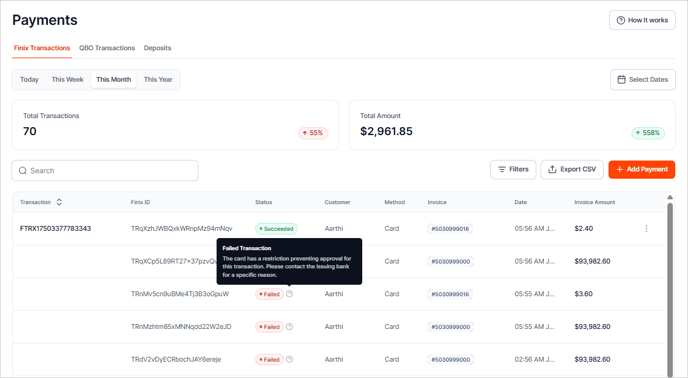
Use the Filters icon to filter down by a specific customer, transaction type, transaction status or amount paid.
To sort this page by a specific date range, use the Select Dates button.
Export the page to CSV using the Export CSV button.
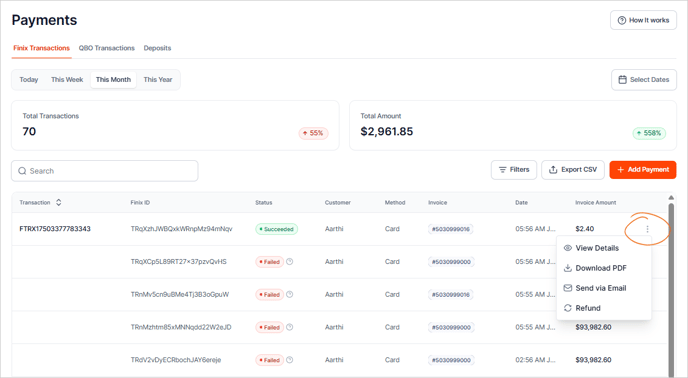
Select the 3 dots in the Action column View Transaction Details, Download a PDF of the receipt, Email the receipt, or initiate a Refund.
QBO Transactions
The QBO Transactions section displays details for each transaction taken in QuickBooks or "snail mail" checks posted in AR Workflow. AR Workflow syncs over basic details for payments posted in QuickBooks as they pertain to invoices found in AR Workflow. This detail is important when viewing the complete payment history of an invoice. 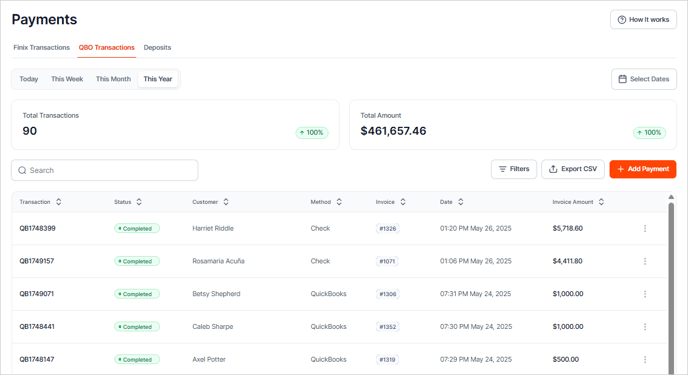
Deposits
The Deposits tab displays the amount received and the records of the deposits. It includes the Deposit's Batch Details.

You can filter by Payment Methods, Customers, and Amount Received.

To view the deposit details, click the Expand icon for each batch.

Add Payment
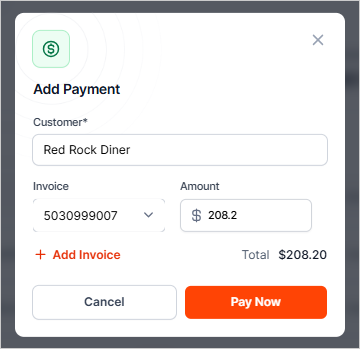
Quickly process a payment for a customer using the Add Payment button. From here, you can choose the invoice that will receive the payment.
If multiple payments are involved, you can click Add Invoice and select the correct invoice from the list.