![cc5404e7b75e6d484a23b7d9f19a2774.png]](https://support.arworkflow.com/hs-fs/hubfs/cc5404e7b75e6d484a23b7d9f19a2774.png?height=50&name=cc5404e7b75e6d484a23b7d9f19a2774.png)
Some days are meant for cleaning. We've made it simple and painless to merge similar Billing Contacts into a single record so you don't have to sift through so much data.
Important Reminder: Merged contacts will no longer be available once the process is complete. You will only have access to the "parent" contact you merged others into.
To merge your Billing Contacts, follow these steps:
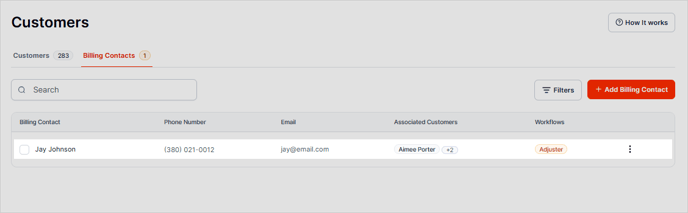
1. Navigate to the Customers tab.
2. Go to Billing Contacts.

3. Select the Billing Contacts you want to merge, then click the Merge Billing Contacts button.

4. Review the contacts you've included, then type the details you'd like to see on the master contact once the merge is complete.
5. Once you're done, click the Merge Contacts button.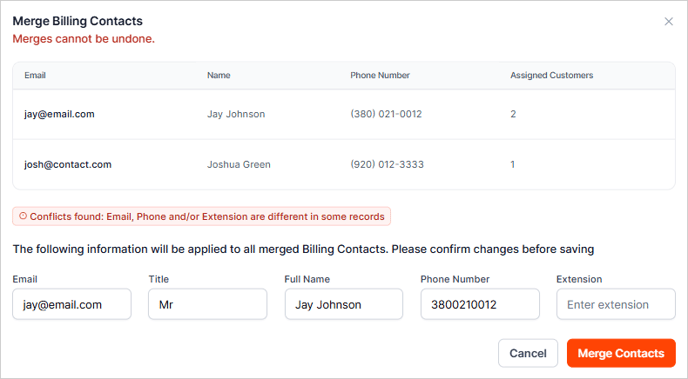
6. Merging of contacts is instant, and you'll immediately see the updated billing contact in the Billing Contacts list.