![cc5404e7b75e6d484a23b7d9f19a2774.png]](https://support.arworkflow.com/hs-fs/hubfs/cc5404e7b75e6d484a23b7d9f19a2774.png?height=50&name=cc5404e7b75e6d484a23b7d9f19a2774.png)
Custom fields can be edited at any time. If you need to make changes or no longer require a custom field, you can easily deactivate it.
Here's how to do it:
1. Navigate to the Invoices tab.
2. Go to Invoice Settings.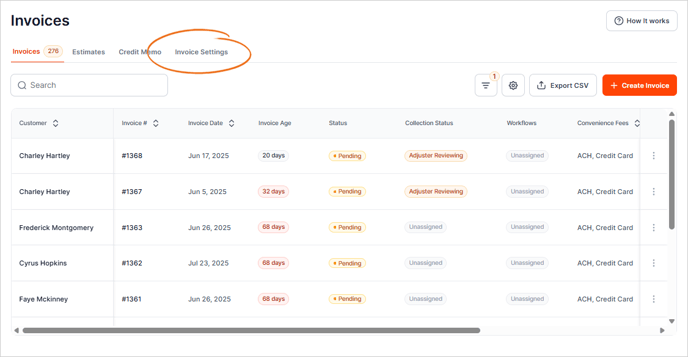
3. Choose the Custom Fields tab.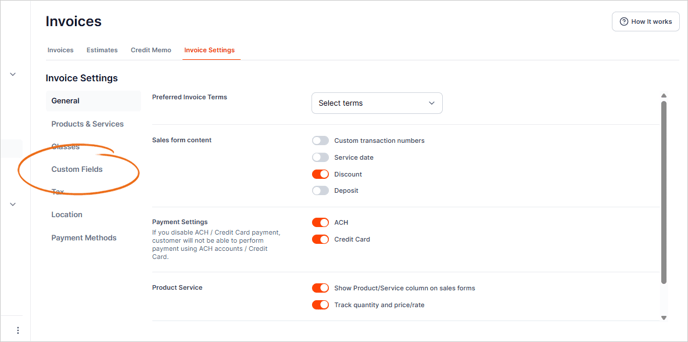
4. Click the three-dots icon on the custom field that you need to modify or deactivate.
5. Choose Edit to change the details of the custom field.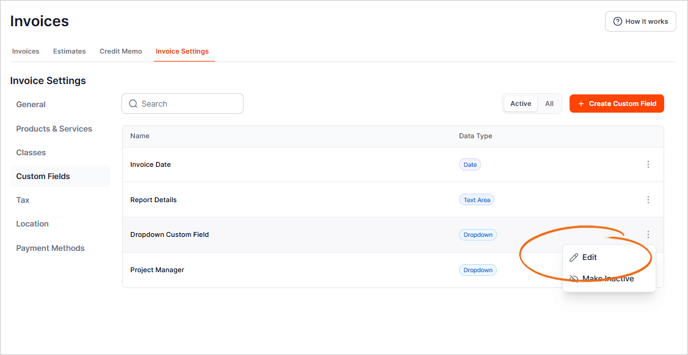
6. Apply any changes you need and click Save.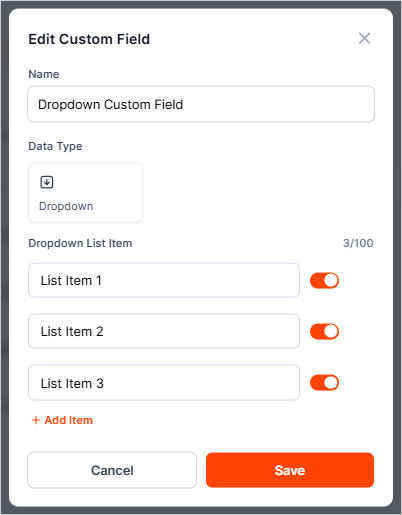
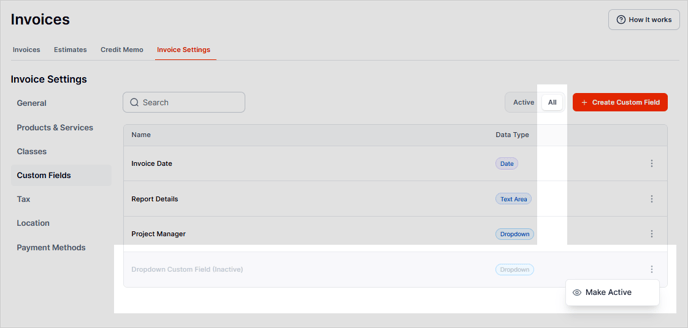
7. To deactivate a custom field, choose Make Inactive.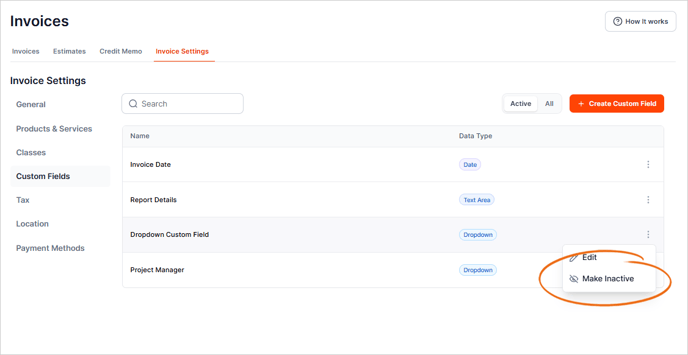
8. Click Make Inactive.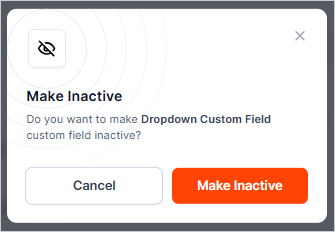
9. Deactivated custom fields can be found in the All tab. To reactivate a custom field click the three-dots icon and choose Make Active.