![cc5404e7b75e6d484a23b7d9f19a2774.png]](https://support.arworkflow.com/hs-fs/hubfs/cc5404e7b75e6d484a23b7d9f19a2774.png?height=50&name=cc5404e7b75e6d484a23b7d9f19a2774.png)
QuickBooks Classes are sent over to AR Workflow when you sync your QuickBooks Online account, however, once synced, these can be added to or edited directly from AR Workflow.
Categories vs. Classes
When considering different accounting techniques, it's important to understand the difference between Categories and Classes. The two can be easily confused, but understanding the difference within your business can make all the difference.
What is a Category?
Categories are used to group related products and services. They make it easier to organize and manage different areas of your business. For one, Categories can be used to quickly segment similar products or services. Secondly, they help to centralize related information and make accessing it simpler. It can be helpful to think of Categories as which products or services you are offering, and how to group them.
What is a Class?
Classes are used to further categorize accounting transactions and record where the products or services should properly be allocated. They divide the entries from a journal into different classes, so that it is easier to track certain types of transactions and identify any errors that may have been made. For example, Classes may be used to keep track of items under inventory, accounts receivable, and other areas.
Conclusion
In conclusion, Categories are used to group related products and services, while Classes are used to categorize accounting transactions and record where the products or services belong.
To create a new Class, follow these steps:
1. Navigate to the Invoices tab.
2. Choose the Invoice Settings tab.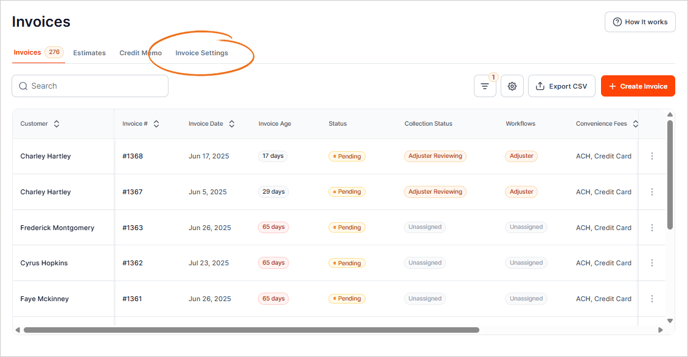
3. Go to Classes.

4. Click the + Create Class button.
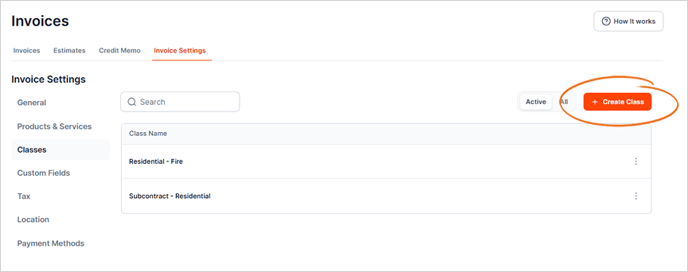
5. Type the name of the new Class.

6. If the Class you are adding belongs to a Parent Class, click the Is sub-class checkbox.

7. Select a Parent Class from the list.

8. Review the details of the new Class and click Save.