![cc5404e7b75e6d484a23b7d9f19a2774.png]](https://support.arworkflow.com/hs-fs/hubfs/cc5404e7b75e6d484a23b7d9f19a2774.png?height=50&name=cc5404e7b75e6d484a23b7d9f19a2774.png)
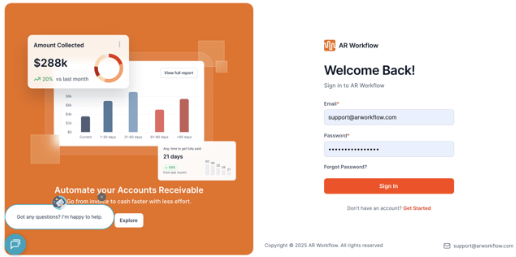
1. Log in to AR Workflow
-
Visit ARW Dashboard
-
Sign in using your registered email and password.
2. Open Business Settings
-
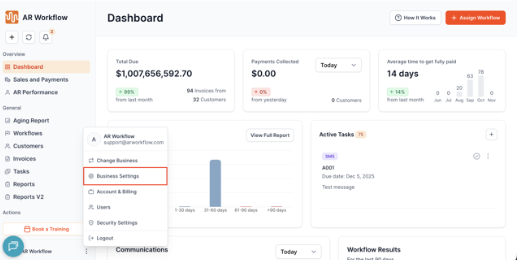
Look at the bottom-left corner of the dashboard.
-
Click the three dots (⋯) next to your business name.
-
Select Business Settings from the menu.
3. Go to Email Settings
-
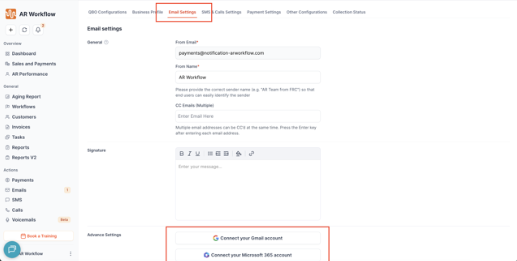
In Business Settings, select the Email Settings tab from the top menu.
-
Scroll down to find the Advance Settings section.
-
You will see two options:
-
Connect your Gmail account
-
Connect your Microsoft 365 account
-
4. For Connecting Your Google/Microsoft Account
4.a. For Google Account
-
Click Connect your Gmail account.
-
Choose the Google account you want to connect.
-
Click Continue on the “AR Workflow wants access to your Google Account” page.
-
On the permissions page:
-
Check the box Send email on your behalf.
-
Click Continue.
-
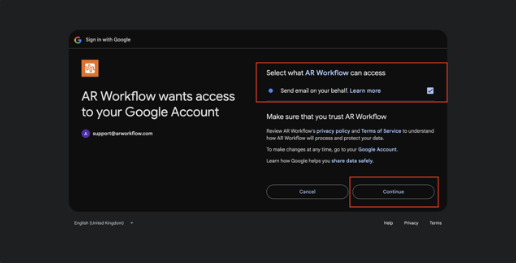
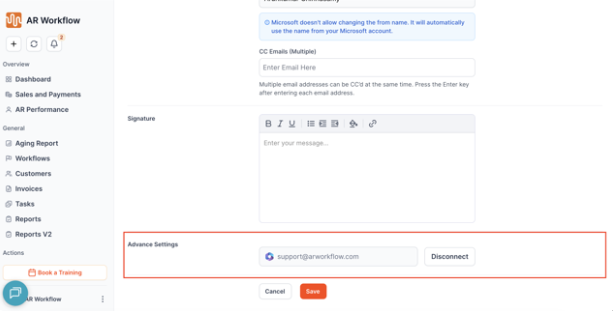
Once you click continue, you will be redirected back to AR Workflow. Your Google account is now connected.
You can verify this under Advance Settings where your connected Google email will appear.
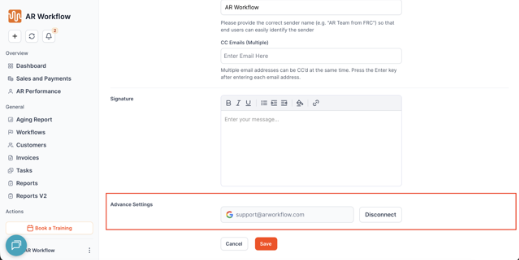
4.b. For Microsoft Account:
-
Click Connect your Microsoft 365 account.
-
Sign in with your Microsoft account credentials.
-
On the Permissions requested page, review the permissions and click Accept.
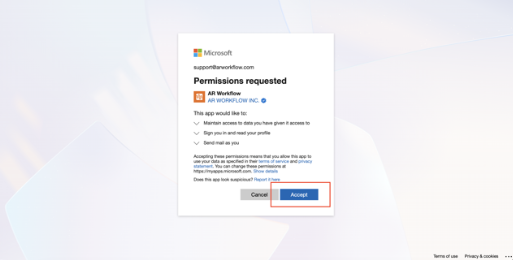
Once you click Accept, you will be redirected back to AR Workflow. Your Microsoft account is now connected.
You can verify your Microsoft account connection in the Advance Settings section.