![cc5404e7b75e6d484a23b7d9f19a2774.png]](https://support.arworkflow.com/hs-fs/hubfs/cc5404e7b75e6d484a23b7d9f19a2774.png?height=50&name=cc5404e7b75e6d484a23b7d9f19a2774.png)
What is AI Workflow?
AI Workflow allows customers to automatically create and manage personalized customer outreach using AI. Unlike Custom Workflow, where you manually create workflows by selecting actions, setting automation timings, and creating message templates, AI Workflow allows you to configure how you want the workflow to operate with just a few clicks. AI generates personalized communication based on your selected settings, such as tone, intent, and Contact Type.
Currently, AI Workflow supports Email, SMS, and Voicemail outreach. Additional actions may be supported in future updates.
AI Workflow vs. Custom Workflow
|
AI Workflow |
Custom Workflow |
|
Workflow will continue depending on the chosen or set period without having to count days from when the Workflow is assigned. |
Workflow will continue depending on the assigned automation timing. |
|
Can currently send SMS, Email, and Voicemail. Further developments are planned. |
Can use SMS, Email, Voicemail, Call, Notes, Collection Status, Notifications, and AR Specialist as actions. |
|
Can be configured to run for a certain period or until paid. |
Workflow timing is based on the automation timing configured by the user. |
|
AI automatically generates personalized communication based on the selected intent, tone, and contact type, without requiring users to manually create message templates. |
May require manual setup to clearly define and send the intent of the messages, whether it is a reminder, a PTP follow-up, or a final notice. |
Enabling AI Workflow
To enable AI Workflow:
- Go to AI Assistant.
- Click the AI Workflow tab.
- Use the toggle to turn AI Workflow on or off.
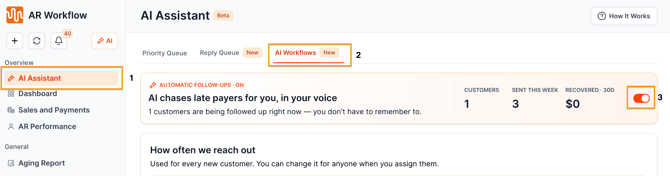
When AI Workflow is turned off from the Global Settings, AI Workflows assigned to customers will also be turned off automatically.
When AI Workflow is enabled, it can be assigned to customers based on the configured settings.
AI Workflow - Set Up the Basics
The AI Workflows page that you access through the AI Assistant Tab allows you to manage how AI Workflow operates across the platform.
You can access it by following these steps:
- Click on AI Assistant under Overview
- Go to AI Workflows Tab
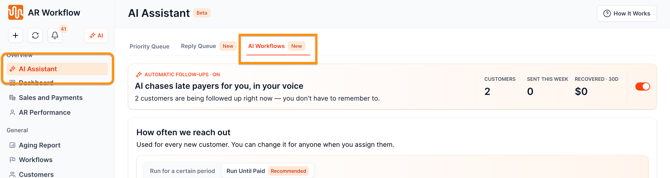
From this page, you can:
- Enable or disable AI Workflow.
- Configure how often AI Workflow should reach out to customers.
- Choose whether AI Workflow should run for a certain period or until paid.
- Customize customer-specific behavior, including response sending time, attachments, Payment Plan or PTP conditions, and weekends.
- Test and preview AI-generated Email, SMS, and Voicemail messages.
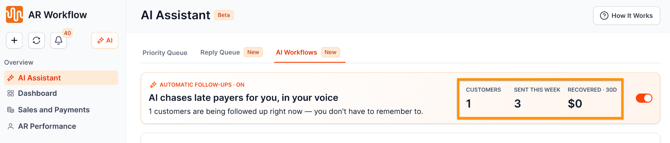
- View AI Workflow performance metrics. This page includes metrics that provide an overview of AI Workflow activity:
-
- Customers — Shows the total number of customers assigned to AI Workflow.
- Sent This Week — Shows the total number of actions performed using AI Workflow during the current week.
- Recovery 30 Day — Shows the total amount collected using AI Workflow over a 30-day period. The section also provides the applicable start and end dates.
- Customers — Shows the total number of customers assigned to AI Workflow.
Outreach Frequency
Under How Often We Reach Out, you can choose how long AI Workflow should continue contacting customers.
-
Run for a Certain Period - AI Workflow will run for the specified timeframe and stop based on the selected duration, unless the invoice is paid. You can customize the duration using the available settings for days, weeks, months, or years.
-
Run Until Paid - AI Workflow will continue to run until the invoice is paid, with no specific duration.
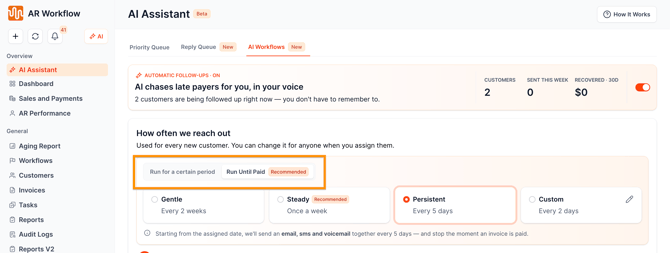
You can also configure AI workflow to send communications within these timeframes,
- Gentle (Every 2 weeks)
- Steady (Once a week)
- Persistent (Every 5 days)
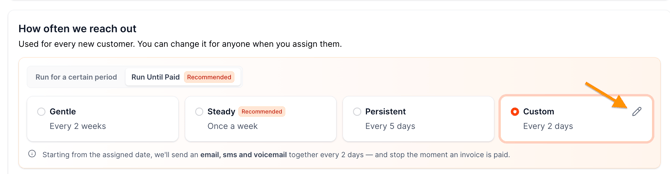
- Custom (Preferred frequency)
- Click the pencil icon to choose your preferred number of days/weeks/months/year
Sending Preferences
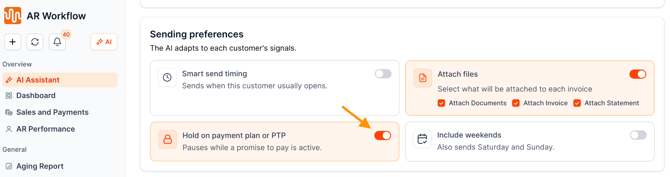
If you scroll down the AI Workflow page, you will see the Sending Preferences. This section allows you to configure how AI Workflow handles specific customer circumstances.
You can choose to include or exclude the following by clicking the toggle icons on the right side of each option:
- Smart Send Timing — Determines whether response sending time is considered when scheduling outreach.
- Attach Files — Determines whether attachments should be included with communications.
- Hold on Payment Plan or PTP — Determines whether Payment Plan or Promise to Pay (PTP) conditions are considered by the AI Workflow.
- Include Weekends — Determines whether AI Workflow can send communications during weekends.
Test and Preview
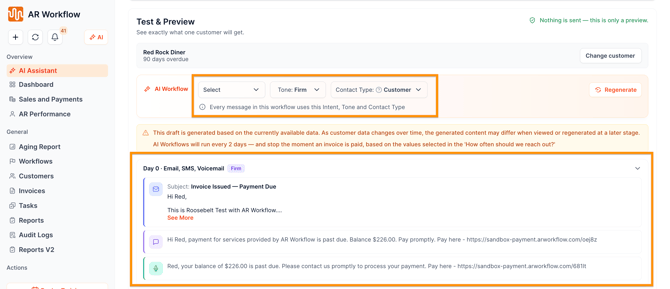
The Test and Preview section allows you to select a customer and preview the messages AI Workflow would generate based on your current settings.
You can preview the following communication types:
- SMS
- Voicemail
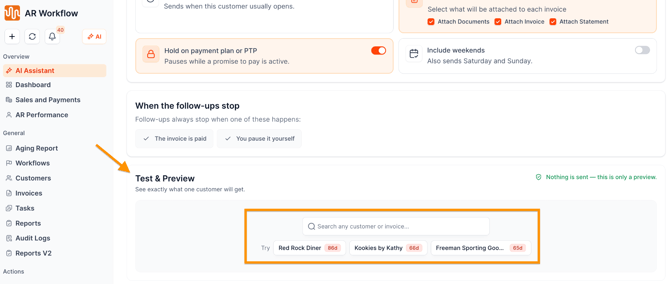
The intent, tone, and contact type will be pre-selected. However, you can change these options and regenerate the messages to see how the content changes.
The Test and Preview section only provides message previews for Day 0, and only the following schedules are shown thereafter.