![cc5404e7b75e6d484a23b7d9f19a2774.png]](https://support.arworkflow.com/hs-fs/hubfs/cc5404e7b75e6d484a23b7d9f19a2774.png?height=50&name=cc5404e7b75e6d484a23b7d9f19a2774.png)
One of the most powerful tools in the Aging Report is the Filter Tool. This tool allows you to sort the report based on parameters you choose. You can combine multiple filters to customize the data listed.
To start filtering your Aging Report, follow these steps:
1. Navigate to the Aging Report tab.
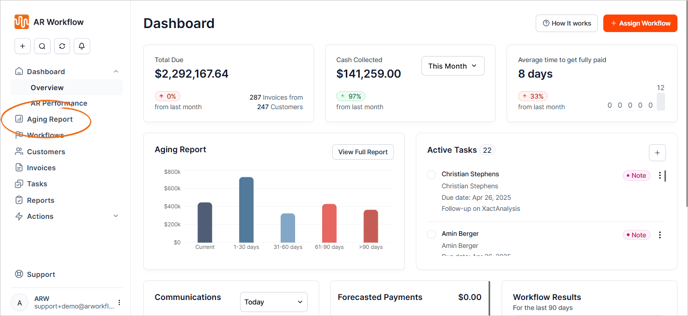
2. Click the Filters button.

3. Next, choose the filter(s) that you want to use. You can use a filter one at a time or a combination of them:
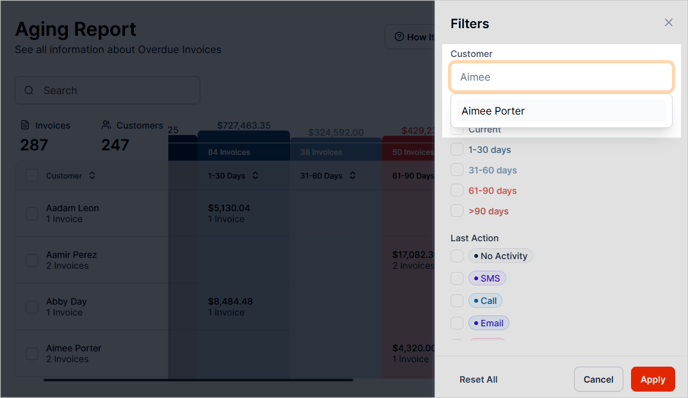
- Customer Search Bar - Use this search bar to quickly filter the Aging Report by customer.
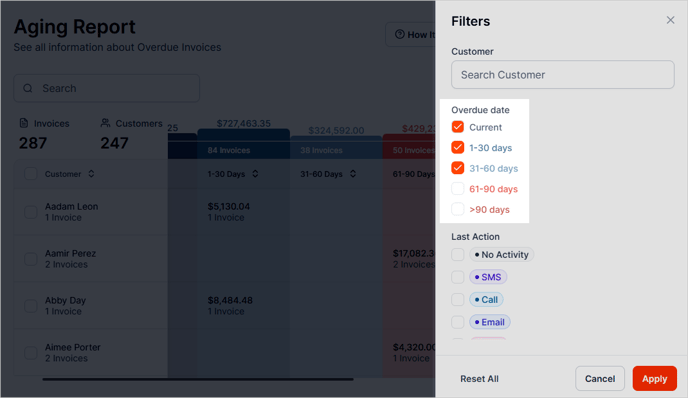
- Overdue Date - Narrow down the Aging Report by Overdue Date. You can select a custom date range or combine multiple dates as needed.
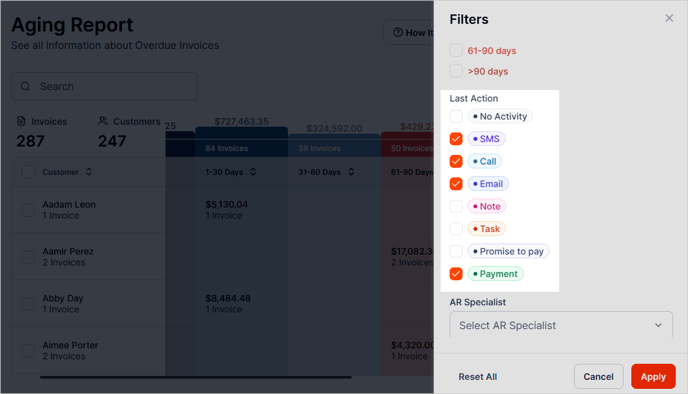
- Last Action - Filter the Aging Report by the last action taken on each account. You can also combine multiple actions to customize the report based on your preferences and gain a more detailed view of account activity.
- AR Specialist - This filter lets you sort the report based on the assigned AR Specialist.
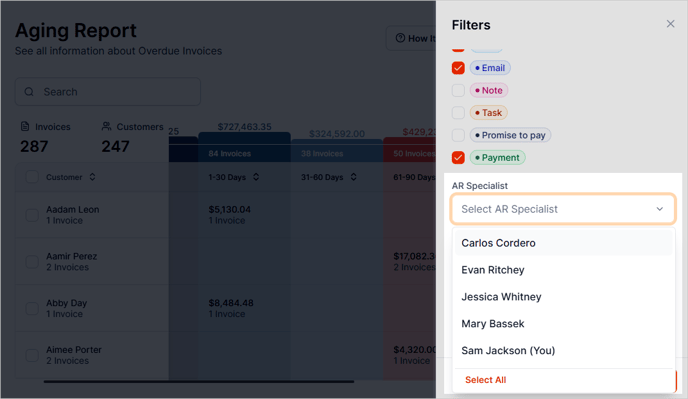
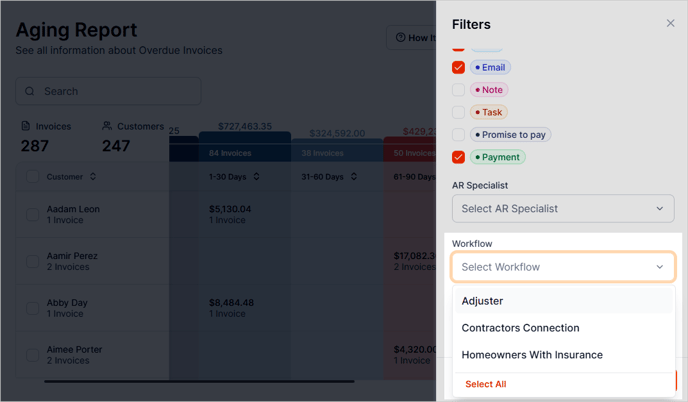
- Workflow - Sort the report based on assigned Workflows
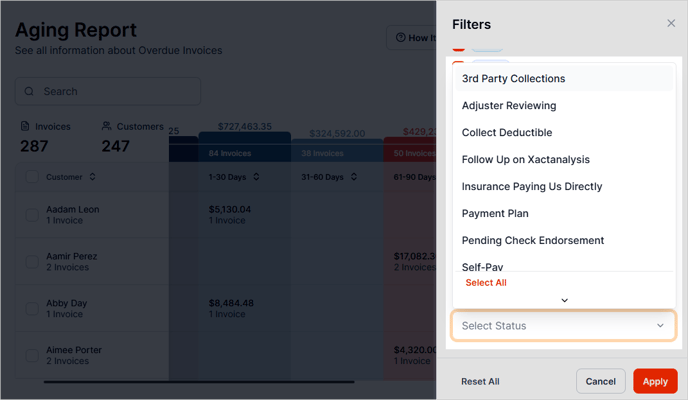
- Collection Status - This filter sorts the report based on invoice status.
4. Once done, click the Apply button to sort the Aging Report.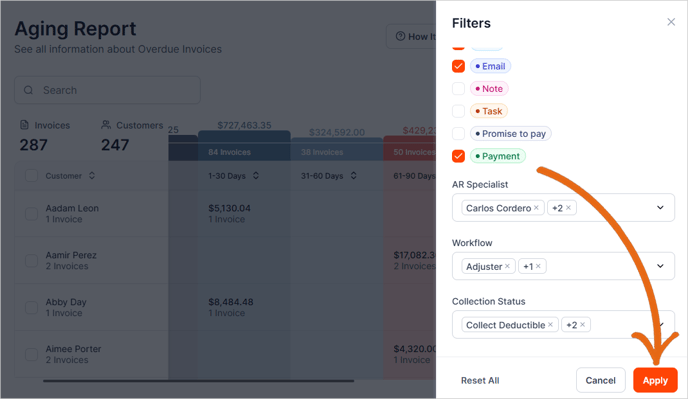
5. If you need to remove the filters, click Reset All.

Saving the filters.
You will need to open your customer in a new tab to save the filters.
Clicking a customer’s name will take you from the Aging Report to the Customer Details page. When you return to the Aging Report, any filters you applied will be reset.
To prevent this from happening, hover over the name of the customer and click the icon to the right of the name to open the customer in a separate browser tab.

Once you are done working on the customer profile, close that browser tab and you'll be back at the Aging Report.