![cc5404e7b75e6d484a23b7d9f19a2774.png]](https://support.arworkflow.com/hs-fs/hubfs/cc5404e7b75e6d484a23b7d9f19a2774.png?height=50&name=cc5404e7b75e6d484a23b7d9f19a2774.png)
1. Navigate to the Customers tab.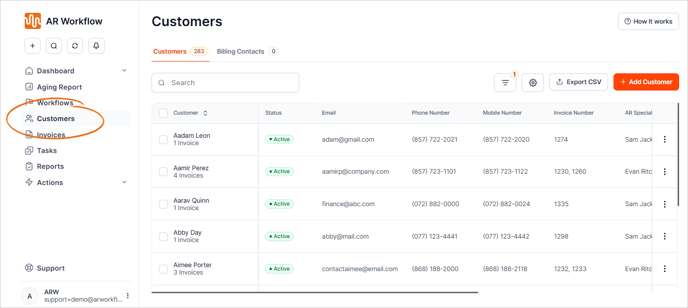
2. Click the Filter tool.

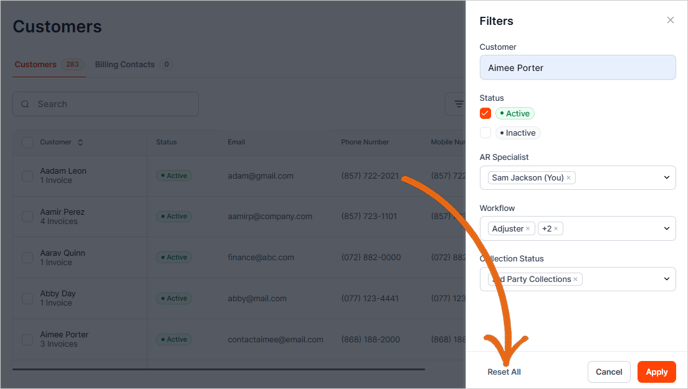
3. Next, choose the filter(s) that you want to use:
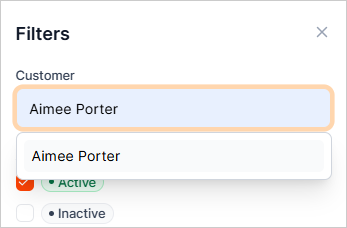
- Customer - Use the search box to quickly find a specific customer.
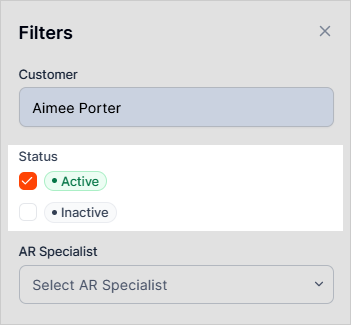
- Status - Sort by Invoice Status (Active/Inactive).
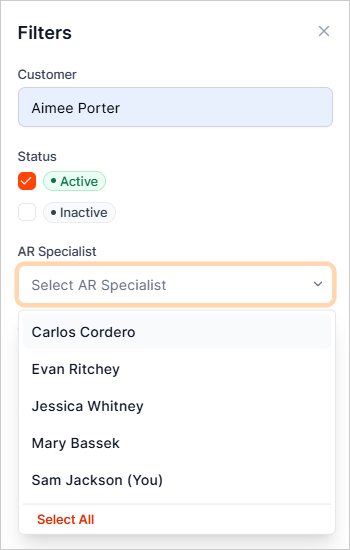
- AR Specialist - Sort the customer list by the assigned AR Specialist to easily view customers grouped by their dedicated specialist for better tracking and management.
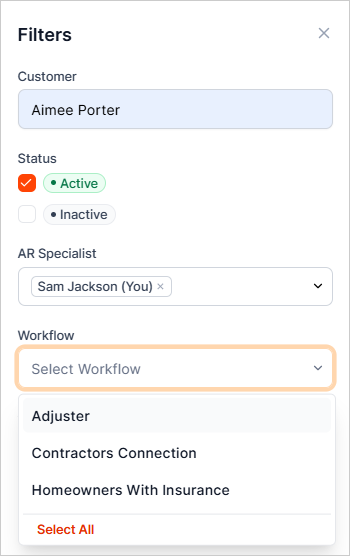
- Workflow - Filter the customer list based on the assigned Workflow to quickly view customers linked to specific processes or tasks.
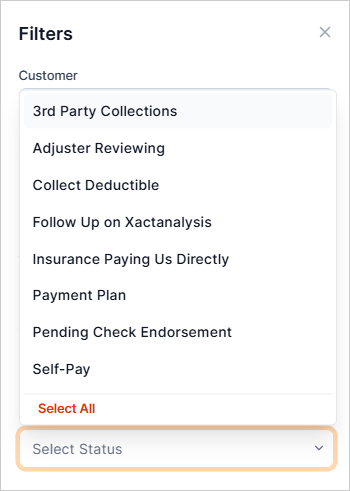
- Collection Status - Sort the customer list by their assigned collection status to easily track customers based on their payment status.
Once you pick the filters you want to use, select the Apply button.
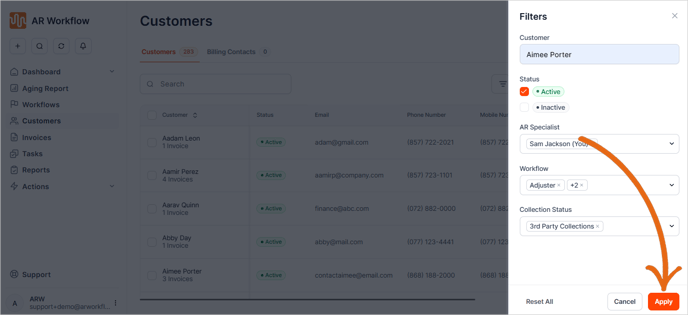
You can remove assigned filters by clicking Reset All.