![cc5404e7b75e6d484a23b7d9f19a2774.png]](https://support.arworkflow.com/hs-fs/hubfs/cc5404e7b75e6d484a23b7d9f19a2774.png?height=50&name=cc5404e7b75e6d484a23b7d9f19a2774.png)
The Email tab is your one-stop shop to review sent, drafted, archived and incoming emails, regardless of who the customer is assigned to.
The Emails tab is divided into five sections:
-
Inbox
-
Sent
-
Draft
-
Archived
-
All Inboxes
Inbox.
The Inbox section contains all the email messages you've received from customers assigned to you. Click the email preview to view the email and/or reply to it.
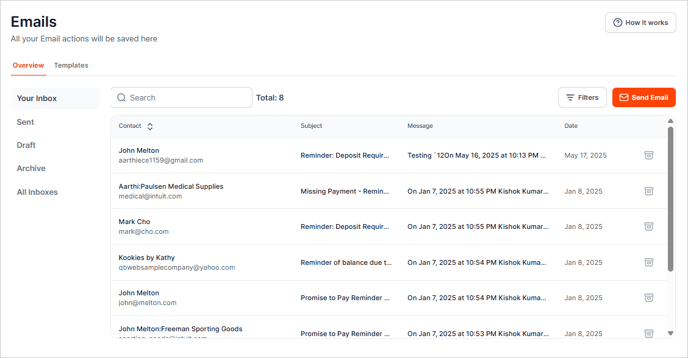
Compose a new email by clicking the Send Email button.

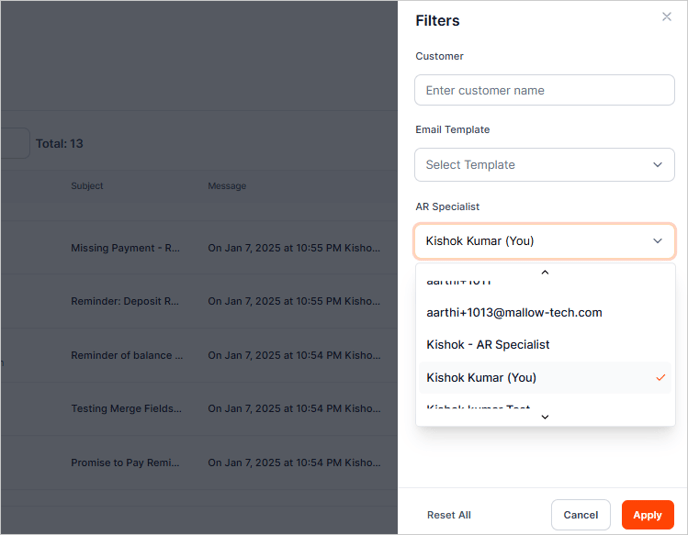
Filtering the Inbox Email List.
To filter your Inbox list, click the Filters button and select the filters you want to apply.

Click the Apply button to apply your selected filters.

Sent.
View all emails sent from your AR Workflow login. Click on a message to open the thread.

Once inside the email, you can Reply, Reply All, or Forward the email.

Draft.
View emails that have been drafted, but not sent.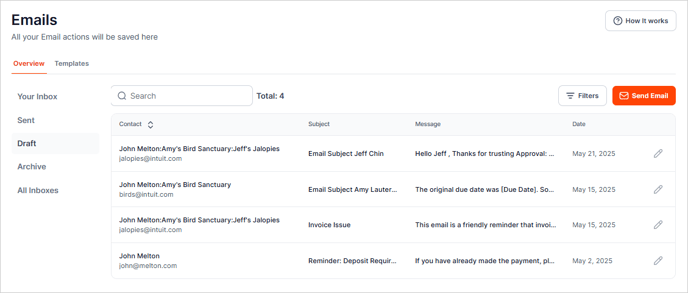
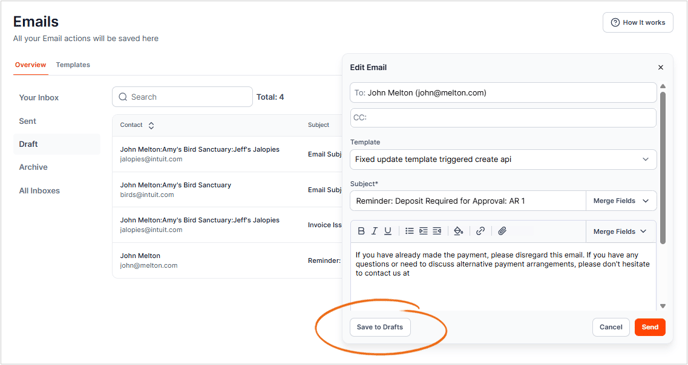
When you click the Save to the Draft button after composing an email, it automatically sends this email to the Drafts tab.
Archiving Sent Emails.
Click the Archive icon on the email that you want to archive.

Archive.
All archived emails are listed in the Archive tab.

To unarchive an email, hover your mouse over the email and click the Unarchive icon.
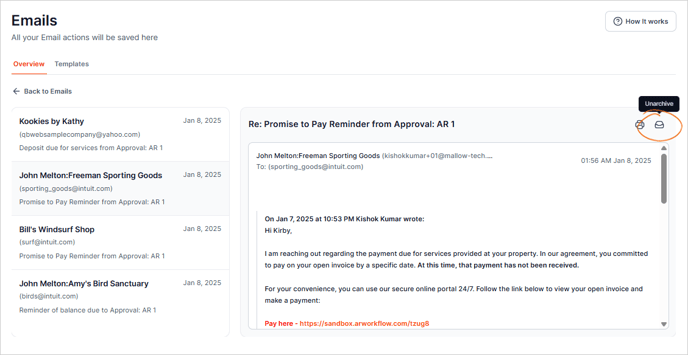
You can perform the same action if the email preview is open.

All Inboxes.
The All Inbox tab contains all emails, regardless of the assigned AR Specialist. Use this tab to keep track of emails for co-workers that are out of office or unable to check their own inbox.

Filter down the emails in All Inboxes by unique AR Specialist to narrow down your search: