![cc5404e7b75e6d484a23b7d9f19a2774.png]](https://support.arworkflow.com/hs-fs/hubfs/cc5404e7b75e6d484a23b7d9f19a2774.png?height=50&name=cc5404e7b75e6d484a23b7d9f19a2774.png)
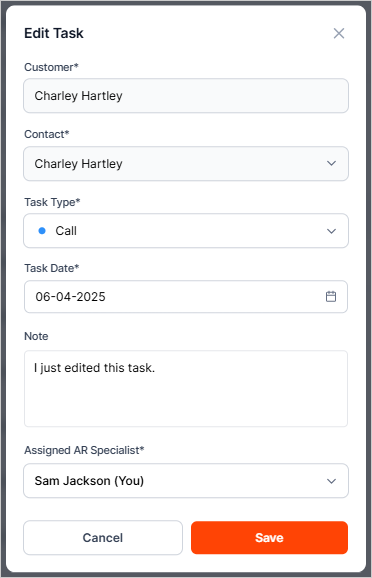
Tasks are not set in stone. The following items can be edited as long as the task has not been marked as complete:
-
Task Type
-
Task Date
-
Note
-
Assigned AR Specialist

Edit a Task
1. Navigate to the Tasks tab from the left navigation bar.
2. Click the three-dots icon and choose Edit.

3. Make your necessary changes.
4. Once done, click the Save button.
Edit a Scheduled Task
If you need to update the details of a Scheduled Task, follow these steps:
1. Navigate to the Tasks tab.
2. Go to Scheduled Tasks.
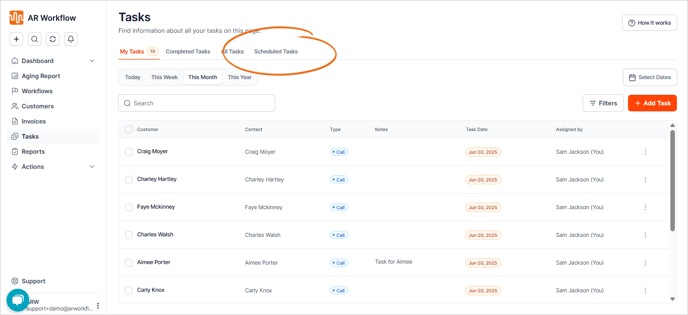
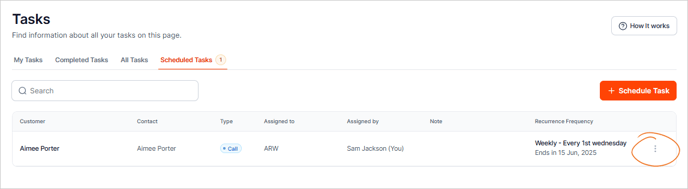
3. On the Scheduled Task that you want to edit, click the three-dots icon.
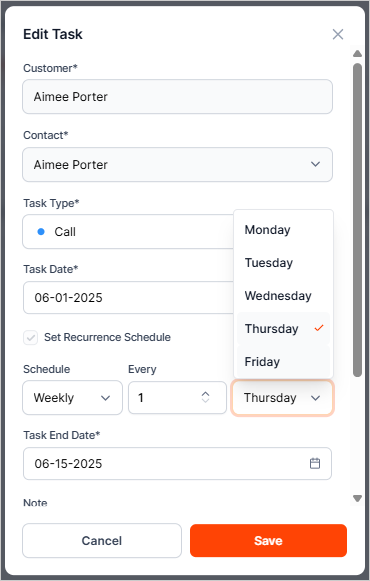
4. Make the necessary edits.
5. Once done, click the Save button.