![cc5404e7b75e6d484a23b7d9f19a2774.png]](https://support.arworkflow.com/hs-fs/hubfs/cc5404e7b75e6d484a23b7d9f19a2774.png?height=50&name=cc5404e7b75e6d484a23b7d9f19a2774.png)
Important: Access to the Workflow tab is limited to Owner, Admin and AR Manager user profiles.
Remove Customers from a Workflow
To remove customers from a Workflow, or to see who is currently assigned to a Workflow:
-
Navigate to the Workflows tab.
-
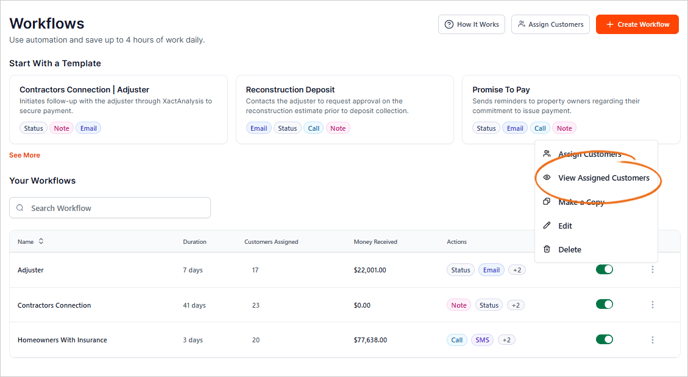
Click the three dots icon and choose View Assigned Customers.
On the Assign page, you'll see a list of customers along with their assigned Workflows. To remove a customer from a Workflow, hover over their name and click the arrow icon.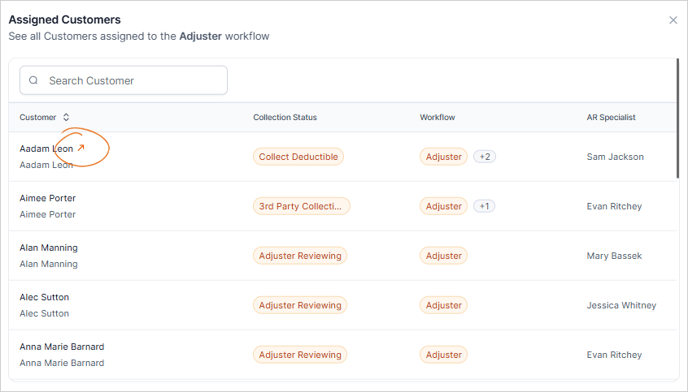
There are two actions here:
a. Pause Workflow - Pausing a Workflow will stop all communications to the customer, but you can resume it later from where it left off.
b. Unassign Workflow - This action will permanently remove the customer from the Workflow. Once removed, the customer will no longer receive any communications or actions tied to that Workflow. Please note that this action cannot be undone, so make sure to confirm before proceeding.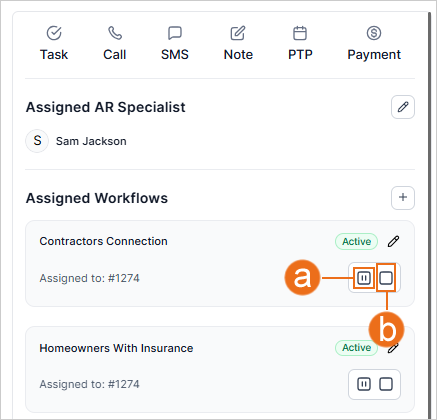
Deactivate a Workflow:
Important: Deactivating a Workflow simply removes it from the list of options when assigning a Workflow to an invoice. It does not affect Workflows that are already assigned.
1. Navigate to the Workflows tab.
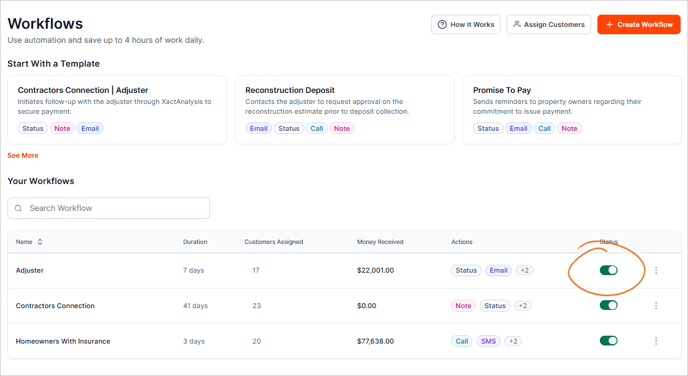
2. Move the status toggle switch to "off" on the Workflow you want to deactivate.
If you need to activate the Workflow again, simply flip the toggle to active.