![cc5404e7b75e6d484a23b7d9f19a2774.png]](https://support.arworkflow.com/hs-fs/hubfs/cc5404e7b75e6d484a23b7d9f19a2774.png?height=50&name=cc5404e7b75e6d484a23b7d9f19a2774.png)
The Dashboard is one of the most important pages in AR Workflow. Not only does it give you an "at a glance" view of the current status of your AR progress, but it also shows your open tasks so you know exactly what to work on each day.
The Main Dashboard consists of two tabs:
-
Overview
-
AR Performance
Overview
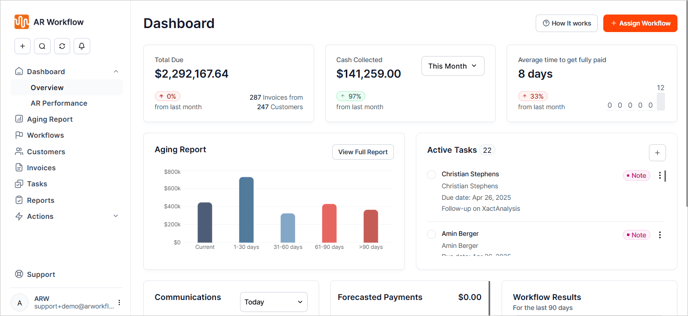
The Dashboard Overview gives you insight into key metrics of your Accounts Receivable.
In the Dashboard you will find:
a. Total Due
b. Cash Collected
c. Average
d. Aging Report
e. Cash Collected
f. Active Tasks
g. Communications
h. Forecasted Payments
i. Workflow Results
Total Due
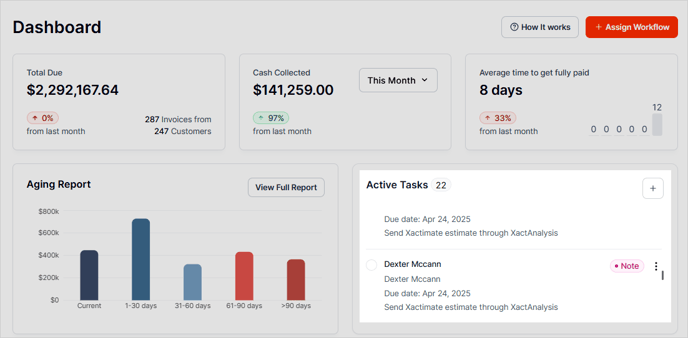
The Total Due panel displays the amount outstanding in all open invoices.
In this example, the red percentage indicates that the current Total Due of $2,292,167.64 is up 0% from last month.

Cash Collected
Cash Collected displays the total amount collected from customers during the time frame selected in the drop down. In this example, $141,259.00 was collected this month, and this amount is 97% greater than last month. This amount was collected from 247 customers.

Average
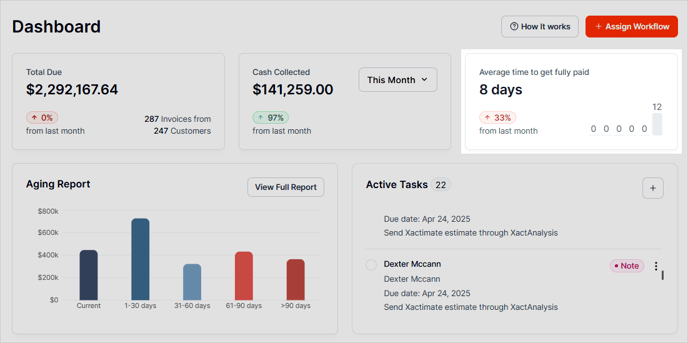
The Average days to get paid is calculated based on the due date of the invoices. In the example below, the office generally receives complete payment on average 8 days after the due date of the invoice.
Aging Report
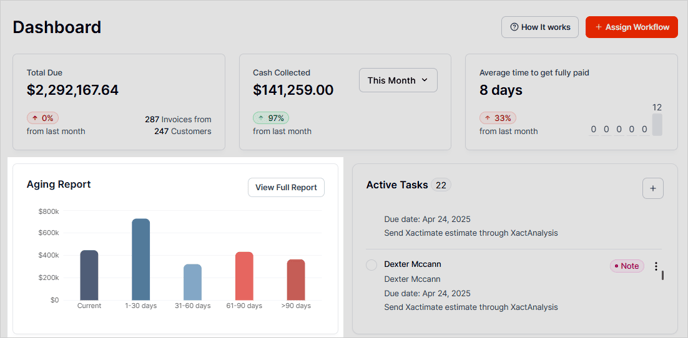
The Aging Report Chart displays a breakdown of your outstanding invoices.
Pro Tip! Click the View Full Report button to access the complete details of your aging report. This will show all outstanding balances, grouped by the length of time they’ve been overdue, giving you a full picture of your receivables.
Active Tasks
Active Tasks shows all of your open tasks.
👀 This is the only section of the dashboard that is unique based on the user that is logged into the software. Each user will only see their own tasks listed here.
Communications
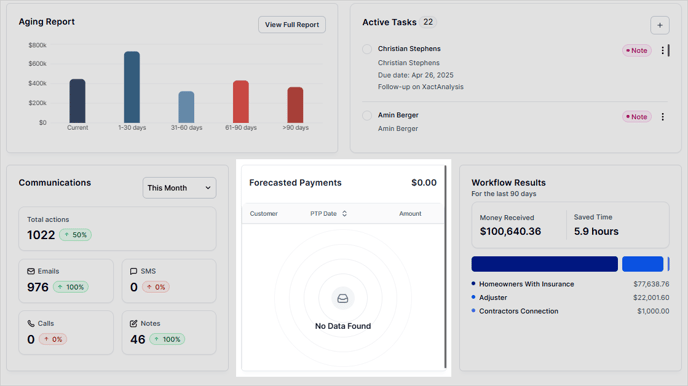
The Communications Panel records the total number of emails, text messages, calls, and notes sent or received during a selected time period. The total number of actions is displayed under Total actions.

You can change the date of your Communications from these timelines:
-
Today
-
This week
-
This month
-
This Quarter
-
This Year

Forecasted Payments
Forecasted Payments are projections based on the age of outstanding invoices and the customer's past payment history. These estimates help predict when payments are likely to be received and how much is expected, supporting better cash flow management and planning.
Workflow Results
This panel shows the total amount of money received from your Workflows over the past 90 days, along with the total time saved during that period. You can also easily view data from different Workflows and see a bar graph that visually represents this information.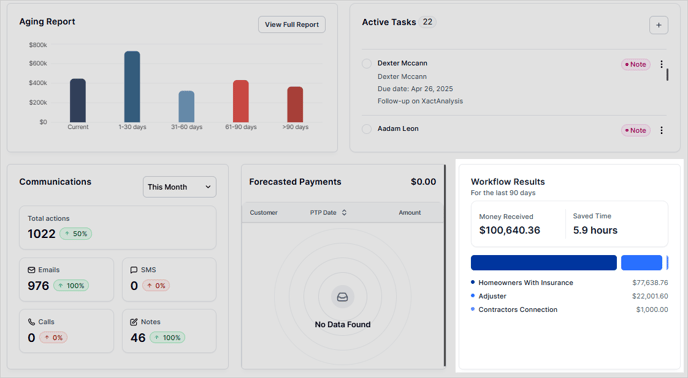
AR Performance
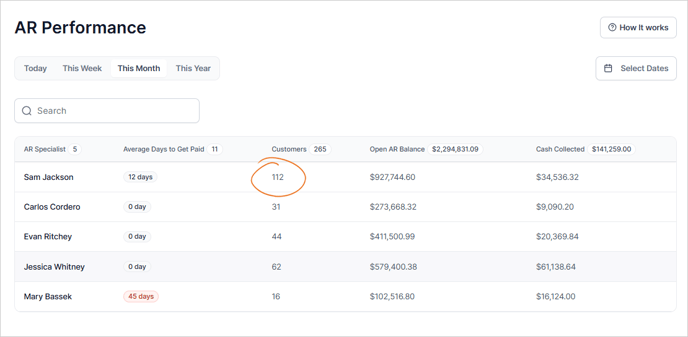
The AR Performance section provides a breakdown of each individual specialist and their performance.

To view specific data in the AR Performance table, click the Select Dates button. This allows you to choose a custom date range, helping you focus on the information that matters most for your analysis.
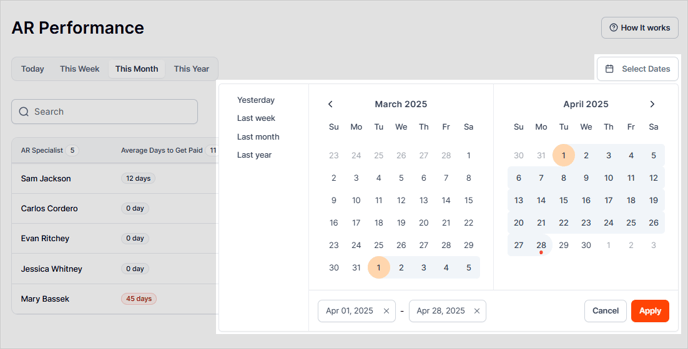
You can also click any of the columns to view the details of each individual specialist.