![cc5404e7b75e6d484a23b7d9f19a2774.png]](https://support.arworkflow.com/hs-fs/hubfs/cc5404e7b75e6d484a23b7d9f19a2774.png?height=50&name=cc5404e7b75e6d484a23b7d9f19a2774.png)
The Customers tab lists all the customers found in AR Workflow. This section displays a table containing the basic information for each customer.
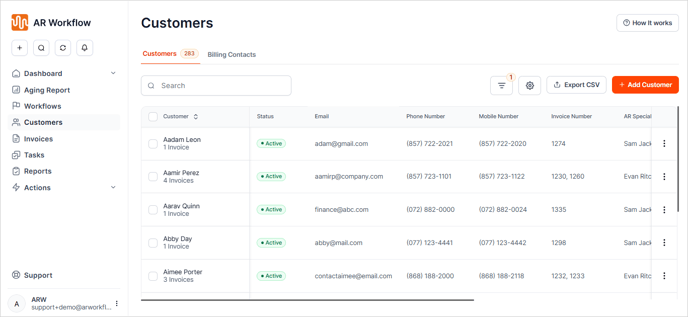
Customers are broken down into 2 categories:
-
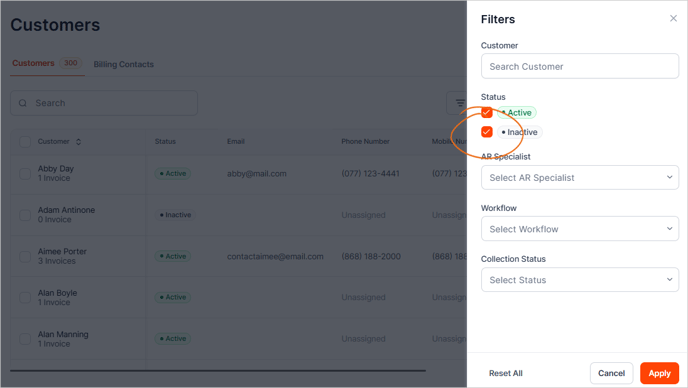
Active - Customers with an open invoice.
-
Inactive - Customers that are deactivated.
If you search for a customer and they are not listed, enable Inactive.
+ Add Customer Button
Click the + Add Customer button to create a new customer.

Customer Search Box
Use the search box to quickly find a customer from the list.

Total Number of Customers
This field displays the current total customers listed in the Customers tab.

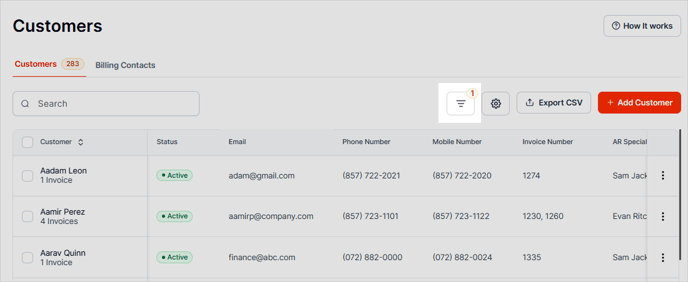
Customer Filter
This filter allows you to display customers and their invoices based on the following parameters:
- Active - Display customers with an open invoice balance.
- Inactive - Display customers who have been deactivated.
- AR Specialist - Sort the customer list by assigned AR Specialist.
- Workflow - Filter the customer list by assigned Workflow.
- Collection Status - Sort the customer list by Collection Status.
Export CSV
Use this button to export your customer list in a CSV format.

Column Settings
Select the ⚙️ gear icon to rearrange your column order or select which columns you wish to display. These settings are user-specific.

Edit
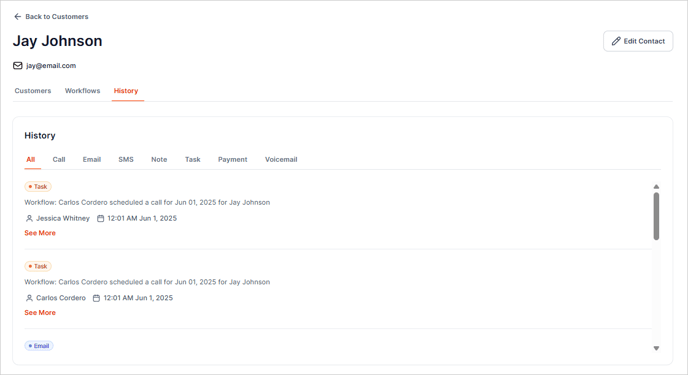
To update a customer’s information, click the three dots icon and select Edit Customer. To quickly view the customer’s recorded activities, choose History from the same menu.

Billing Contacts Tab
This section displays all the Billing Contacts added to your business.
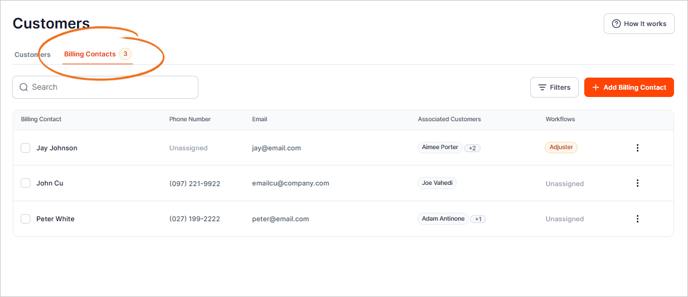
+ Add Billing Contact Button
Select this button to add a new Billing Contact to AR Workflow.

Search Box
Quickly search for a Billing Contact.

Total Number of Billing Contacts
This section displays the total number of Billing Contacts listed.

Edit Billing Contact
Click the three dots icon and choose Edit.

Merge Contacts
Merging Contacts allows you to combine multiple Billing Contacts into a single contact record.
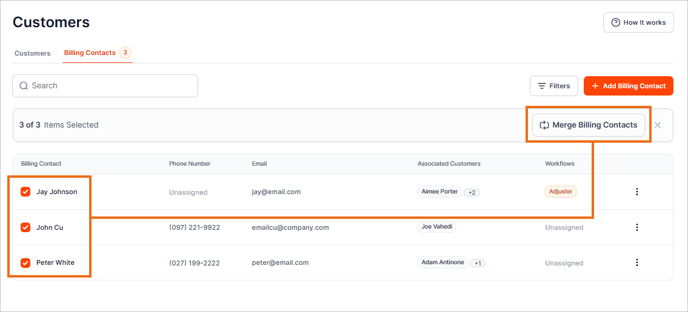
Note: Please carefully review all the contacts that you've added before merging them into a single contact.

Contact Drill Down
Did you know there is a hidden gem on this page? Click the Billing Contact name to open a whole new window that provides a deep dive of the Billing Contact. Here you will find the following items as they relate to this Billing Contact:
- Customers linked to the Billing Contact.
- Assigned Workflows.
- Activity History (Call, Email, SMS, Notes, Tasks, Payments, and Voicemails).