![cc5404e7b75e6d484a23b7d9f19a2774.png]](https://support.arworkflow.com/hs-fs/hubfs/cc5404e7b75e6d484a23b7d9f19a2774.png?height=50&name=cc5404e7b75e6d484a23b7d9f19a2774.png)
AR Workflow syncs your QuickBooks Online data to give your team full context on every customer account. With the addition of Custom Fields and new shipping-related fields, your Invoices and Estimates in AR Workflow now carry even more of the detail your team relies on to manage collections effectively.
What Are Custom Fields?
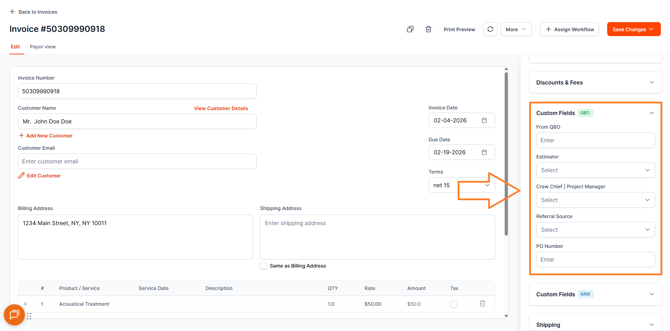
Custom Fields are fields you have configured in QuickBooks Online to capture additional information specific to your business. These fields are now synced directly into AR Workflow and are visible on your Invoices — so your team has access to the same level of detail inside AR Workflow that they would see in QBO, without having to switch between platforms.
What Are the New Shipping Fields?
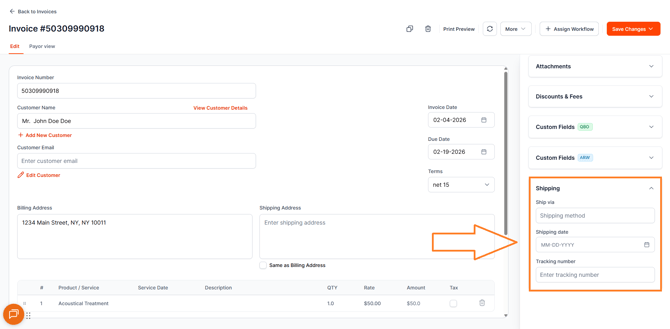
Three new shipping-related fields have been added to both Invoices and Estimates in AR Workflow:
•Ship Via — The shipping method or carrier used for the order.
•Tracking Number — The tracking number associated with the shipment.
•Shipping Date — The date the order was or is scheduled to be shipped.
These fields give your team additional context on each transaction and help ensure your records in AR Workflow are as complete and accurate as possible.
Field Availability — What to Expect
It is important to understand how these fields are populated depending on the record type:
•For Invoices — The new shipping fields are already being synced. All existing invoices in AR Workflow will have values for these fields where they exist in QBO.
•For Estimates — Only estimates synced moving forward will include values for the new shipping fields. Existing estimates in AR Workflow will not have these values populated at this time. If you need existing estimates backfilled, please reach out to AR Workflow Support.
Troubleshooting: Not seeing your data?
If you notice that your Custom Fields or Shipping data are not appearing correctly on your Invoices or Estimates, you may need to refresh your connection.
How to Refresh your QBO Connection:
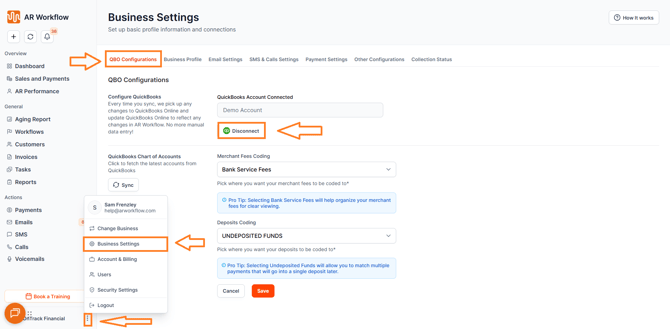
To resolve most syncing issues, an Owner or Admin can simply disconnect and then reconnect the QBO integration:
1.Navigate to Business Settings > QBO Configurations.
2.Click Disconnect to temporarily stop the integration.
3.Click Reconnect QBO and follow the prompts to re-establish the link.
Once reconnected, your data will begin syncing with the latest Custom Field and shipping values from QBO.