![cc5404e7b75e6d484a23b7d9f19a2774.png]](https://support.arworkflow.com/hs-fs/hubfs/cc5404e7b75e6d484a23b7d9f19a2774.png?height=50&name=cc5404e7b75e6d484a23b7d9f19a2774.png)
🛠️ Access to edit users is limited to Owner and Admin profiles.
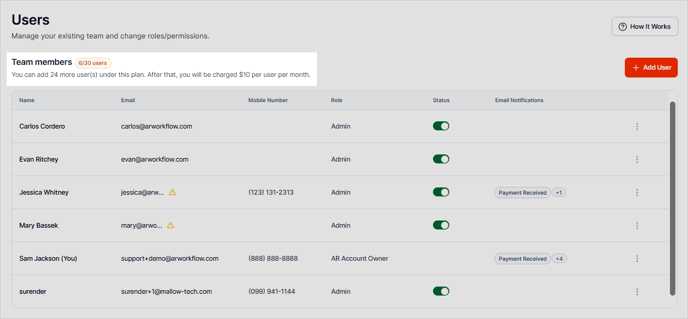
The Users Dashboard is composed of the following sections:
a. Current Plan.
b. New User Button.
c. User Information Table.

To access the Users Dashboard, click the three-dots icon next to your business name and select Users from the list.

Each subscription plan has a user limit. Once you reach the maximum number of users, you will be charged $10 per month for each additional user.
Add User Button
Use this button to add a new user

User Information Table

This table displays all the information about a user.
-
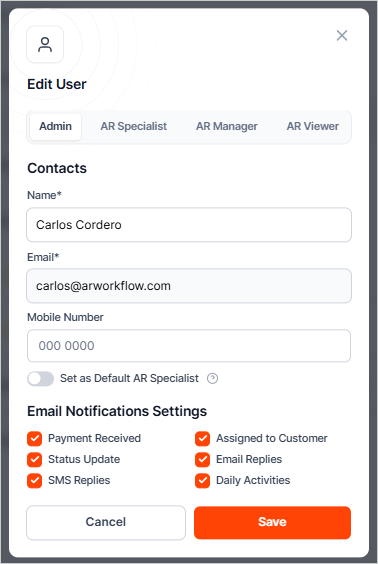
Name - This name will show in email signatures, on the customer payment portal, and within the AR Workflow software.
-
Email - This email address is only used to sign into the software. It is not presented to the customer unless manually added to an email or SMS.
-
Mobile Number - the mobile number is for informational purposes only and is not used within the software.
-
Role - the AR Workflow user experience is role-specific, with Owner and Admin having universal control, followed by the AR Manager, then the AR Specialist. The AR Viewer role will not have any edit rights within the software and is used for a user who only needs visibility into the day-to-day operations.
-
Status - mark users who are no longer using AR Workflow as inactive to remove them from being able to log in, as well as from drop-down lists within the software. This feature also works when someone goes on extended leave, but will eventually need to be activated again.
-
Email Notifications - hover over this section for a quick view of a users email notification settings:

-
Three-dots icon - click this icon and choose Edit to update the user role, mobile number, email settings, etc.