![cc5404e7b75e6d484a23b7d9f19a2774.png]](https://support.arworkflow.com/hs-fs/hubfs/cc5404e7b75e6d484a23b7d9f19a2774.png?height=50&name=cc5404e7b75e6d484a23b7d9f19a2774.png)
Access to the Workflow tab is limited to Owner, Admin and AR Manager roles.
The Workflows Dashboard contains all the tools you need to automate and improve your business process through the use of a Workflow. By creating an automated sequence of tasks, you can save time and focus more on your business.

Within a Workflow, you can automate the following actions based on the date the Workflow was assigned or the due date of the invoice.
- Send an Action Note to the assigned AR Specialist.
- Send templated Emails and SMS messages.
- Send templated Emails and SMS messages.
- Assign or change the AR Specialist assigned to the customer.
- Notify an AR Specialist when an action is initiated.
- Update an invoice status.
1. Navigate to the Workflows tab.

2. Click the + Create Workflow button.
-
View this article for steps to clone a Workflow so you don't have to start from scratch.
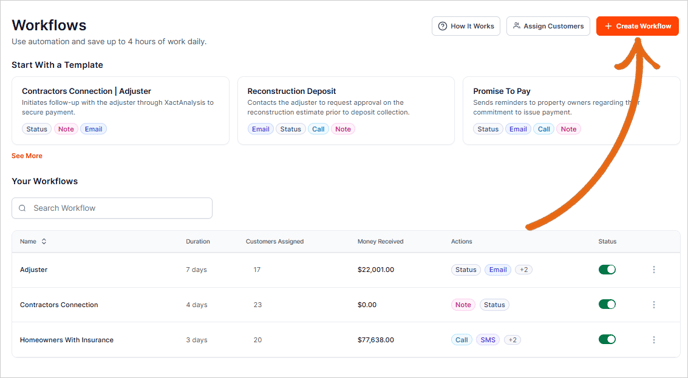
3. Name your Workflow and add a brief description.

4. Select the initial activity for this Workflow.
There are several options here that you can automate to occur based on the Workflow assigned date (common) or invoice due date (uncommon):
- Add a Note to the customer account.
- Remind the assigned AR Specialist to Call (adds a task to call the customer).
- Automatically send an Email.
- Automatically send an SMS.
- Update the invoice Status.
- Notify an AR Specialist.
- Assign (or change) the AR Specialist.
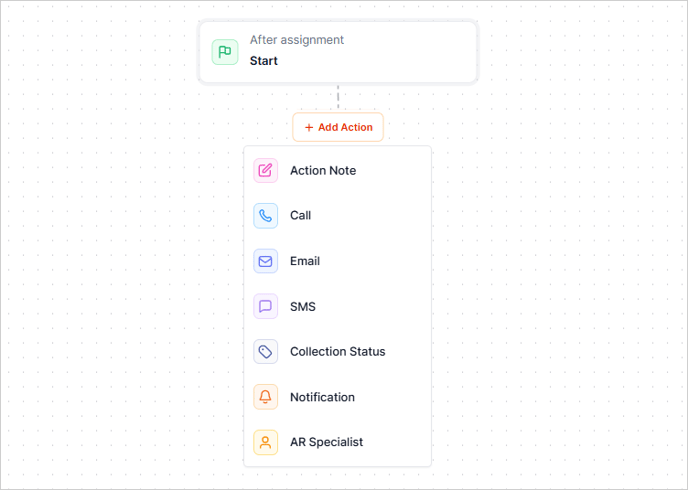
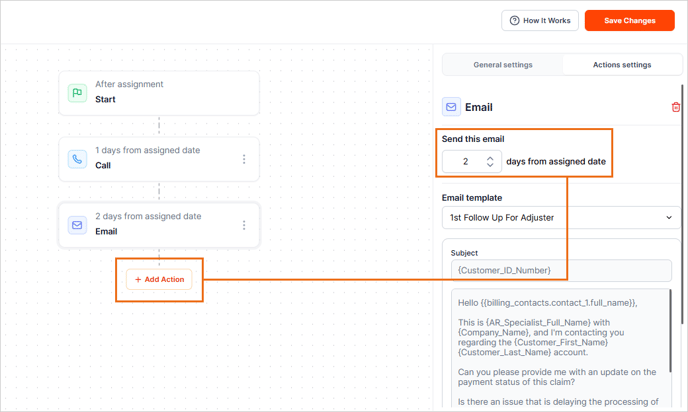
5. Add more activities to this Workflow using the Add Action button and select how many days later you'd like the next action item to take place.
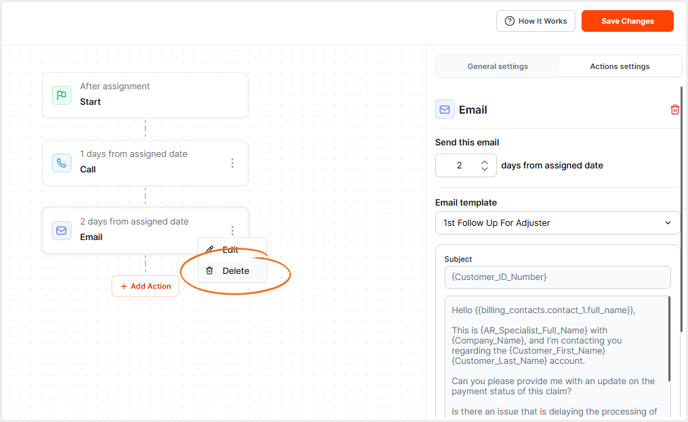
6. To delete an action in a Workflow, click the three dots icon and choose Delete.
7. To continue with a second Workflow, select the option to "Continue with another Workflow" in the General Settings and choose the Workflow from the drop-down.
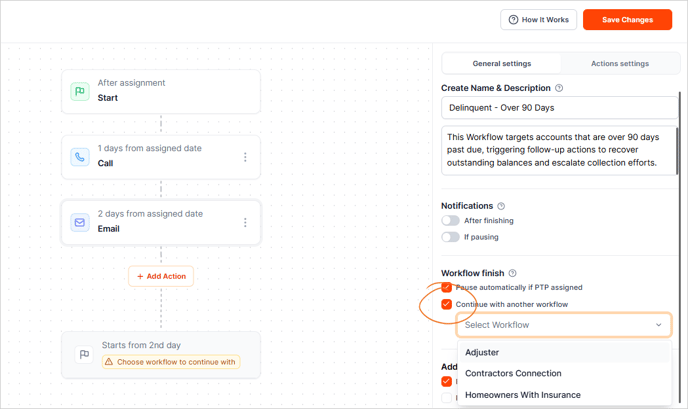
8. Once your Workflow is ready, click the Save Changes button and toggle it to ON.

Next!- Learn how to Assign a Workflow