![cc5404e7b75e6d484a23b7d9f19a2774.png]](https://support.arworkflow.com/hs-fs/hubfs/cc5404e7b75e6d484a23b7d9f19a2774.png?height=50&name=cc5404e7b75e6d484a23b7d9f19a2774.png)
Access to the Actions tab is limited to Owner, Admin, and AR Manager user roles.
To create a new SMS Template, follow these steps:
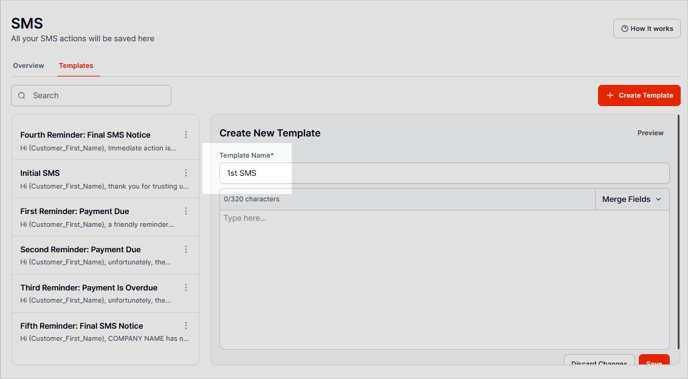
1. Navigate to Actions and choose SMS.

2. Click the + Create Template button.

3. Type the name of the SMS Template.
Pro Tip: Templates are shown in alphabetical order. Using numbers in the template name will put them in the order you wish to send them out. Example: 1st SMS - Self-Pay, 2nd SMS - Self-Pay.
4. Compose your message using the merge fields located in the bottom right corner. Merge fields will auto-populate this data into the text message and allows you to send personalized messages.
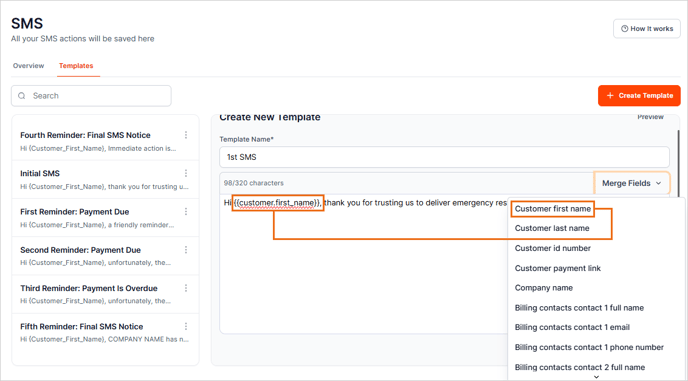
5. Once you are done, click Save.

Now you can assign this template to a Workflow or send it directly to a customer!