![cc5404e7b75e6d484a23b7d9f19a2774.png]](https://support.arworkflow.com/hs-fs/hubfs/cc5404e7b75e6d484a23b7d9f19a2774.png?height=50&name=cc5404e7b75e6d484a23b7d9f19a2774.png)
Part 1: Adding Details
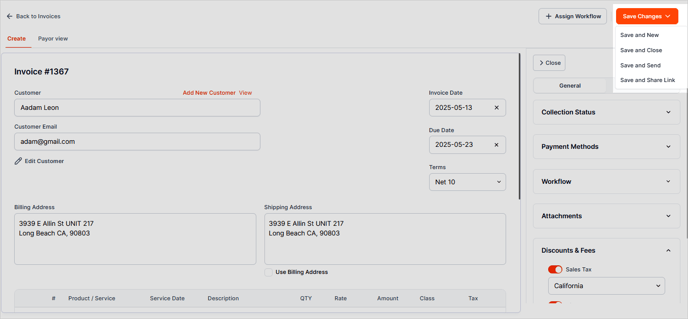
1. Navigate to the Invoices tab.

2. Click the + Create Invoice button.

3. Add a new customer (Add New) or search the name of an existing customer.

4. Set the Terms of the Invoice. Selecting a Term will auto-populate the Due Date field, but you can change the date if needed.

5. Add the Status of the Collection.

6. Expand the Payment Methods to edit the Payment Methods offered (Credit Card or ACH). 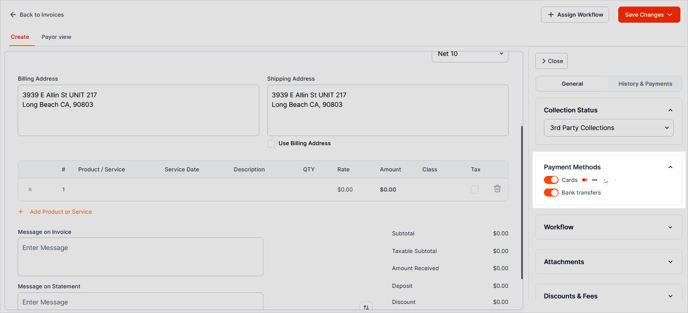
7. Add a Workflow for this Invoice.

8. Add any supporting documents.
Once a file is uploaded, you can choose it from this section to attach to your emails.
Part 2: Add Products/Services, Tax Rate, and Discounts
1. Add a Product/Service.
2. Optional: Enter a custom message for the Invoice or Statement.

3. If taxes apply, enable Sales Tax and choose from the list.

4. Add a discount if applicable to the invoice or transaction.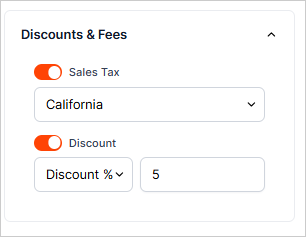
5. Review all the details of the Invoice. Once done, click Save and send, Save and Close, Save and New or Save and Share Link.