![cc5404e7b75e6d484a23b7d9f19a2774.png]](https://support.arworkflow.com/hs-fs/hubfs/cc5404e7b75e6d484a23b7d9f19a2774.png?height=50&name=cc5404e7b75e6d484a23b7d9f19a2774.png)
The estimate was sent to the customer and they agreed to move forward with the product or service. The service was performed (or product provided) and now it's time to move that estimate to an invoice and send out a collection notice to the customer.
Part 1: Adding Details
1. Navigate to the Invoices tab.
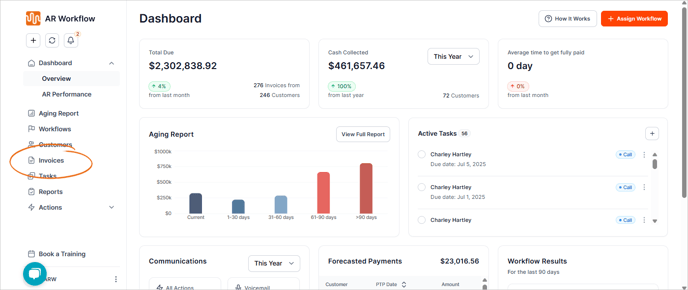
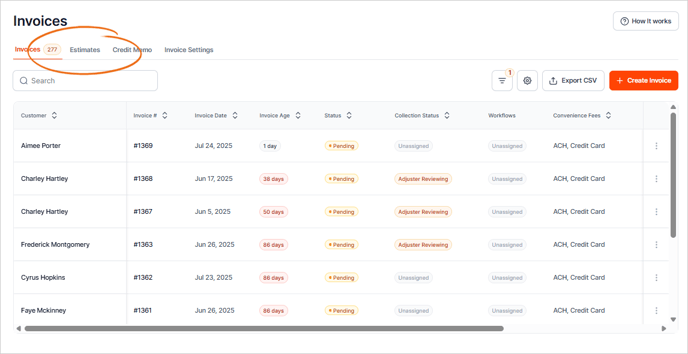
2. Go to Estimates.
3. There are 2 ways to move an Estimate to an Invoice.
Method 1: Select Create Invoice from the Actions column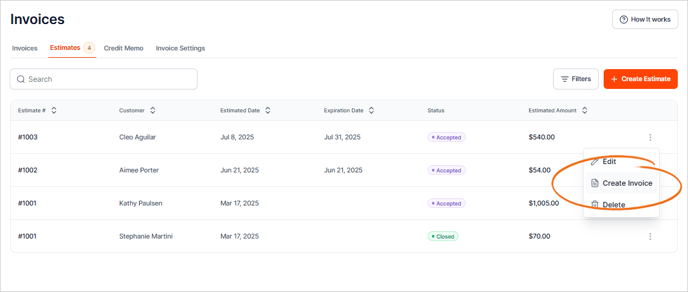
Method 2: Open the estimate and select the button for "Convert to Invoice"

4. Select the Due Date Terms.

5. Select the Invoice's Collection Status.

6. Connect a Workflow to the Invoice to ensure no customer communication slips through the cracks.

Part 2: Adding Products/Services, Tax Rate, and Discount.
1. Review the Estimate's Products and Services. If you need to add more, click + Add Product or Service.

2. Attach any documents you wish to be sent along with the Invoice.

3. Select Save and Close, Save and send, Save and New, or Save and Share Link.
4. To convert an estimate into an invoice, click the three-dots icon and choose Create Invoice.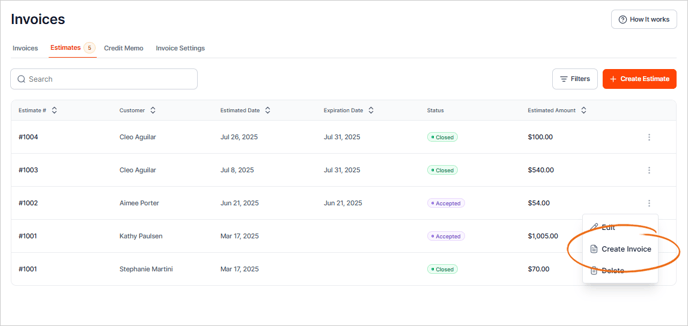
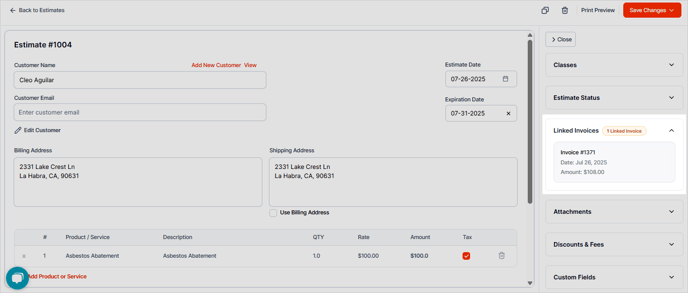
5. Once the estimate is converted into an invoice, you will see this section which links to the invoice created.