![cc5404e7b75e6d484a23b7d9f19a2774.png]](https://support.arworkflow.com/hs-fs/hubfs/cc5404e7b75e6d484a23b7d9f19a2774.png?height=50&name=cc5404e7b75e6d484a23b7d9f19a2774.png)
Communicating with customers is an essential part of every business. Aside from sending emails, you also have the option to send and receive SMS text messages and calls directly from the software.
In order to use these awesome features, you will need to choose a virtual phone number in your AR Workflow business settings.
Business Settings can only be edited by an Owner or Admin user profile.
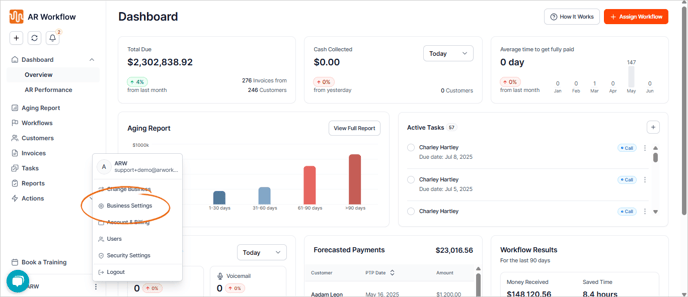
1. Click the three-dots icon beside your business name and choose Business Settings.
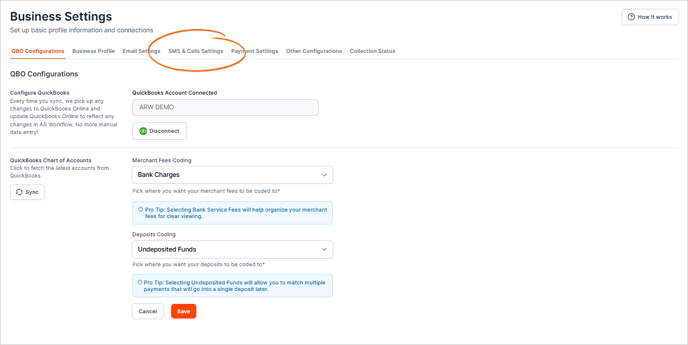
2. Go to the SMS & Calls Settings tab.
3. Start typing the area code and first 1 or 2 digits, and the virtual phone system will search for an available number.
Pro Tip: Choose a number that is close to your business number.
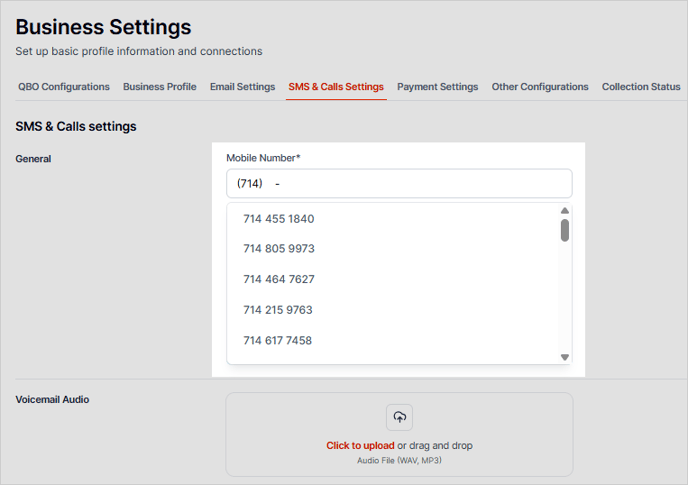
A virtual phone number is a standard telephone number that is not locked down to a specific phone or carrier. This feature cannot be used with any phone number other than what shows as available in the drop-down.
Once you use this number within the software, it cannot be changed.
4. Don't forget to set up your voicemail. If a voicemail is not set up, the system will default to a message such as "The number you have called is unavailable. Please leave a voicemail after the beep."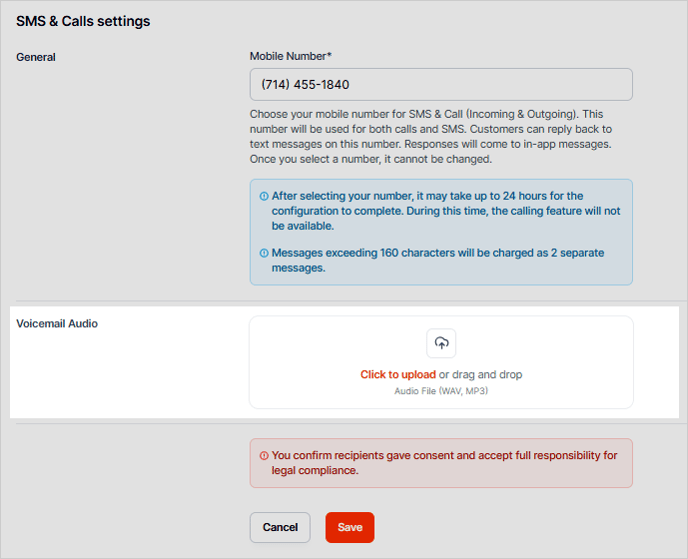
5. Save and get started sending SMS texts and calling directly from AR Workflow!