![cc5404e7b75e6d484a23b7d9f19a2774.png]](https://support.arworkflow.com/hs-fs/hubfs/cc5404e7b75e6d484a23b7d9f19a2774.png?height=50&name=cc5404e7b75e6d484a23b7d9f19a2774.png)
Everything in AR Workflow is tied to your login email address. To update this address, you'll need to create a new user in AR Workflow and move your currently assigned customers to your new user profile.
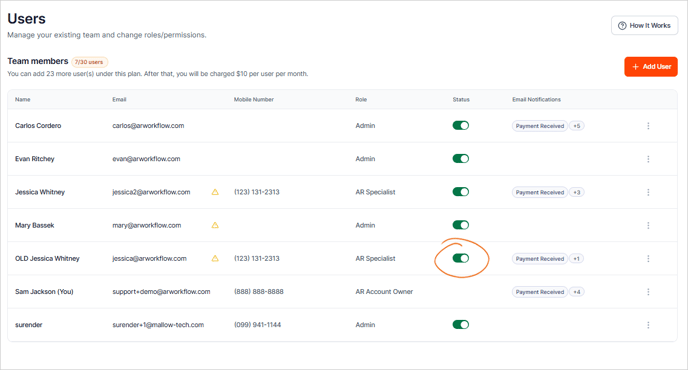
1. Navigate to Users.

2. Make a NEW USER with the correct email.

3. Edit the CURRENT USER name to add an indicator in the name to show that it's no longer in use
Example:
-
New user: Jessica Whitney
-
Old user: OLD Jessica Whitney

4. Navigate to the Aging Report tab.

5. Use the filter to find the OLD user and pull up customers assigned to that user and click Apply.

6. Use the "Select All" to select the customers.
The Select All checkbox will only appear once you check at least 1 item in the list

7. Use "Assign AR Specialist" to assign them to the NEW user.

8. Navigate to the Users tab.

9. Deactivate the OLD user and click Deactivate to confirm your action.