![cc5404e7b75e6d484a23b7d9f19a2774.png]](https://support.arworkflow.com/hs-fs/hubfs/cc5404e7b75e6d484a23b7d9f19a2774.png?height=50&name=cc5404e7b75e6d484a23b7d9f19a2774.png)
This article covers the following actions available in the Calls Tab:
-
Making an Outbound Call
-
Search and Sort by Date Range
-
Filter the Call List
-
Call Log Notes
-
Listen to Recordings
-
Downloading Calls
-
Assign a Call to a Customer
Making an Outbound Call
To make a call, click the Make a Call button, search for the customer, and complete the call.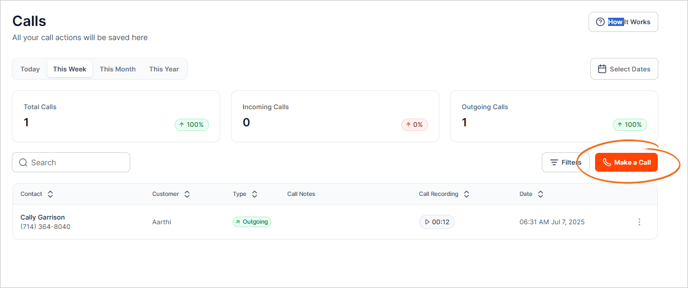
Search and Sort by Date Range
Narrow down your search history by using the Select Dates button and selecting a search time frame.

Filter the Call List
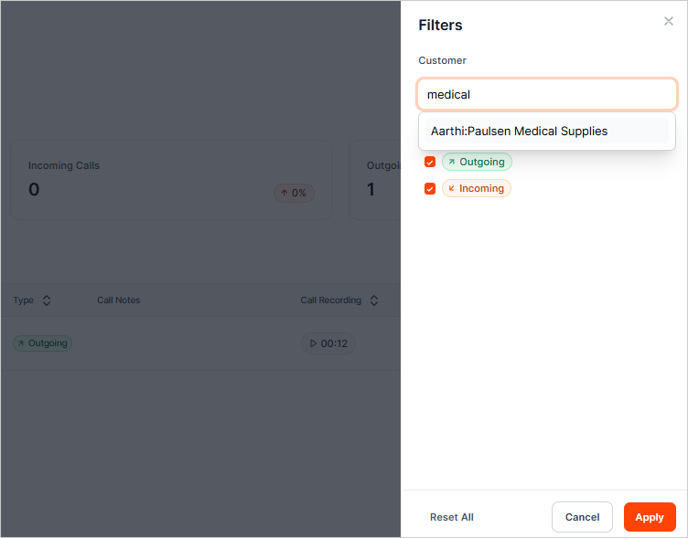
Narrow down your search even further using the filter options for Customer and Call Type.
Call Notes
The Call Notes Column displays notes taken during the call.

Listen to Recordings
All inbound and outbound calls are recorded in AR Workflow. Select the play button next to the duration to listen to the recorded call.

Downloading Calls
Click the three-dots icon and choose Download Call Recording to get a recorded call locally to your computer.

Assign a Call to a Customer
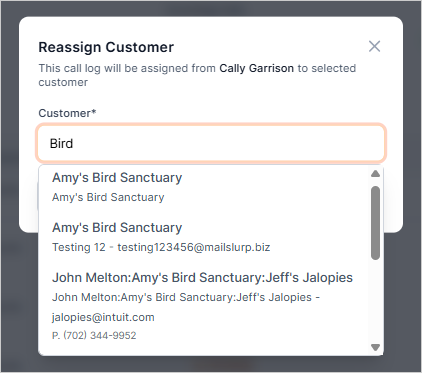
If a customer calls the AR Specialist from an unknown or new number, the call will be titled Assign Customer.
Until a call is assigned to a customer, it will only be visible in the Calls tab. Once it is assigned, the call will also be found in the Customer Activity List. To assign a customer to the call, type the customer's name and click Assign.