![cc5404e7b75e6d484a23b7d9f19a2774.png]](https://support.arworkflow.com/hs-fs/hubfs/cc5404e7b75e6d484a23b7d9f19a2774.png?height=50&name=cc5404e7b75e6d484a23b7d9f19a2774.png)
Overview
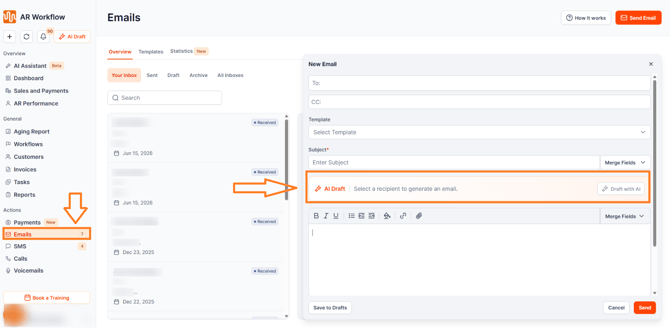
AI Draft helps you generate AI-assisted collection emails faster, while keeping you fully in control of every action. When composing an email for a customer or contact, simply click Draft with AI, and AR Workflow generates a first draft using the contact's real account data — balance, invoices, names, and more.
This feature is designed to help you generate collection communications faster, personalize communications using real customer data, receive a recommended collection tone based on invoice aging, and reduce manual drafting effort overall.
Important: AI never sends anything automatically. You always review, edit, and send through the existing composer — exactly as you do today.
Supported Channels
Currently, AI Draft is available for Email only, through the new email composer. Each draft includes a subject line and a message body.
Step 1 —Choosing the Intent
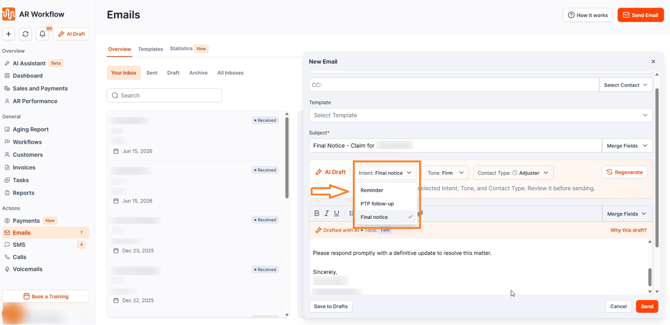
Intent refers to the purpose of the email — what you're actually trying to communicate to the customer. Three intents are currently available:
Reminder
A general payment reminder.
PTP Follow-up
A follow-up used specifically when a Promise to Pay was missed.
Final Notice
An escalated, more urgent final notice.
AR Workflow automatically preselects an intent based on how overdue the customer's aged invoice is:
Note: PTP Follow-up is not preselected automatically. You can manually select it when following up on a missed Promise to Pay.
| Days Overdue (Aged Invoice) | Preselected Intent |
| 0 – 45 days | Reminder |
| 45+ days | Final Notice |
Step 2 — Choosing the Tone
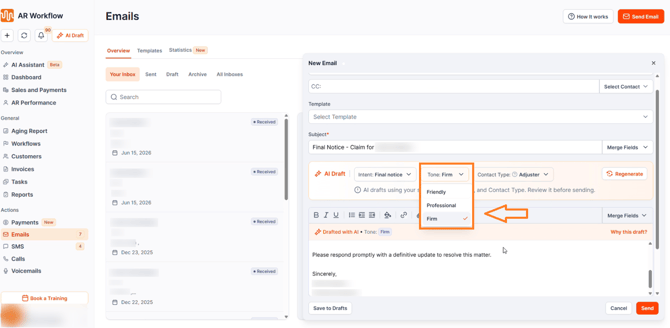
Tone controls how firm or warm the message sounds. Just like Intent, AR Workflow automatically preselects a tone based on how overdue the customer's aged invoice is:
| Days Overdue (Aged Invoice) | Preselected Tone |
| 0–13 days | Friendly |
| 14–29 days | Professional |
| 30+ days | Firm |
The exact overdue invoice age used to make this recommendation is visible in the Why This Draft? section, along with other relevant account context.
Step 3 — Recipient Type Detection
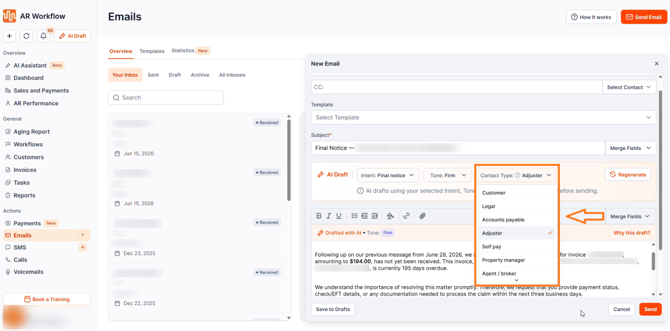
Before generating a draft, AR Workflow also determines who the email is actually being written for, so the AI can tailor the language appropriately. A draft going to an insurance adjuster needs different wording than one going directly to a homeowner — and AR Workflow handles that automatically.
The recipient type is preselected automatically, but you can always change it and edit the draft if needed.
How AR Workflow Detects the Recipient Type
The system follows this detection logic, in priority order:
1. Contact Title (the strongest signal)
The system first checks the contact title associated with the selected Customer Contact or Billing Contact. Based on that title — for example, "Legal," "Broker," or "Property Manager" — it infers the most appropriate recipient type.
This title comes from one of two places, depending on which contact is selected for the email:
→ Customer Contact title — Added on the Add Customer page.
→ Billing Contact title — Added on the Add Billing Contact page.
This means keeping contact titles accurate and up to date in those two places directly improves how well AI Draft tailors each email going forward.
2. Collection Status of the Aged Invoice
If the contact title is missing, the system evaluates the collection status of the related invoice. Based on this status, it determines the most appropriate recipient type.
3. Default to Customer
If neither the contact title nor the collection status provides a match, the system defaults the recipient type to Customer.
Recipient Groups (8 + Default):
| Recipient Type | Description | Example Titles |
| Adjuster | Insurance adjuster / claims handler | Adjuster, Desk Adjuster, Claims Rep, Public Adjuster |
| Carrier Department | Carrier / claims inbox | Claims Email, State Farm, USAA, Insurance |
| Homeowner Insured | Homeowner, property owner, end customer | Homeowner, Customer, Owner, Insured |
| Self-Pay | Self-pay / uninsured | Self Pay, Self-Pay, Private Pay |
| Property Manager | Property / community manager | Property Manager, HOA, Community Manager |
| Accounts Payable | AP / billing / accounting | AP, Accounts Payable, Billing Contact |
| Legal | Attorney / legal counsel | Attorney, Paralegal, Law Firm |
| Agent/Broker | Insurance agent / broker | Agent, Broker |
| Customer (Default) | Fallback when no signals match | Blank title + blank collection status |
Key Decisions Behind Recipient Detection
Unmapped or unknown titles are treated as Customer by default.
Internal or franchise-specific titles — such as POC, APM or Internal — also use the generic Customer type rather than being mapped to a specific group.
The recipient type is preselected based on the contact title, and you can change it at any time.
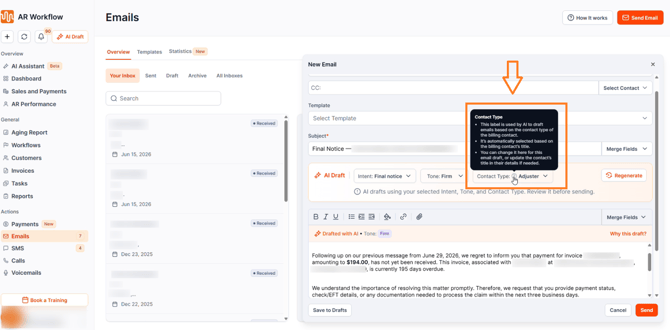
What the Contact Type Tooltip Means
You'll notice a small tooltip next to Recipient Type when drafting an email. Here's what it actually means: this label is used by the AI to draft the email based on the contact type of the billing contact. It's automatically selected based on the billing contact's title — but you can change it here for this specific draft, or update the contact's title in their details if it needs to be corrected for future drafts.
In other words, an adjuster receives different language than a homeowner, because the context each one needs is genuinely different. If the system picks the wrong recipient type, just change it for that one draft. And if a contact's title was never set correctly in their profile, update it directly on the contact's details page so every future draft for that contact gets it right automatically.
Step 4 — Personalization: Data Passed to the AI
Once Intent, Tone, and Recipient Type are set, AR Workflow generates the draft using real values pulled directly from the customer's account — this is what makes each draft feel specific to that customer rather than generic. The data used includes:
Customer Details
- First Name
- Last Name
- Company Name
- Customer ID Number
- Billing Address
- Ship-To Address
- AR Specialist Name
Invoice Details
- Document Number
- Due Amount
- Due Date
- Outstanding Balance
- Days Overdue
Collection Details
- Customer Collection Status
- Invoice Collection Status
Promise to Pay
- Amount
- Promise-to-Pay Date
Payment Plans
- Installment Amount
Payment Links
Payment links use a secure token that the composer replaces with the real link at send time. The AI does not invent or generate URLs on its own.
Email Engagement Data
The system also factors in whether the customer previously opened an email and whether they clicked a payment link. This allows AI Draft to tailor the email differently depending on whether the customer opened the email but didn't pay, versus never opened it at all.
Regenerating and Editing Your Draft
If you click Regenerate, or change the Intent or Tone with text already in the composer, the system will always generate a new version of the draft based on the supplied Intent, Tone, and Contact Type.
For email specifically, any embedded images — such as customer statement screenshots — are removed before the AI processes the text. These images stay in the composer; only the wording itself is regenerated. The AI is also instructed not to add any new image tags into the regenerated draft.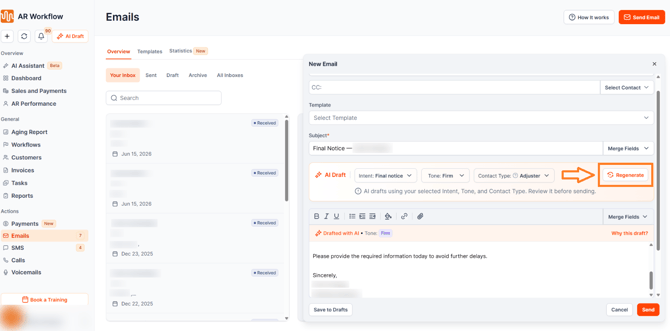
What You Can Do With Your Draft
- Edit the generated subject line
- Edit the generated body
- Remove any AI-generated content
- Send the draft as-is, without regenerating
- Change the Intent and regenerate
- Change the Tone and regenerate
The "Why This Draft?" Section
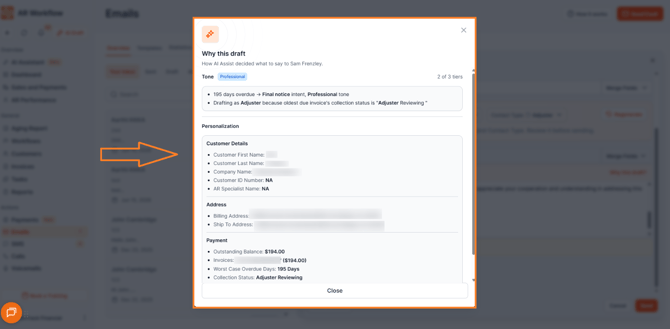
A dedicated section is displayed after the draft is generated, explaining exactly why the AI composed the draft the way it did. This section exists purely to provide transparency to you, the user.
Tone Selection
- Why this tone was selected
- The overdue age used for the recommendation
- Whether you manually changed the tone
Personalization
Customer Details — Customer First Name, Customer Last Name, Customer Name, Customer ID Number, AR Specialist Name.
Address — Billing Address, Ship-To Address.
Payment — Outstanding Balance, Invoices, Worst Case Overdue Days, Collection Status, Active Promise to Pays, Active Payment Plans.
Security & Permissions
AI Draft fully respects all existing AR Workflow role permissions.
There is no autonomous sending — the AI only drafts content, and you always remain the one who sends.
Need Help?
If you have questions about AI Draft or need help understanding a specific draft recommendation, reach out to AR Workflow Support at support@arworkflow.com.