![cc5404e7b75e6d484a23b7d9f19a2774.png]](https://support.arworkflow.com/hs-fs/hubfs/cc5404e7b75e6d484a23b7d9f19a2774.png?height=50&name=cc5404e7b75e6d484a23b7d9f19a2774.png)
The AI Assistant Priority Queue is the default landing screen for collectors in AR Workflow. It is designed to guide your team toward the most important actions, helping you focus on the highest-impact customers with minimal effort — reducing the time needed for daily collections work while improving results.
Important: The AI Assistant never takes action on your behalf. Every recommendation is just that — a recommendation. You always review and decide what to do next.
How to Access the Priority Queue
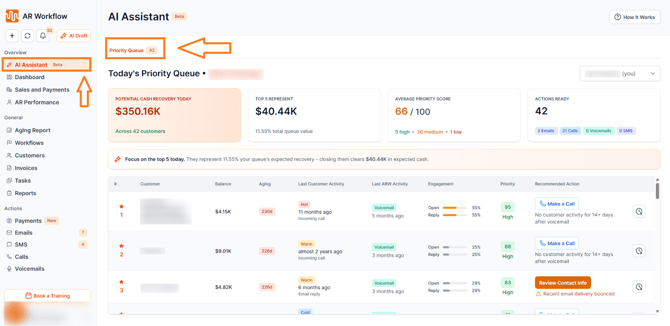
The Priority Queue is your default landing screen when you log in to AR Workflow. It is also accessible at any time via the left sidebar by selecting AI Assistant.
Role-Based Access
Access to the Priority Queue is based on your user role:
-
Owners, Admins, and AR Managers can access the Priority Queue and view all customers.
-
AR Specialists can access the Priority Queue. If Manage All Customers is enabled in their settings, they can view all customers. If it is disabled, they can only view their assigned customers.
-
AR Viewers cannot access the AI Assistant page.
A User Switch Dropdown is available near the search bar for users who have access to all customers. This allows switching between different users — such as AR Specialists or AR Managers — to view the Priority Queue from another user's perspective.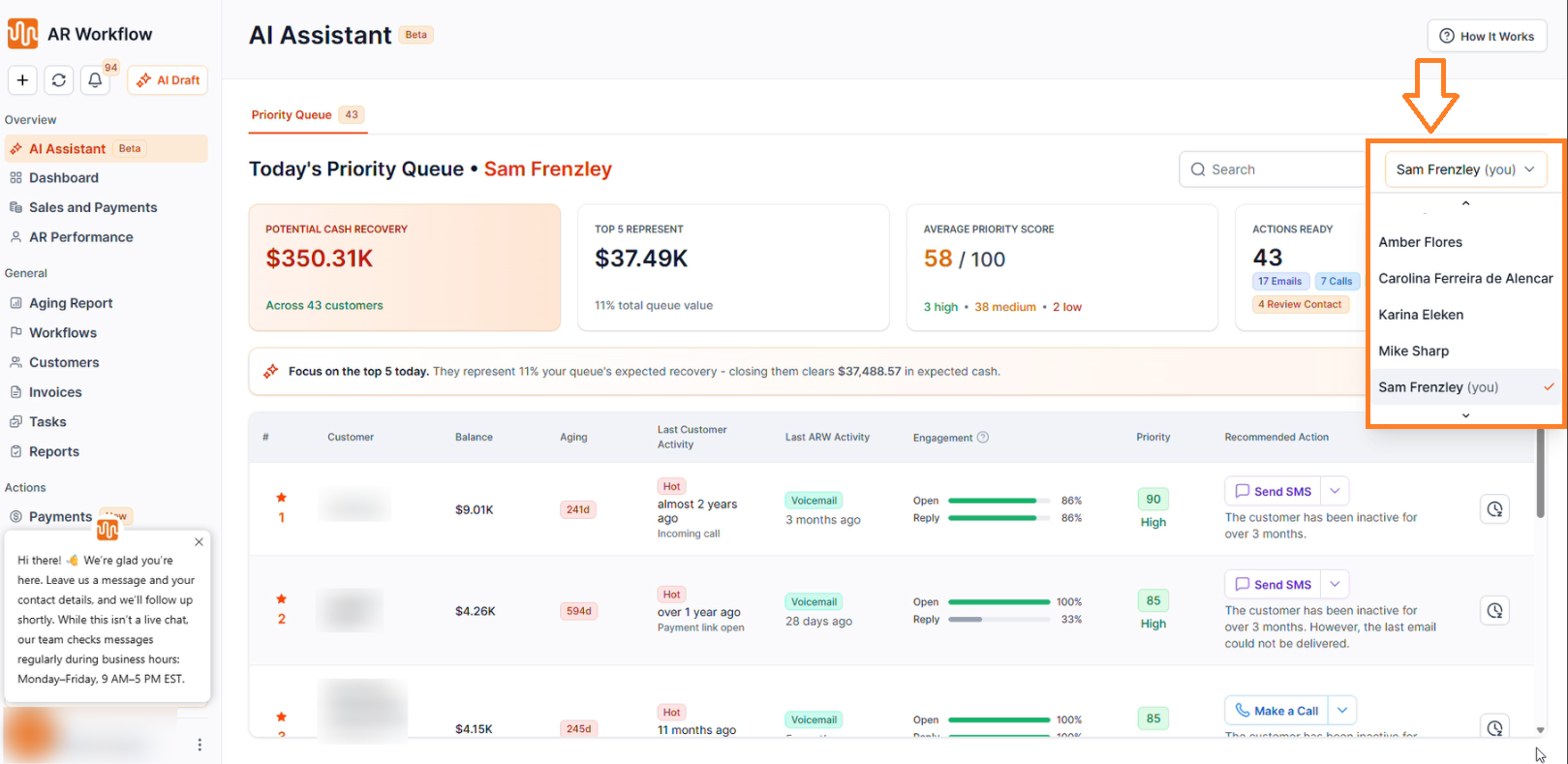
Summary Cards
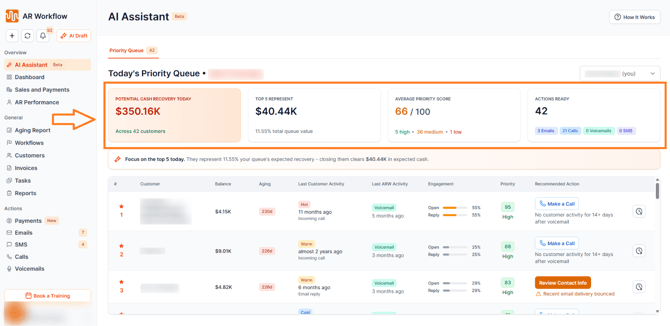
At the top of the Priority Queue, four summary cards provide a real-time snapshot of your collections opportunity:
-
Potential Cash Recovery Today — The total outstanding balance across all customers currently displayed in the queue, representing the potential amount that could be collected today.
-
Top 5 Represent — The total balance and percentage contribution of the five highest-priority customers in the queue.
-
Average Priority Score — The average AI Priority Score across all customers currently displayed.
-
Actions Ready — The total number of recommended collection actions available for customers currently in the queue.
The Priority Queue Table
The Priority Queue displays customers ranked from highest to lowest Priority Score. Rankings are recalculated automatically as scores change. When a customer is snoozed, resolved, paid, or no longer meets priority criteria, the next highest-ranked customer automatically enters the queue.
Balance
Displays the total outstanding pending invoice balance for the customer, including all unpaid and partially paid invoices. Hovering over the balance amount shows a tooltip with the list of invoices contributing to the total.
Aging
Displays the age of the customer's oldest outstanding invoice currently pending collection. This is calculated as the maximum number of overdue days among all Pending and Partial Pending invoices for that customer.
Last Customer Activity
Displays the most recent activity performed by the customer, including the time elapsed since it occurred and the activity type. Activities are ordered by most recent timestamp.
Last ARW Activity
Displays the most recent activity performed through AR Workflow for the customer — including both manual and automated workflow actions such as email and SMS replies, payment link opens, incoming calls, and email opens. Bounced emails are shown here with a tooltip.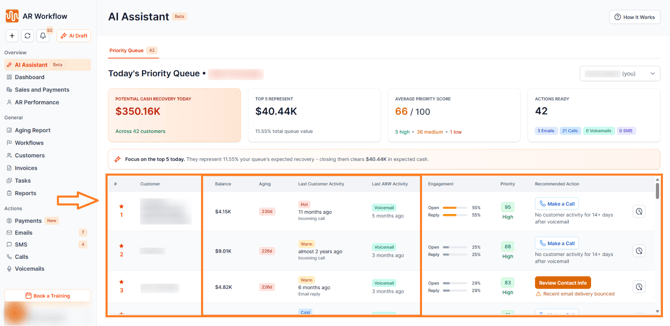
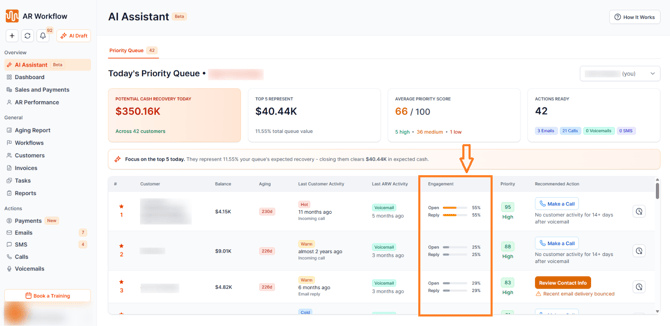
Engagement Status
Each customer is assigned an engagement status based on their real interaction data — specifically their Open Rate and Reply Rate:
-
Hot — Actively engaging: opens emails multiple times, opens payment links, replies to emails or SMS, or calls back. A customer can qualify as Hot even without payment if they are highly responsive.
-
Warm — Moderate engagement: occasional email opens, limited responses, or recent activity without a clear payment commitment.
-
Cold — Little or no engagement: no email or payment link opens, no replies, no calls, and no recent interaction.
How Open Rate and Reply Rate Are Calculated
-
Open Rate: measures customer engagement with outbound communications and payment links. It is calculated as the total number of email opens and payment link opens divided by the total number of emails, SMS messages, voicemails, and outgoing calls sent, multiplied by 100.
-
Reply Rate: measures customer responses to collection communications. It is calculated as the total number of inbound emails, received SMS messages, and incoming calls divided by the total number of emails, SMS messages, voicemails, and outgoing calls sent.
Note: If the Reply Rate is greater than the Open Rate, the system automatically adjusts the Open Rate to be equal to or greater than the Reply Rate. This ensures data consistency, since a customer can only reply after opening a communication.
Priority Score
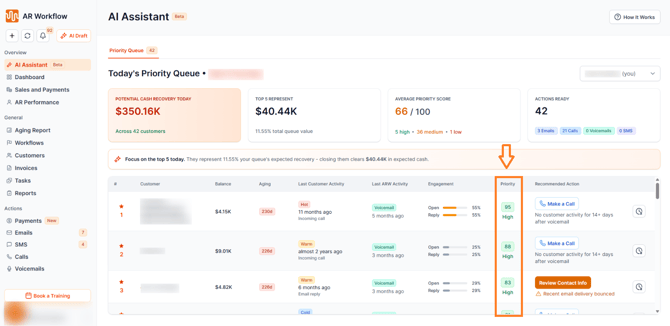
The Priority Score is a composite score from 0 to 100, calculated automatically for each customer using four weighted factors:
-
Engagement — How actively the customer is opening emails, clicking payment links, and responding to outreach.
-
Aging — The age of the customer's oldest outstanding invoice currently pending collection.
-
Outstanding Balance — The total unpaid and partially paid invoice balance.
-
Time Since Last Contact — How long it has been since the last outreach was made.
Customers are ranked from highest to lowest Priority Score. The score recalculates automatically as conditions change.
Recommended Action
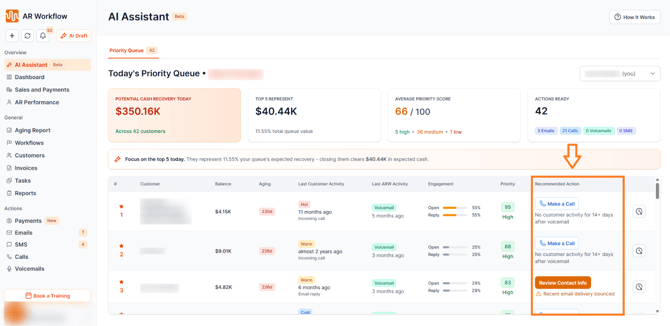
Each customer in the queue comes with a Recommended Action — the most effective next step to take based on the customer's current situation. The primary recommendation is displayed as a button to perform an action that can be Send an Email, Make a Call, Send SMS, or Send Voicemail.
If contact details are missing for both the Customer and their Billing Contacts, a Review Contact Info action is shown instead.
Alternative actions are also available via a dropdown, allowing you to choose a different communication method if preferred. Each recommendation includes a short contextual explanation so you understand exactly why that action is being suggested.
Snoozing a Customer
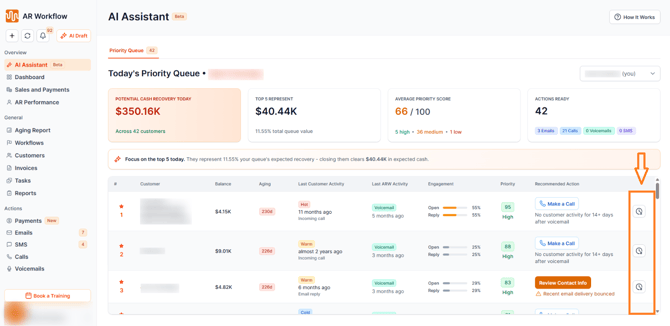
The Snooze feature allows you to temporarily remove a customer from the Priority Queue. Select a Snooze Until date, and the customer will reappear automatically in the queue after that date if they still meet the priority criteria.
Need Help?
If you have questions about the AI Assistant Priority Queue, reach out to AR Workflow Support at support@arworkflow.com.