![cc5404e7b75e6d484a23b7d9f19a2774.png]](https://support.arworkflow.com/hs-fs/hubfs/cc5404e7b75e6d484a23b7d9f19a2774.png?height=50&name=cc5404e7b75e6d484a23b7d9f19a2774.png)
The Aging Report Dashboard displays information and analytics from all outstanding invoices.
Sort by items such as:
-
Last Activity
-
Length of time an invoice has been outstanding
-
Workflow assignment
The Aging Report contains the following features:
a. Aging Report Overview
b. Length of Time Outstanding
c. Filters
d. Activity and Notes

e. Send Email, Assign AR and Workflow
f. Export CSV
g. Column Settings

The data displayed here lets you quickly identify the total number of Active Invoices listed in the Aging Report tab. You will also find the number of Active Customers and the Total Due that needs to be collected.

Length of Time Outstanding
You'll see your invoices grouped into four sections based on their aging length. Each column can be sorted to organize the customers based on the length of time their invoice has been outstanding:
- Current
- 1 - 30 Days
- 31 - 60 Days
- 61 - 90 days
- More than 90 Days

Activity and Notes
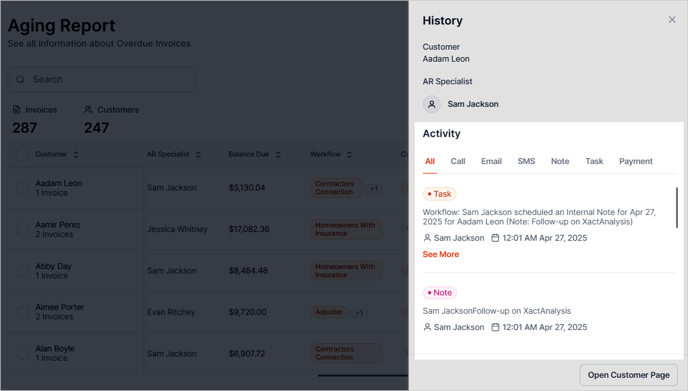
Click the three dots icon and select an option from the list. To review activities related to the customer, choose History.

After you click History, you'll see the full list of activities for this customer.
- All Activities
- Call Logs
- SMS
- Notes
- Tasks
- Payments
Filters
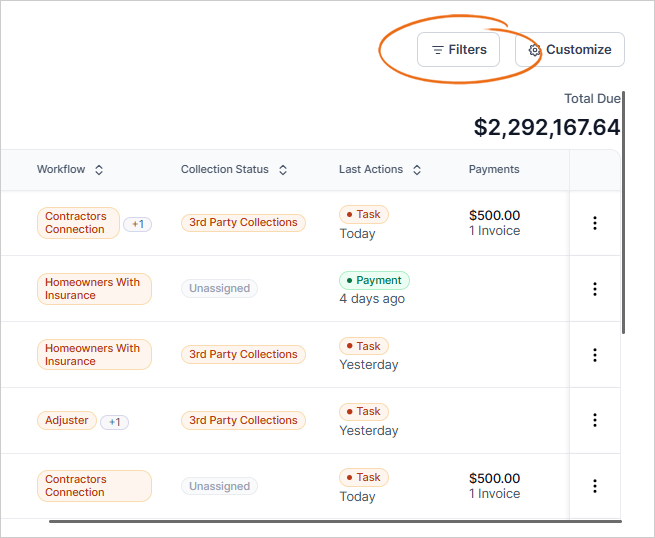
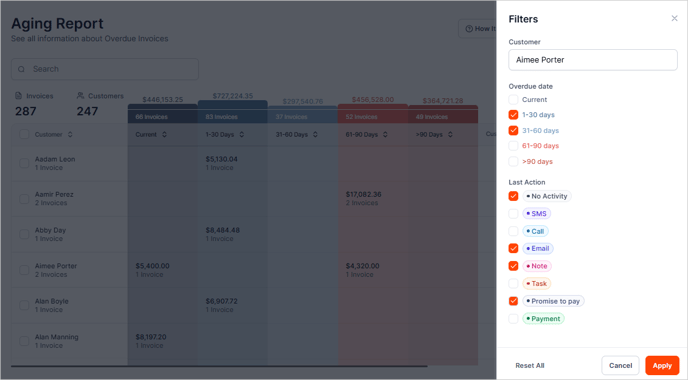
The Filters tool is one of the most useful tools in the Aging Report. Use this tool to quickly sort your invoices by:
- Customer
- Overdue Date
- Last Activity
- AR Specialist
- Workflow
- Collection Status
You can combine filters to further narrow down the search result.
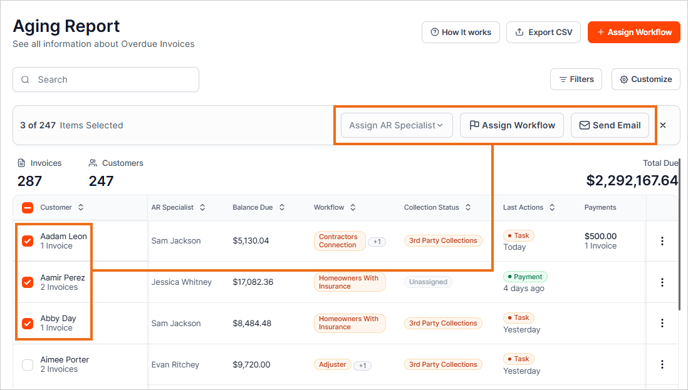
Send an Email and Assign AR
Send an email blast to more than 1 customer at a time, or bulk assign AR specialist or Workflow from this area. Activate these options by selecting at least 1 customer from the list.
Export CSV Button
This button lets you download a copy of your Aging Report list in a CSV file format.

Column Settings
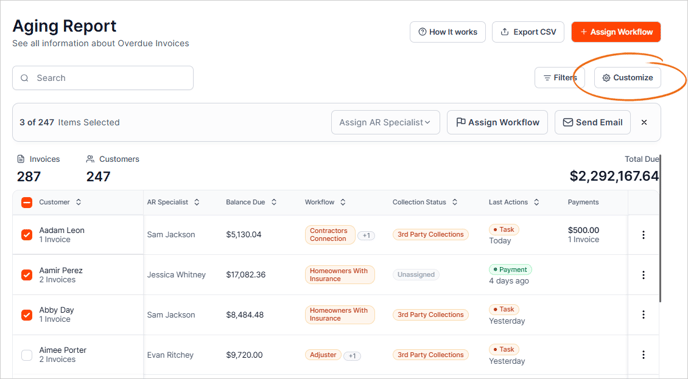
Click the Customize button to configure the displayed data and rearrange the way that works best for you. These filters are user specific, so set them however works for you.
- Customer ID
- AR Specialist
- Workflow
- Status
- Last Activity
Pro Tip!
You will probably live in the Aging Report, so why not use it to its fullest? Filter the report by last activity, then open the customers in their own tab to send communication about their outstanding invoices.
NOTE: The parent screen/page will not update automatically when changes are made in the second window. Update each customer in your to-do list, and then refresh the screen to see the changes on the parent screen/page.